Playing Kristal - KristalTeam/Kristal GitHub Wiki
Downloading Kristal
There are two methods of downloading and using Kristal: downloading a release from the Releases page, or downloading the code directly. This section will describe both methods. Since Kristal is still in development, it is strongly recommended to use the second method of downloading Kristal, as that will give the most up-to-date version, and can be repeated whenever updates are made.
Releases
This method is the simplest method of installing Kristal. Go to the Releases page (linked above, or on the side of the main Github page), and follow the instructions listed for the release. While this is much simpler, it is not updated as frequently and does not contain example mods, and thus it is not recommended for developing mods.
Source code
There are two ways to download the code for Kristal directly, but both methods require installing Löve2D. Follow the provided link and install the program so you have love.exe and lovec.exe.
Downloading code
The first way to download Kristal code involves downloading it from the main Github page. Go to the main page, click on the green Code dropdown, and select Download ZIP, as depicted here:
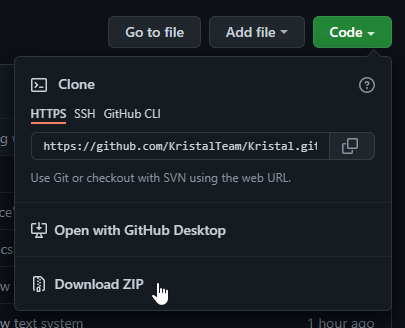
Once you have downloaded this, go into the .zip and move the folder that is inside to where you want Kristal to be downloaded. For convenience, it's recommended to have Kristal downloaded to the same place as your love.exe file. To open Kristal, drag and drop this folder onto either love.exe or lovec.exe.
Using git
The second way of downloading Kristal code is slightly more complicated, but allows you to easily download new changes to the code without needing to redownload the entire engine. For this method, you will need to install Git.
Once you have Git installed, open Command Prompt, and navigate to the directory you want to install Kristal to (eg. your Downloads folder, or wherever you'd prefer); you can do this by typing cd [full filepath] into the console. After doing this, type git clone https://github.com/KristalTeam/Kristal Kristal into the console. This will create a Kristal folder in the directory you chose. Dragging this Kristal folder onto love.exe or lovec.exe will open Kristal.
With this method, you can update Kristal by opening Command Prompt, navigating to the Kristal folder, and typing git pull.
Launching Kristal via .bat file
If you've downloaded Kristal's code directly, there is a method of making opening Kristal possible without needing to drag the folder onto love.exe. To do this, create a .bat file in the Kristal folder, and put the following in it:
@echo off
"C:/Program Files/LOVE/lovec" .
Opening this file will now launch Kristal, and you can make shortcuts to this file if desired.
Additionally, if you're using Git to download Kristal updates, you can add a git pull line after the @echo off line in your .bat, which will make Kristal automatically update every time you launch it through the .bat file.
Installing and Playing Mods
Mods can be installed in one of 2 places: inside the Kristal directory itself (at kristal/mods), or at the location where the game stores saves, either AppData/Roaming/LOVE/kristal/mods or AppData/Roaming/kristal/mods, depending on whether the game is run as a .exe or through LOVE. The latter folder can be found by selecting "Open mods folder" on the main menu. To play a mod, download it and put its folder at one of those locations. You don't need to extract if it's a .zip.
Mods can optionally have save file compatibility. If a mod does not have this, then it automatically saves and loads to a single file for a mod. Save files are located at AppData/roaming/LOVE/kristal/saves.
Game Options
You can change options either on the main menu, or in the overworld menu in any mod. The options available are as follows:
Master Volume: Sets the volume of the game.
Controls: Takes you to the rebinding menu.
Fullscreen: Toggles fullscreen for the game.
Auto-Run: Whether the player automatically runs in the overworld.
The following options are only available in the main menu:
Skip Intro: Disables the starting animation when Kristal launches.
Display FPS: Toggles showing the FPS of the game.
Debug Hotkeys: Enables shortcuts useful for testing and debugging mods. See Debugging for a list of shortcuts enabled by this feature.