Login to New OCI Linux Instance via Console and Change OPC User password - Kevinm-Oracle/Support_Knowlege GitHub Wiki
TLDR - Fresh Linux instance created on Oracle Cloud does not come with a password. You're expected to login with a certificate the first time. The following covers resetting the password via console allowing you to login to the instance via the console.
I'm assuming you've created a fresh Linux instance and wish to login to the instance via password, but you are unable too because the OPC user has no password to start with. To set the password the first time you need to connect with a serial console connection. For the purpose of writing this, I created a fresh instance called Happy_Public.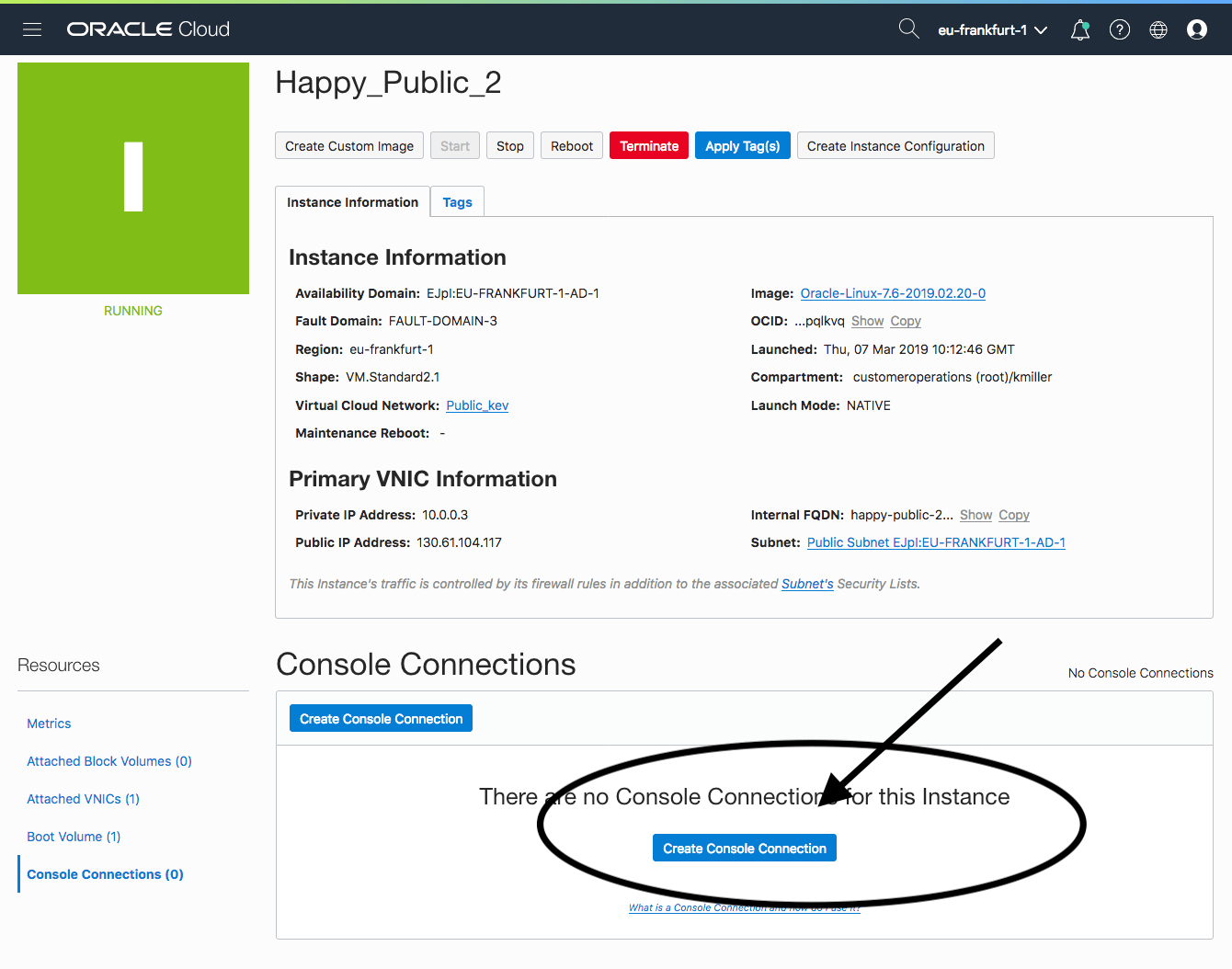
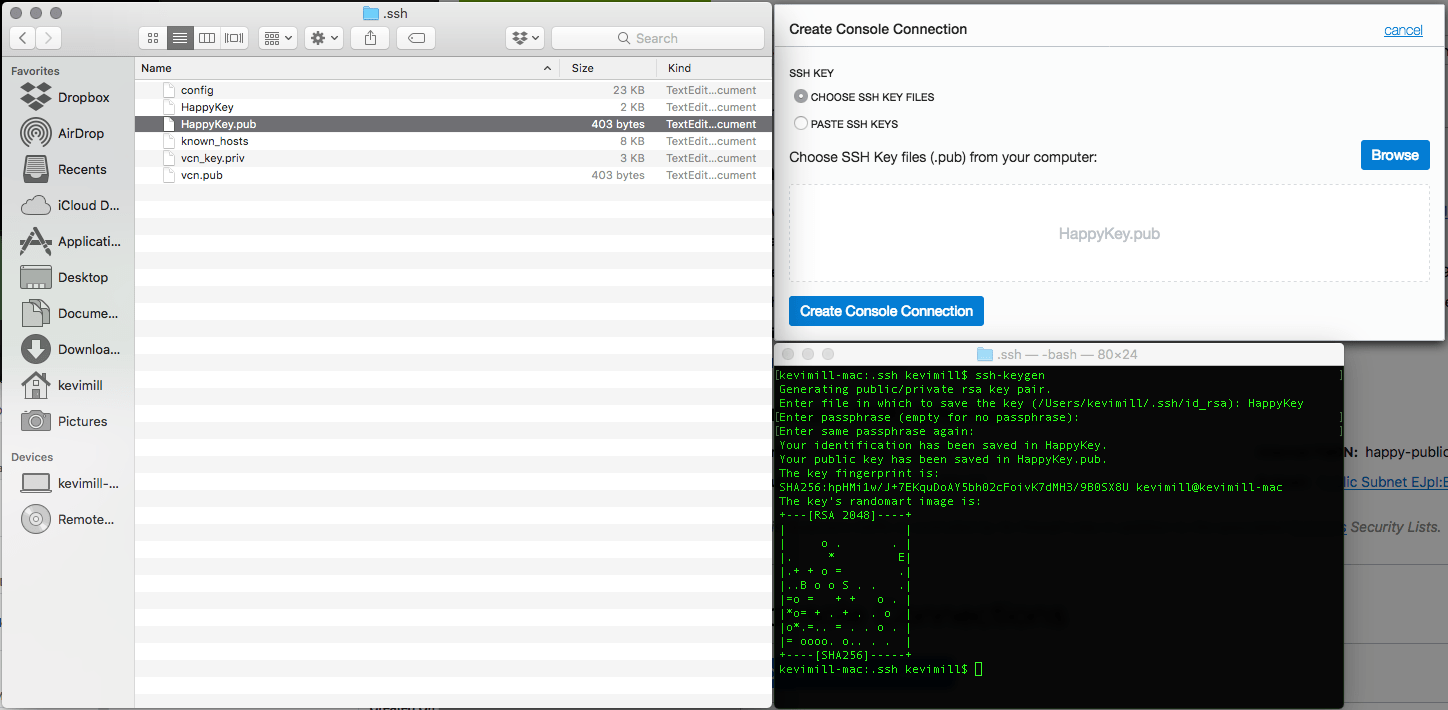
If you don't already have a key pair you'll need to generate one. In a bash shell run SSH-KEYGEN to generate public and private key pair files. In the following image, I generate the key by running ssh-keygen from the /.ssh folder under my user folder. The only input I'm providing is a file name and a key phrase. You can see there are two files generated in the folder. HappyKey the private key, and HappyKey.pub the public key. Drag the public key file into the cert box of the Create Console Connection box and click Create Console Connection.
Click on the three dots next to your console connection and select Connect with SSH. For me, I'm on MAC, so I select Linux/MAC OS. You could use this same command on Windows if you download and install Ubuntu from the Microsoft store, or you the enable the Linux for Windows bash console. Click the Copy button to copy the connection string.
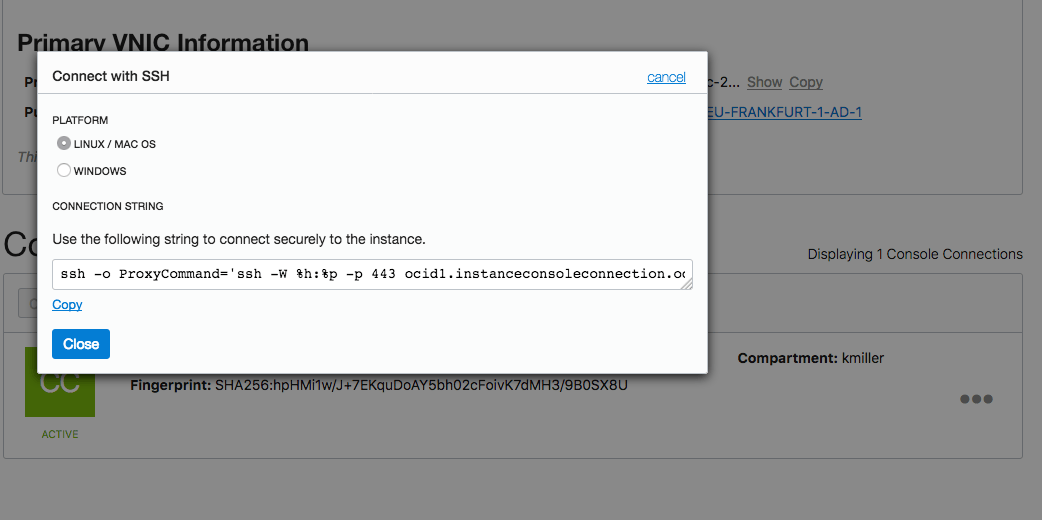
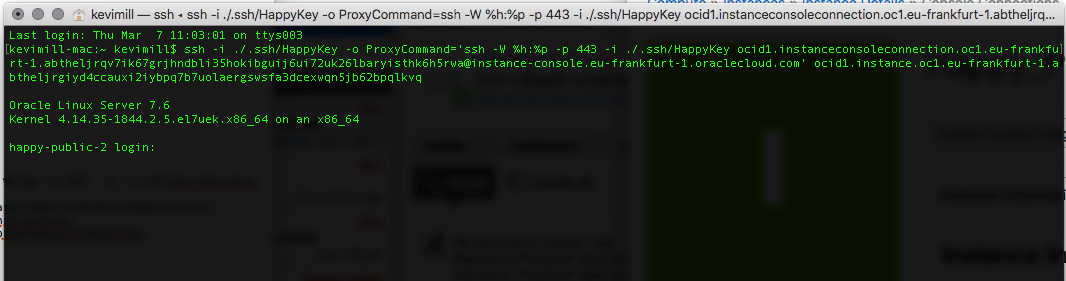
The string you copy will not work based on the steps in this post. You have to modify the string with the proper path to your private key. To present the key from a file you have use -i option for the SSH command to present the key from a file. You need to add a -i in two places. Below you can see what you get, and what it looks like after you've added the -i and fixed the command.
ssh -o ProxyCommand='ssh -W %h:%p -p 443 ocid1.instanceconsoleconnection.oc1.eu-frankfurt-1.abtheljrqv7ik67grjhndbli35hokibguij6ui72uk26lbaryisthk6h5rwa@instance-console.eu-frankfurt-1.oraclecloud.com' ocid1.instance.oc1.eu-frankfurt-1.abtheljrgiyd4ccauxi2iybpq7b7uolaergswsfa3dcexwqn5jb62bpqlkvq
I've used this key before so it did not ask me for the passphrase in the screen capture. The first time you use the key you'll need to enter the passphrase. You'll also not see the login prompt until you hit enter a few times to get the attention of the console. Now we have a console connection where we could login with the OPC default user account. If only we knew the password. Sad face we don't know what the password is yet.ssh -i ./.ssh/HappyKey -o ProxyCommand='ssh -W %h:%p -p 443 -i ./.ssh/HappyKey ocid1.instanceconsoleconnection.oc1.eu-frankfurt-1.abtheljrqv7ik67grjhndbli35hokibguij6ui72uk26lbaryisthk6h5rwa@instance-console.eu-frankfurt-1.oraclecloud.com' ocid1.instance.oc1.eu-frankfurt-1.abtheljrgiyd4ccauxi2iybpq7b7uolaergswsfa3dcexwqn5jb62bpqlkvq
- As soon as you see the GRUB boot menu, use the up/down arrows to stop the process, enabling you to use the boot menu.
- In the boot menu, highlight the top item in the menu, and press e to edit the boot entry.
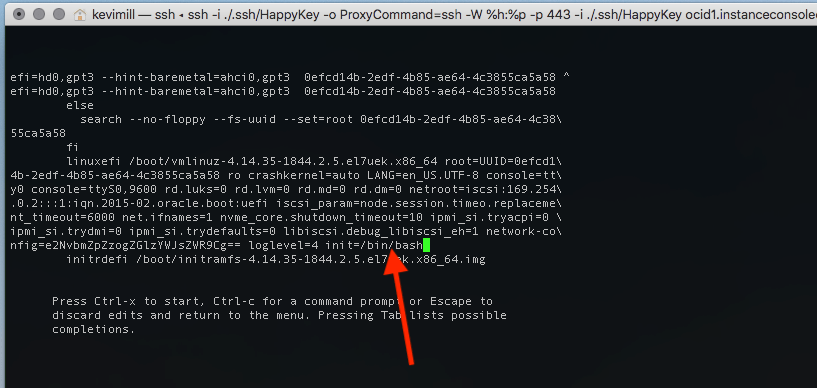
- In edit mode, scroll down until you reach the line that starts with linuxefi and add the following to the line: init=/bin/bash
- You don't need to save the file. Reboot the instance using keyboard shortcut CTRL+X.
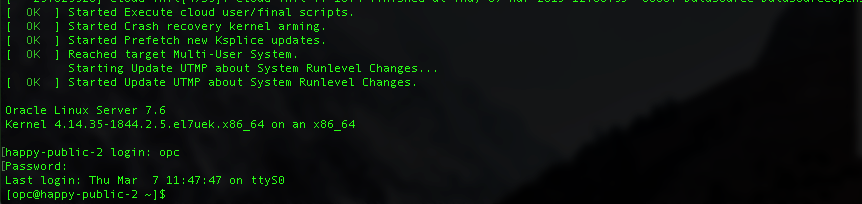
- After the instance has rebooted, you'll see the Bash prompt - Now you have cosmic powers to the instance, play safe and only do what you understand. Maybe even take a snapshot before if you care about the instance.
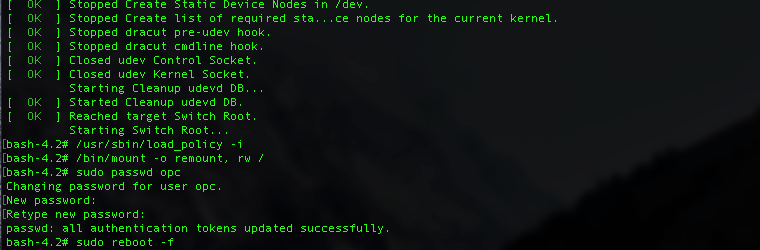
- Run the following command to load the Linux policies to preserve the files you're about to modify: /usr/sbin/load_policy -i //NOTE// If you skip this step you will not able to login to your instance via SSH or console and you'll be sad.
- The following command will remount the root partition into read and write mode so you can modify the password files : /bin/mount -o remount, rw /
- The following command will reset the password of the OPC default user account: sudo passwd opc
- After the password has been reset you're done. Reboot the machine with the following command : sudo reboot -f