Menu - HypersonicSharkz/PaulMapper GitHub Wiki
Paul Mapper – Menu Settings
Open the menu by pressing the Paul Mapper Menu button (F10 by default), or through the TAB menu.
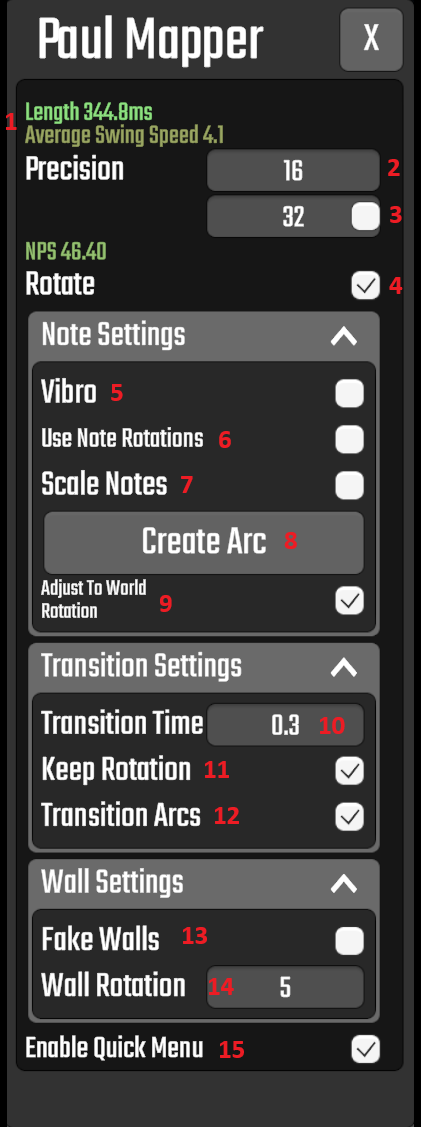
General Settings
1. Selection Information
Displays information about the currently selected notes.
- Length – Shows the time between the first and last note in the selection.
- Swing Speed – Calculates the average swing speed by dividing the total distance travelled by the length of the selection.
- Useful for maintaining a consistent swing speed across poodles.
Both values change color from green to red based on what generally works well. These colors are intended as guidelines only.
2. Precision
Controls the distance between each note in the generated poodle.
- NPS (Notes Per Second) – Determines the note density of the poodle.
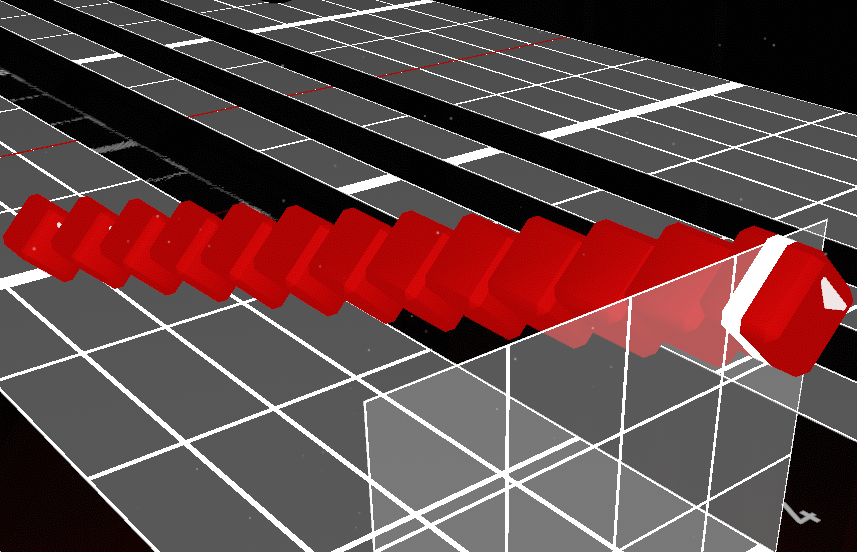
3. End Precision
When enabled, the poodle's note density changes linearly from the initial Precision value to the specified End Precision value over the length of the poodle.
Example: Start Precision 16 → End Precision 8
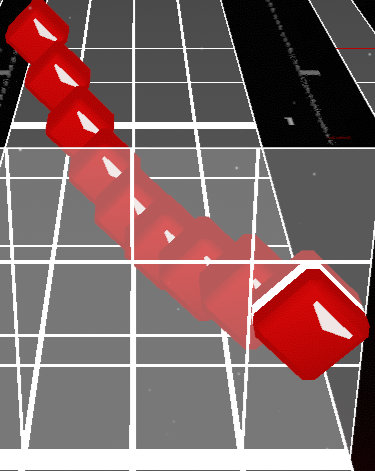
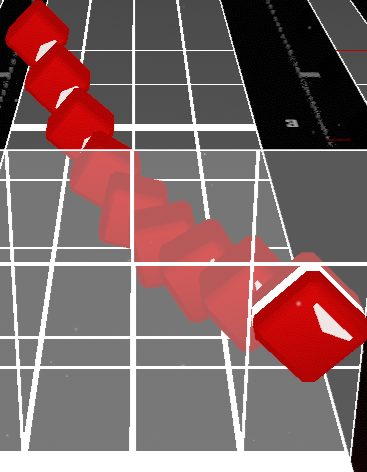
4. Note Rotation
When disabled, all notes in the poodle retain the rotation of the first note.
When enabled, notes dynamically rotate to point towards the next note.
| Without Rotation | With Rotation |
|---|---|
 |
 |
Note Settings
5. Vibro
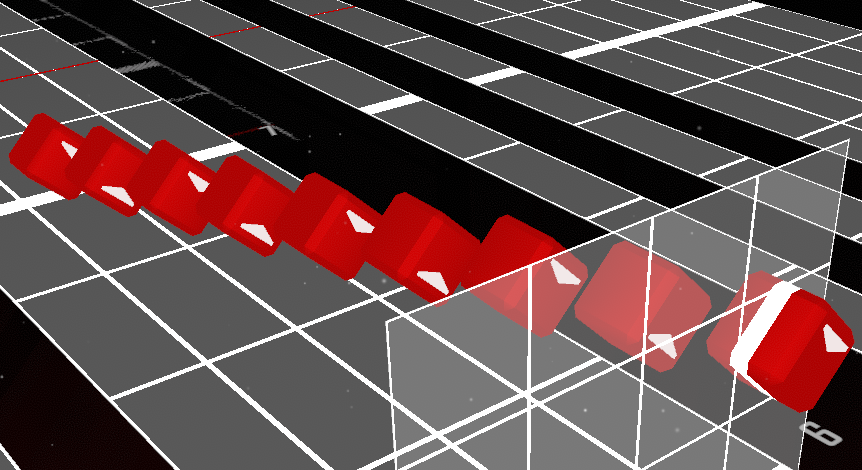
When enabled, every note alternates between up and down.
Recommended: Use with Rotate turned off.
Example:
6. Use Note Rotations
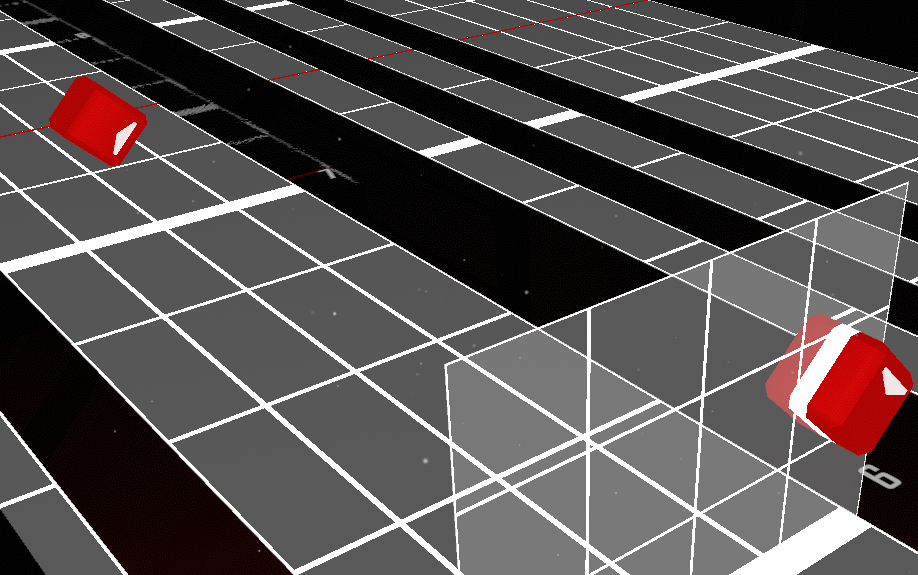
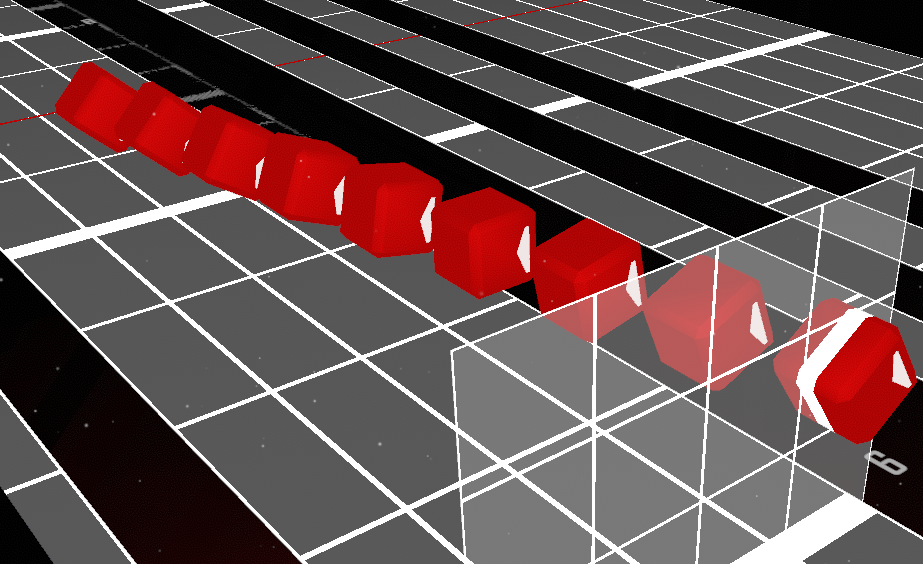
Instead of dynamically rotating notes to point towards the next note, this option linearly interpolates between the rotations of the curve points.
[!IMPORTANT] This option only works when Rotate is enabled.
Curve Point rotations can be modified while editing. For more information, see Curve Points – Cut Direction.
| Selected Notes | Generated Poodle |
|---|---|
 |
 |
7. Scale Notes
Description not yet available.
8. Create Arc
Creates an arc between two or more selected notes.
Unlike the default CM arc button, this also works with precision-rotated notes, such as those at the end of poodles.
Additional functionality:
- Hold Shift to create a straight arc between the selected notes.
- Useful for adding arcs between all notes of a poodle.
[!NOTE] Arcs disable pre-swing and post-swing scoring for affected notes.
9. World Rotation
When using 90° or 360° mapping, a note's actual position also depends on the world rotation.
When enabled, this option attempts to adjust dynamically calculated note rotations to account for changes in world rotation throughout the poodle.
Only applies to 90° and 360° mapping.
Transition Settings
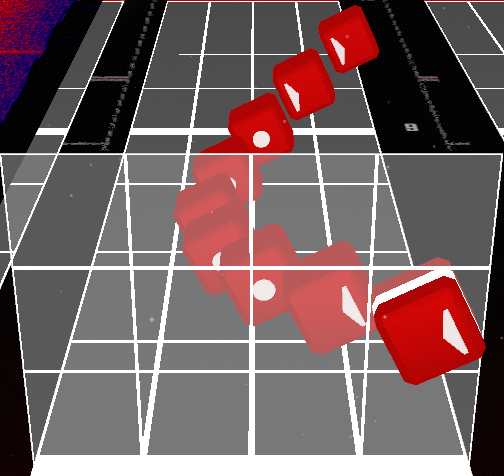
10. Transition Time
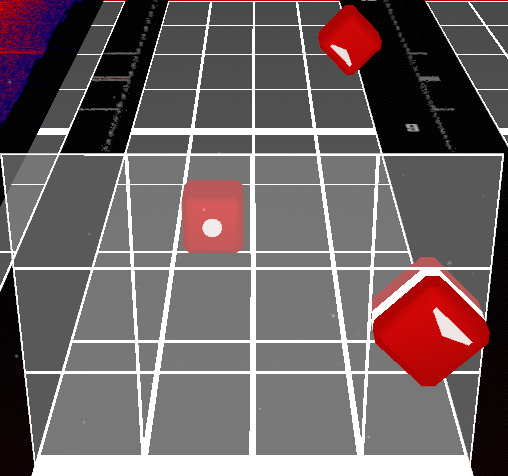
When creating a poodle using one or more dot notes, some notes before and after each dot note are converted into dot notes as well.
This gives the player time to change swing direction without bad-cutting.
Transition Time determines how many dot notes are used for the transition.
Additional functionality:
- Individual curve points can be converted into dot points.
- Transition Time can be adjusted separately for each curve point.
For more information, see Curve Points – Dot Point and Dot Length.
| Selected Note | Generated Poodle |
|---|---|
 |
 |
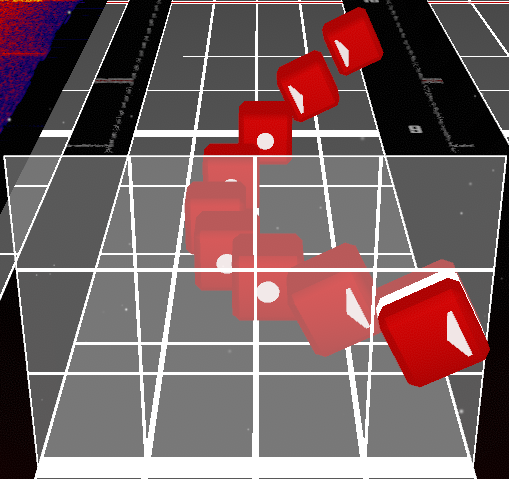
11. Transition Rotation
Determines whether dot notes during the transition rotate individually or are forced to share the same rotation.
This is rarely needed, but can help the player identify when they can begin changing swing direction.
| Without Rotation | With Rotation |
|---|---|
 |
|
12. Transition Arcs
Determines whether arcs are added from the beginning of the transition to the end of the poodle.
Arcs disable pre-swing and post-swing scoring, making changes in swing direction less impactful when full-swinging.
Wall Settings
13. Fake Walls
Enables fake custom data on the noodle extensions of all wall poodles.
Walls marked as fake do not damage the player.
14. Rotation Precision
Determines the number of degrees to rotate selected walls or wall curve points when using the rotation keybinds.
Default keybind: Alt + Arrow Keys
For information about editing individual wall Curve Point rotations, see Curve Points – Rotation.
Quick Menu
15. Quick Menu
When enabled, an additional menu opens whenever exactly two notes or walls are selected.
[!WARNING] This feature should generally be avoided when working with notes, but is perfectly fine for wall art.
The Quick Menu contains several presets for generating a poodle between the two selected notes.
Important:
- If Rotate is disabled, both notes must have the same cut direction.
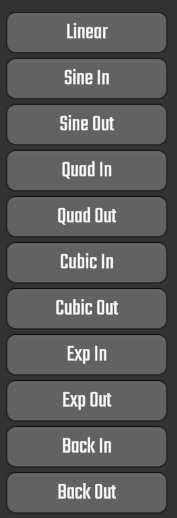
To get a better understanding of how the different curve presets behave, check out: