CurvePoint - HypersonicSharkz/PaulMapper GitHub Wiki
Curve Points
When generating a poodle from a selection, each selected note is converted into a Curve Point. These points determine the shape and properties of the generated poodle.
Additional points can be inserted between the first and last points by pressing the Add Anchor Point button (H by default).
Clicking a Curve Point opens a secondary menu containing its settings and properties.
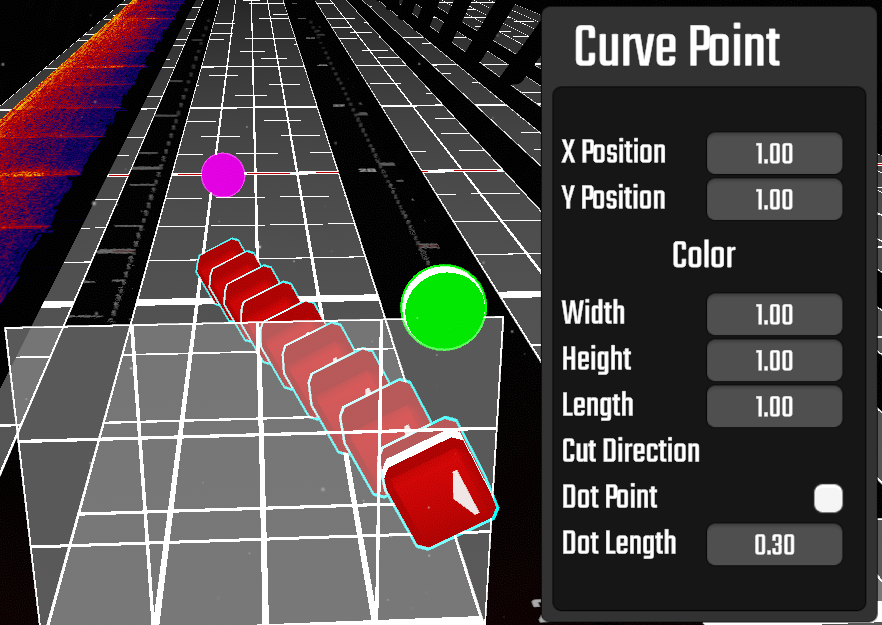
Curve Point Properties
The following table describes the available Curve Point properties.
| Variable | Description | Example |
|---|---|---|
| X, Y Position | Determines the position of the Curve Point. | |
| Color | Determines the color of the poodle at the selected Curve Point. Colors are linearly interpolated (lerped) between each point. | 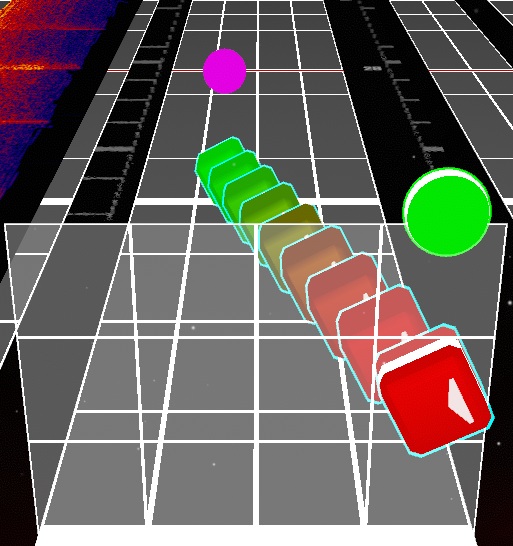 |
| Width, Height, Length | Determines the X, Y, and Z scale of the poodle at the selected Curve Point. Like Color, these values are linearly interpolated over the length of the poodle. Only works for Walls. | 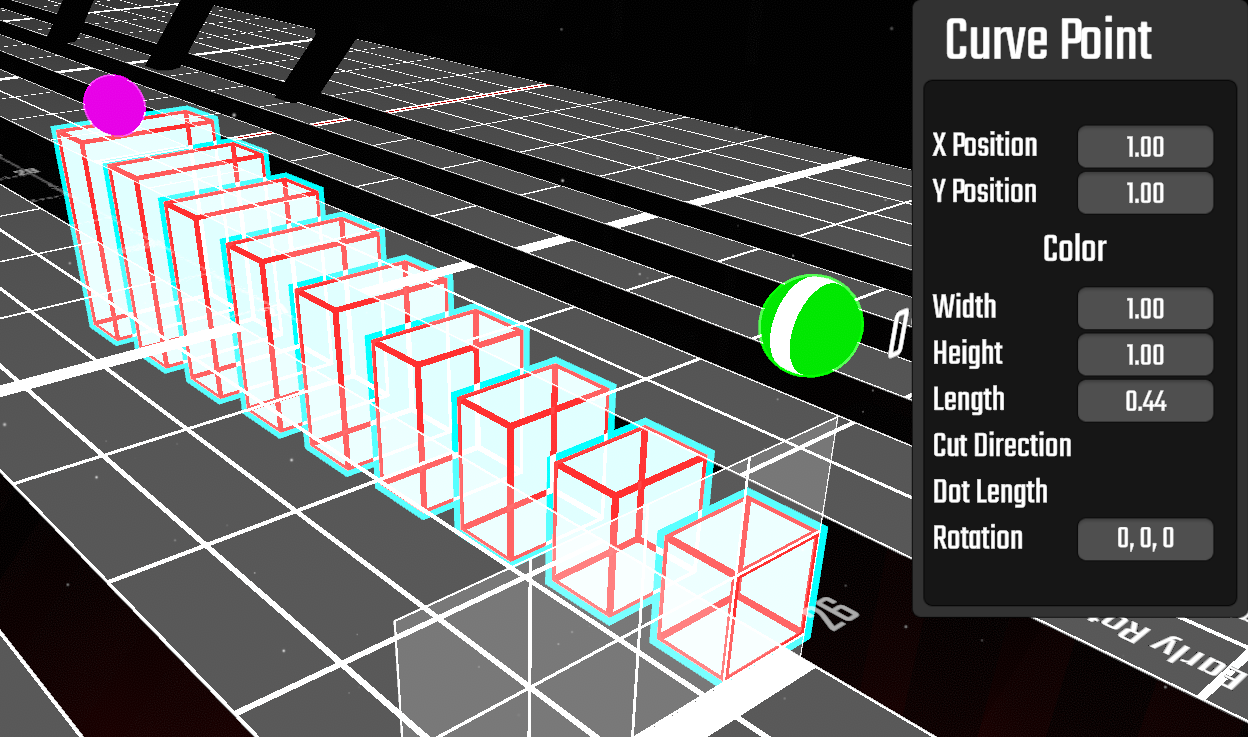 |
| Cut Direction | Determines the cut direction of the note at the selected Curve Point. Only works for Notes and requires Use Note Rotations to be enabled in the Paul Mapper Menu – Note Settings. | |
| Dot Point | Makes the selected Curve Point act as a transition point. See Transition Settings for more information. | 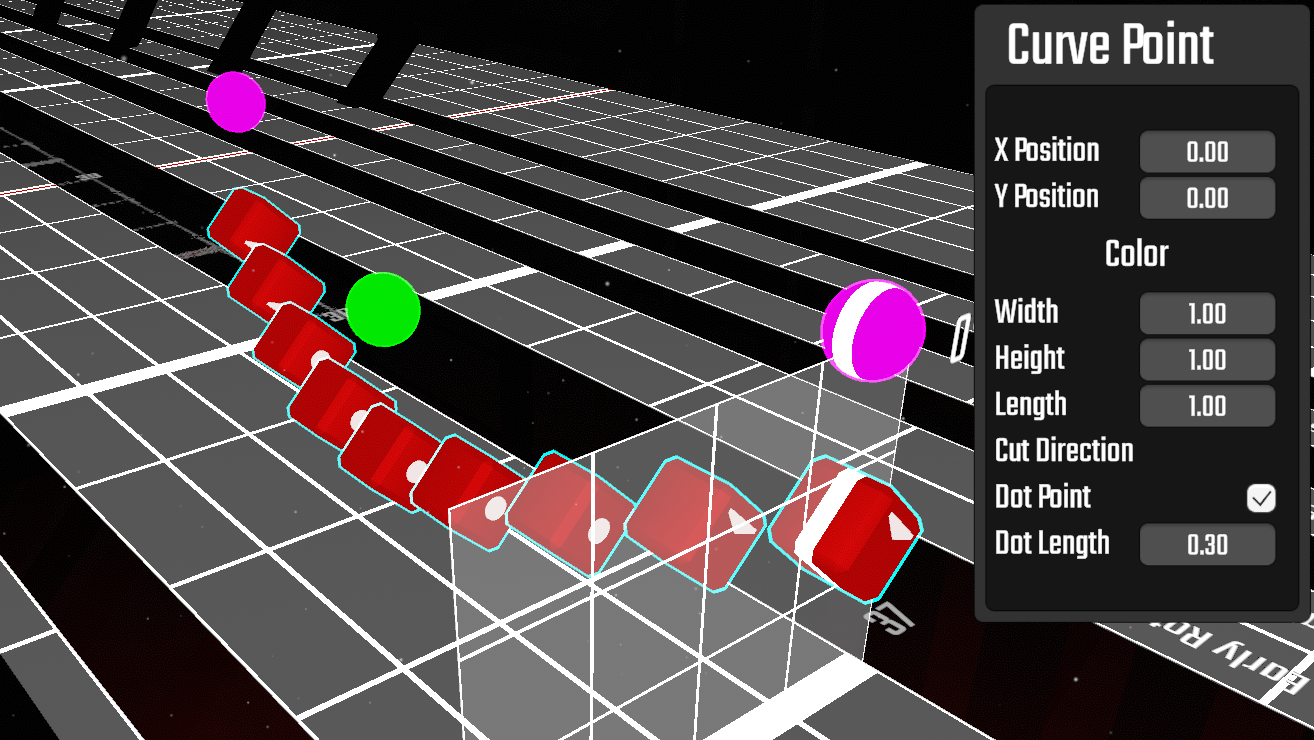 |
| Dot Length | Determines how many dot notes are used for the transition at the selected Curve Point. See Transition Time for more information. | |
| Rotation | Only visible when selecting Walls. Determines the rotation of the wall at the selected Curve Point. The poodle will linearly interpolate between the rotations of its Curve Points. Use the Rotate buttons (Alt + Arrow Keys by default) to change the rotation of the selected Curve Point. | 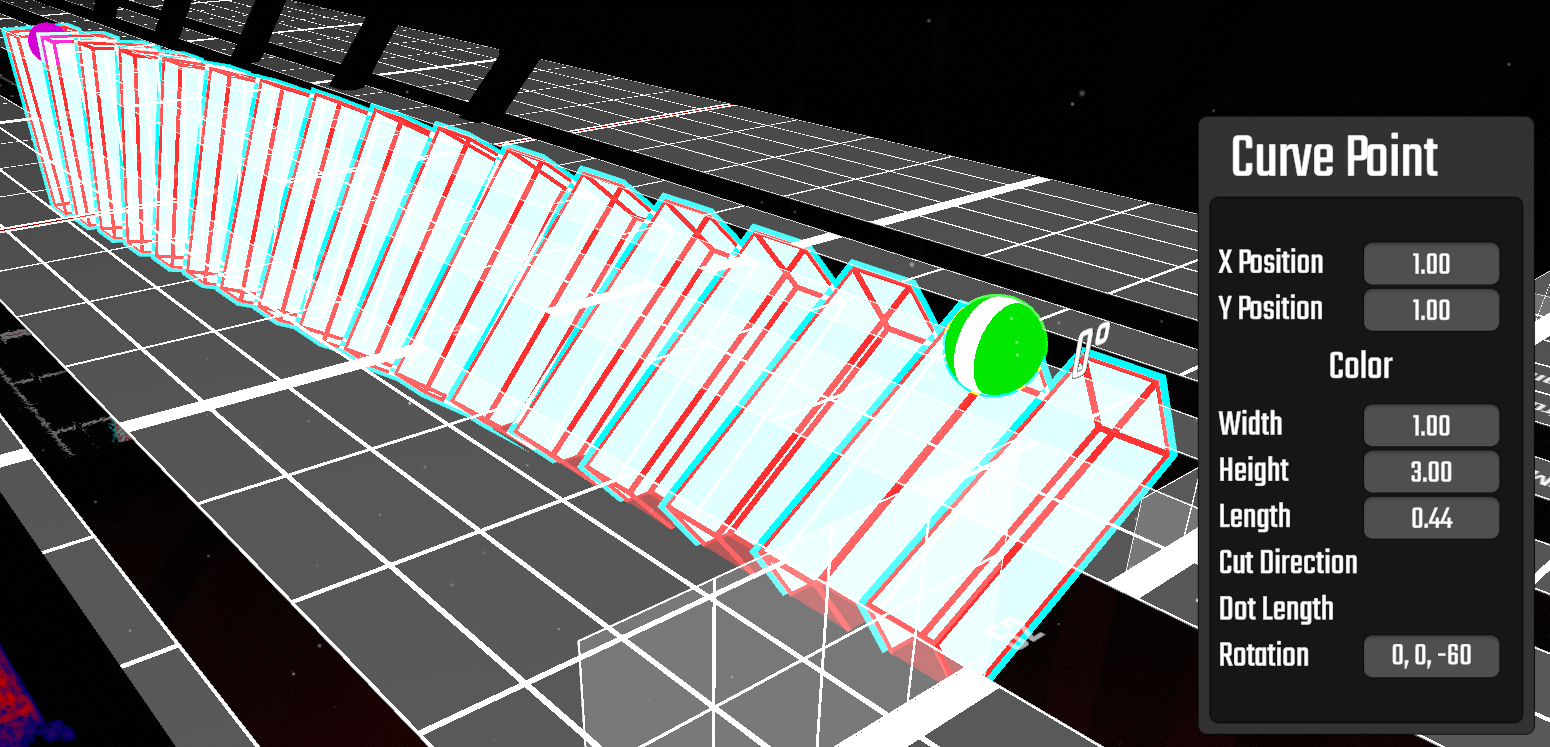 |