Installing WLED onto Pixel Kit! - Hoseasack/wled-kano-pixel-kit GitHub Wiki
Installing WLED onto Pixel Kit!
Step 1
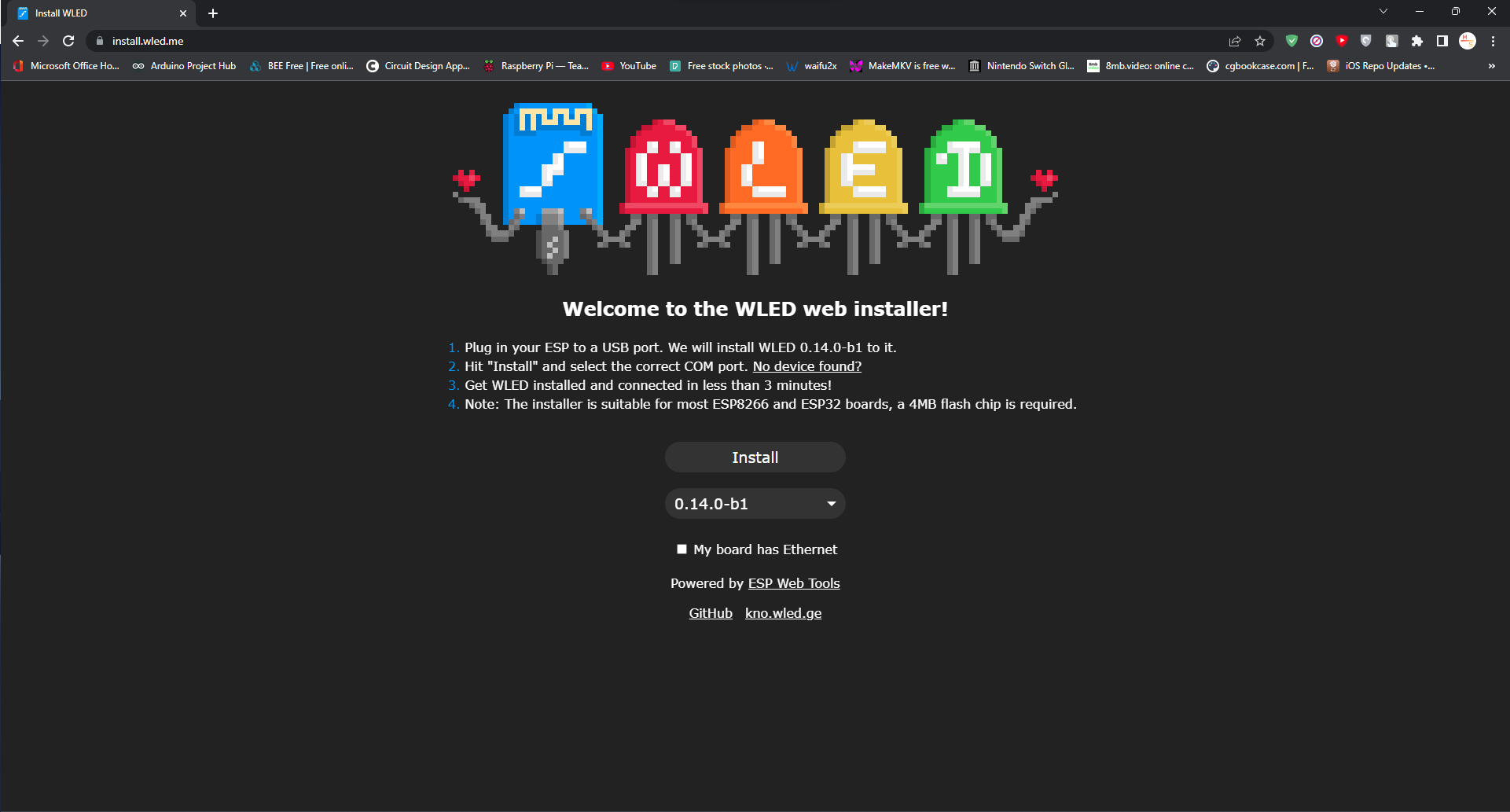
- Head over to the WLED Web Installer.
Make sure you use a recent version of Google Chrome or Microsoft Edge!
Step 2
- Plug your Kano Pixel Kit into your PC.
- Make sure the battery is fully charged and inserted, otherwise the Pixel Kit may not turn on.
- Turn on the Pixel Kit.
If your Pixel Kit is not showing signs of life, switch off the power and verify the yellow LED is on. If not, try reconnecting the USB cable. The yellow LED indicates charging. Once the light is one, let the Pixel Kit charge for at least 15 minutes using a decent power source, (at least 2A). Then try again.
Step 3
- Click "Install" on the Web Installer.
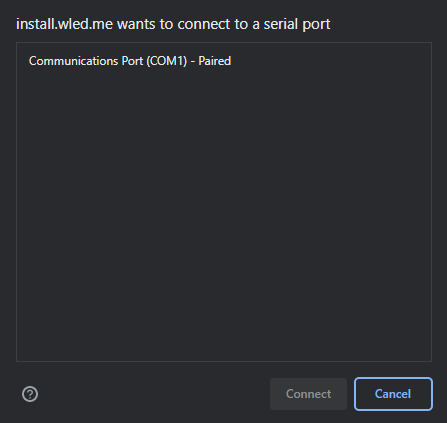
- Select the COM port of your Pixel Kit, then click "Connect".
Depending on your computer, there may be more COM devices than just the Pixel Kit.
- Once connected, click "Install WLED".