Add a hotkey scheme for your laptop - Goshin/VoodooWMI GitHub Wiki
Windows Management Instrumentation (WMI) is a complex set of proprietary extensions to the Windows Driver Model that provides an OS interface to allow instrumented components to provide information and notifications. Typically we are interested in WMI if a laptop or netbook has implemented hotkey events using WMI[1].
This wiki page will guide you to add a new hotkey scheme for your laptop.
Useful reference
There are some useful article links that can help you understand the WMI protocol.
[1] https://wiki.ubuntu.com/Kernel/Reference/WMI
https://lwn.net/Articles/391230/
0x01: Check out the WMI Blocks
Once you install VoodooWMI.kext and VoodooWMIHotkey.kext with debug mode enabled (default), you will see the WMI devices in IORegistryExplorer are attached by the driver, and all the available WMI blocks will be listed in the WMI-Blocks property of VoodooWMIController.
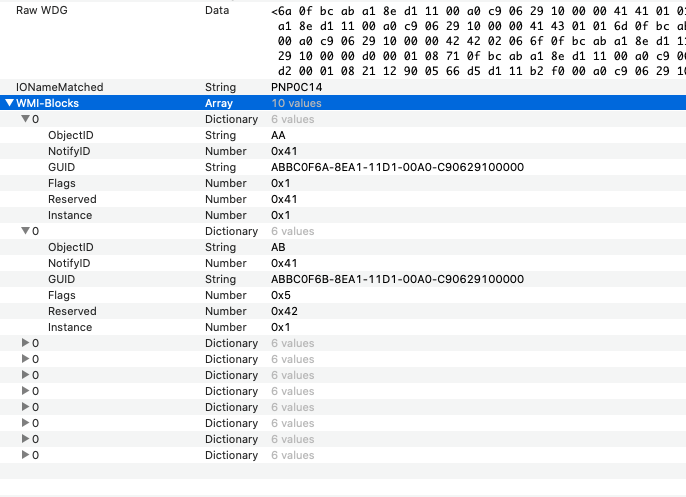
Generally, there are three kinds of WMI blocks: Data blocks (with flag WMI_EXPENSIVE or WMI_STRING) are used to query device info like a fan spinning speed. Method blocks (with flag WMI_METHOD) are used to invoke specific functions that are pre-defined in the device, like setting LED states, entering game mode, etc. Event blocks (with flag WMI_EVENT) indicate the events that the device may send to the system. Many laptop platforms implement hotkeys using WMI events, so we can set up the Fn hotkey functionality by registering the corresponding WMI events.
0x02: Construct a Map of WMI Events
Every WMI block has a GUID as its unique identifier. For WMI event blocks, they have an additional notify id to identify an event.
Press an Fn hotkey like Fn + F4 and obtain the driver log with the following command in the terminal, you will see something like:
$ log show --last 2m | grep "VoodooWMI"  # print the log of last 2 minutes
kernel: (VoodooWMI) VoodooWMIController::message(AMW0, 0xd2)
kernel: (VoodooWMI) VoodooWMIController event: GUID ABBC0F72-8EA1-11D1-00A0-C90629100000, NotifyID 0xd2, EventData 0xf0
kernel: (VoodooWMI) VoodooWMIController::unknown event, not registered
If you don't see the WMI event log, it means that this Fn hotkey is not implemented as a WMI event. Some hotkeys might be translated to a key combination internally (like Fn + F3 => Win + P for screen mode switching), and some platforms like ThinkPad uses a proprietary protocol instead of WMI. For the former case, there will be another section to cover that.
For each hotkey WMI event, note down the GUID, notify id, and event data.
0x03: Add a Hotkey Scheme in info.plist
Open VoodooWMIHotkey.kext/Contents/info.plist with your preferred editor.
Unfold IOKitPersonalities > VoodooWMIHotkeyDriver > Platforms and add a dict with a new platform name, then you need to fill out the dict in the form of Tongfang dict shown below:
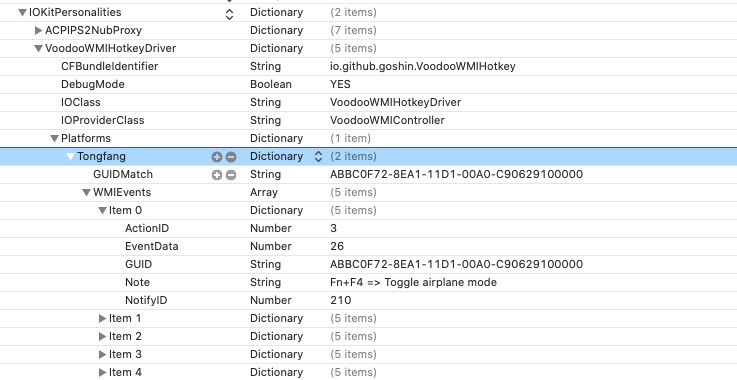
Copy the Tongfang dict as a template and rename it, then replace the values within with yours.
GUIDMatch is the GUID that the scheme should match with. It can be any GUID you obtain in the last step.
For each hotkey event obtained in the last step, add and fill a dict item in the WMIEvents list, in which GUID, NotifyID, EventData are the values found in the log. Last, specify an action for the event by setting the ActionID value.
For now, the available action ids are:
| Action | id |
|---|---|
| Sleep | 0 |
| LockScreen | 1 |
| SwitchScreen | 2 |
| ToggleAirplaneMode | 3 |
| ToggleTouchpad | 4 |
| KeyboardBacklightDown | 5 |
| KeyboardBacklightUp | 6 |
| ScreenBrightnessDown | 7 |
| ScreenBrightnessUp | 8 |
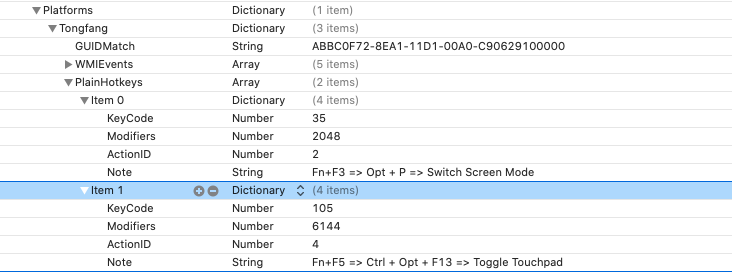
For hotkeys that are internally translated to another key combination, you need to add a normal hotkey binding in the PlainHotkeys dict. Each plain hotkey binding needs an ADB keycode KeyCode, a modifier combination Modifiers, and an action id ActionID as listed above for the hotkey.
0x04: Done
You can reload the kexts and test your hotkey scheme now.
Please consider contributing your hotkey scheme to the repo by opening a pull request.