Spritesheets - Gorzontrok/Bro-Maker GitHub Wiki
Spritesheets Which Can be Replaced for a Custom Bro
- The main set of character animations.
- The gun spritesheet which gets put on top of the main spritesheet.
- The special icon
- The avatar, which is shown in the bottom left of the screen
- The intro cutscene avatar
You can find all of these sheets for Rambro here.
I would recommend using GIMP for creating your own sheets. It's free and has a lot of useful tools.
Explanation of Broforce's Bro Sprites
Broforce animates its bros by combining together the main sprite sheet and gun sprite sheet. The gun sprite sheet is overlaid on top of the main sprite sheet, and each has its own frame rate and frame counter, which determines which frame is displayed and how fast the animations play for each. This allows you to use your weapon and have the animation for it play independently of the animation for your running / ducking / jumping. Because of this, many of the frames on the main sprite sheet leave the gun and arms of the bro out of the animation, because they are intended to be displayed by the gun sprite sheet. There are several exceptions to this however. Some animations, such as the melee animation, special animation, high five animation, and climbing animation to name a few, include the arms and sometimes a knife. When these animations are played in game, the gun sprite is hidden.
For custom bros, generally the rule is that if you want an animation to play, and have the bro be able to freely move around at the same time, you'd need to have that animation be split between the gun sprite and the main sprite. Otherwise if you have it only on the main sprite sheet, you wouldn't be able to play your animation and the bro's normal walk / run cycle animations at the same time, because both of those animations are on the same sprite sheet.
Generally for the special and melee, you would put those on the main sprite sheet and have the bro's movement be restricted so that they aren't able to walk freely while these animations are playing.
Where to Set Each Sprite
Custom Bros have several sprites that are set in different parts of the JSON file:
- The main character sprite, gun sprite, special icons, and avatar go in the parameters section. The cutscene sprite goes in the cutscene section.
- Additional sprite fields on the underlying bro class (like
disarmedGunMaterial) go in one of thebeforeAwake/afterAwake/beforeStart/afterStartsections. - Preset-specific sprite fields (such as
metalBrominatorfor Brominator orteleportInAnimationfor Seth Brondle) work the same way. Set them in one of the awake/start sections. See Variables for the full list.
| Sprite | Where to set it | Example |
|---|---|---|
| Main character sprite | parameters.Sprite |
"Sprite": "mybro.png" |
| Gun sprite | parameters.GunSprite |
"GunSprite": "gun.png" |
| Special icons | parameters.SpecialIcons |
"SpecialIcons": "special.png" |
| Avatar | parameters.Avatar |
"Avatar": "avatar.png" |
| Cutscene sprite | cutscene.spritePath |
See Cutscenes |
| Disarmed gun material | beforeAwake / afterAwake |
"disarmedGunMaterial": "disarmedGun.png" |
| Bro-specific textures | beforeAwake / afterAwake |
See [Variables](/Gorzontrok/Bro-Maker/wiki/Variables#bro-specific-variables) |
disarmedGunMaterial is only used in deathmatch mode. The base game checks if the material is set before using it, so leaving it unset on a bro skips that rendering without visible issues.
Combining these in a single bro JSON:
{
  "name": "Brominator",
  "characterPreset": "Brominator",
  "parameters": {
    "BetterAnimation": true,
    "Sprite": "brominator.png",
    "GunSprite": "brominatorGun.png",
    "SpecialIcons": "special.png",
    "Avatar": "avatar.png"
  },
  "afterAwake": {
    "disarmedGunMaterial": "disarmedGun.png",
    "metalBrominator": "metalBrominator.png"
  }
}
Explanation of Main Spritesheet
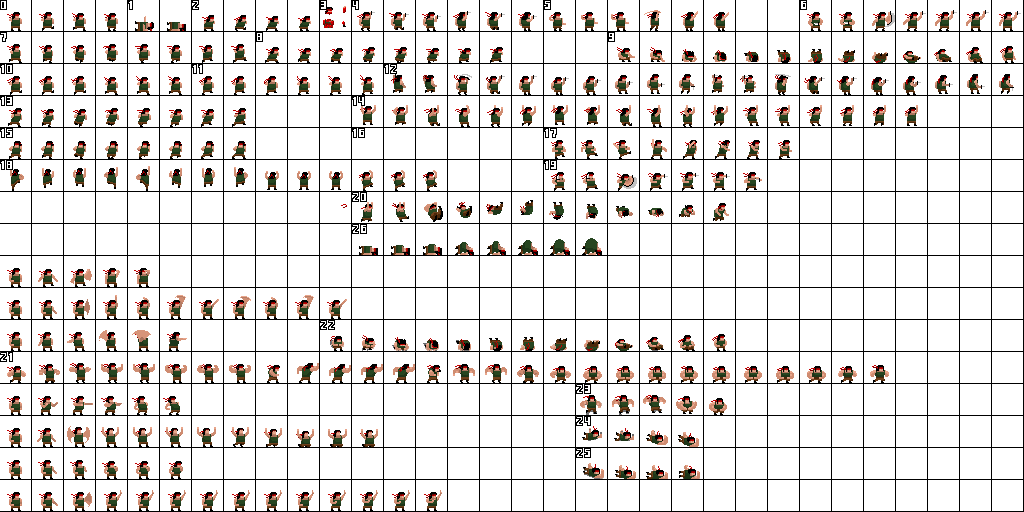
The main sheet is the main one which may be a bit confusing, so I included a labeled version of it in the example spritesheets, as well as a .xcf file which can be opened using GIMP.
If you open that file you'll see it is split into several layers with the Outlines layer including all the black outline boxes, and the Numbers layer including all the number labels. This can be toggled on / off so you can keep it on your main spritesheet file to use as a reference, and simply turn it off when you want to export the actual spritesheet for the game to load. You can also copy and paste the layer onto other character's spritesheets. Some of the numbers may not match up with certain character's spritesheets, but for the most part they should.
The black lines that separate each frame mark the last pixel that shows up for the frame to the left of them. So the lines on the right and bottom of the first frame will show up on that frame.
Here's what all the numbers indicate, I would recommend viewing the labeled image in GIMP to see everything easier, it's much better suited for closely inspecting pixel art than normal image viewers:
| # | Animation | Description |
|---|---|---|
| 0 | Idle / Ladder | First frame used for standing still, others are used for ladder climbing |
| 1 | Death Animation | |
| 2 | Crouch Animation | When useNewDuckingFrames is set to true (it is by default), this animation is mostly replaced with animation #8. The only parts of it that are still used when that variable is set to true are the first frame, which is used when ducking while standing still, and the last 2 frames, which are used briefly when ducking while rising / falling respectively. |
| 3 | Gibs | Body parts used when blown up / crushed |
| 4 | Old Knife Climbing Frames | (unused by default). If useNewKnifeClimbingFrames is set to false (it defaults to true), this animation will be used. |
| 5 | High Five | The first 3 frames are the setup for the high five, it pauses on the 3rd one while waiting for a partner to high five back. Once a high five is received or the button is released, the rest of the animation plays |
| 6 | Normal Melee | Melee while standing on the ground |
| 7 | Normal Walking | |
| 8 | Running / Walking While in One Tile Gap | This is used if useNewDuckingFrames is set to true (it is by default), otherwise animation #2 plays instead. |
| 9 | Rolling Frames | |
| 10 | Jump With Sideways Momentum | |
| 11 | Jump Standing Still | |
| 12 | Knife Climbing on Walls | |
| 13 | Sprinting on Ground | |
| 14 | Ziplining / Hanging From the Ceiling | |
| 15 | Pushing Animation | (unused by default). If useNewPushingFrames is set to true (it defaults to false), this animation will be used. |
| 16 | Sidewards Dash and Downwards Dash | (unused by default) |
| 17 | Special Grenade Throw / Special for a Lot of Characters but Not All. | |
| 18 | New Ladder Climbing Frames | (unused by default). If useNewLadderClimbingFrames is set to true (it defaults to false), this animation will be used. |
| 19 | Melee Midair | |
| 20 | Chimney Flip | The move where you go up and over a corner) |
| 21 | Flexing | Called gesture in game's code |
| 22 | In the Middle of Air Jump Flex | |
| 23 | Start of Air Jump Flex | |
| 24 | Start of Air Jump Slam | |
| 25 | End of Air Jump Slam, When Hitting Ground | |
| 26 | Chest Burst | This spot of the spritesheet is usually the chest burst animation on most bros, but on some bros it isn't |
The animations above and below the flexing animation are all unused gesture animations which aren't present on characters other than Rambro. If you use RocketLib you can bind keys and actually use these animations, but otherwise they are unused.
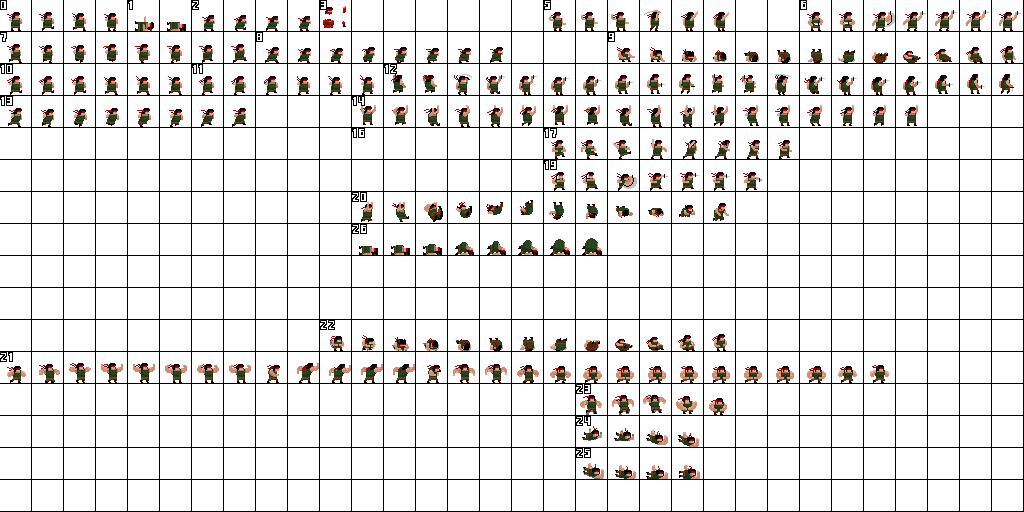
As you can see from the explanations above, several animations are unused in the game by default, so I've created a trimmed version here with only the stuff that is used by default on most vanilla bros (you can download the xcf of this file here):
Explanation of Gun Spritesheet
Here is a labeled version of Rambro's gun sprite and the xcf version of it.
| # | Animation | Description |
|---|---|---|
| 0 | Idle / Firing | First frame is displayed while idle. Frames 2-4 are used while firing. The 4th frame is displayed first when the fire button is pressed, then it animates backwards towards the first frame, until it reaches the idle state again |
| 1 | Idle / Firing While Hanging | First frame is displayed while idle when hanging (like on a zipline for example). The rest follow the same firing pattern as animation #0 |
| 2 | Walking / Running | Played while running or walking |
| 3 | Walking / Running While Ducking | Played while running or walking when ducking |
| 4 | Unused | These frames aren't used at all and don't seem to be present on most bros other than Rambro |
