Use Editor - Goomento/PageBuilder GitHub Wiki
1. Open Editor
At Builder Assistance, click Edit With Goomento
At Grid or Edit page, click on Editor button
To exit Editor, click this button will close Editor
2. Layout
Goomento provides 04 particular areas for edit and control view
Widget panel: Showing registered widgets, each one can drag and drop to build your Magento store, to toggle click (⌘ + P) or (Ctrl + P)
Drop area: Drag widget from Widget panel to drop here to build your Magento store
Control bar: Contains buttons and functions that can control the view, such as view in Mobile or Tablet
Navigation: To navigate the current editing widget in among of others, to open click (⌘ + I) or (Ctrl + I)
3. Drag And Drop
Simply drag an instance of a widget from Widget panel to the Drop area and customize it to your needs.
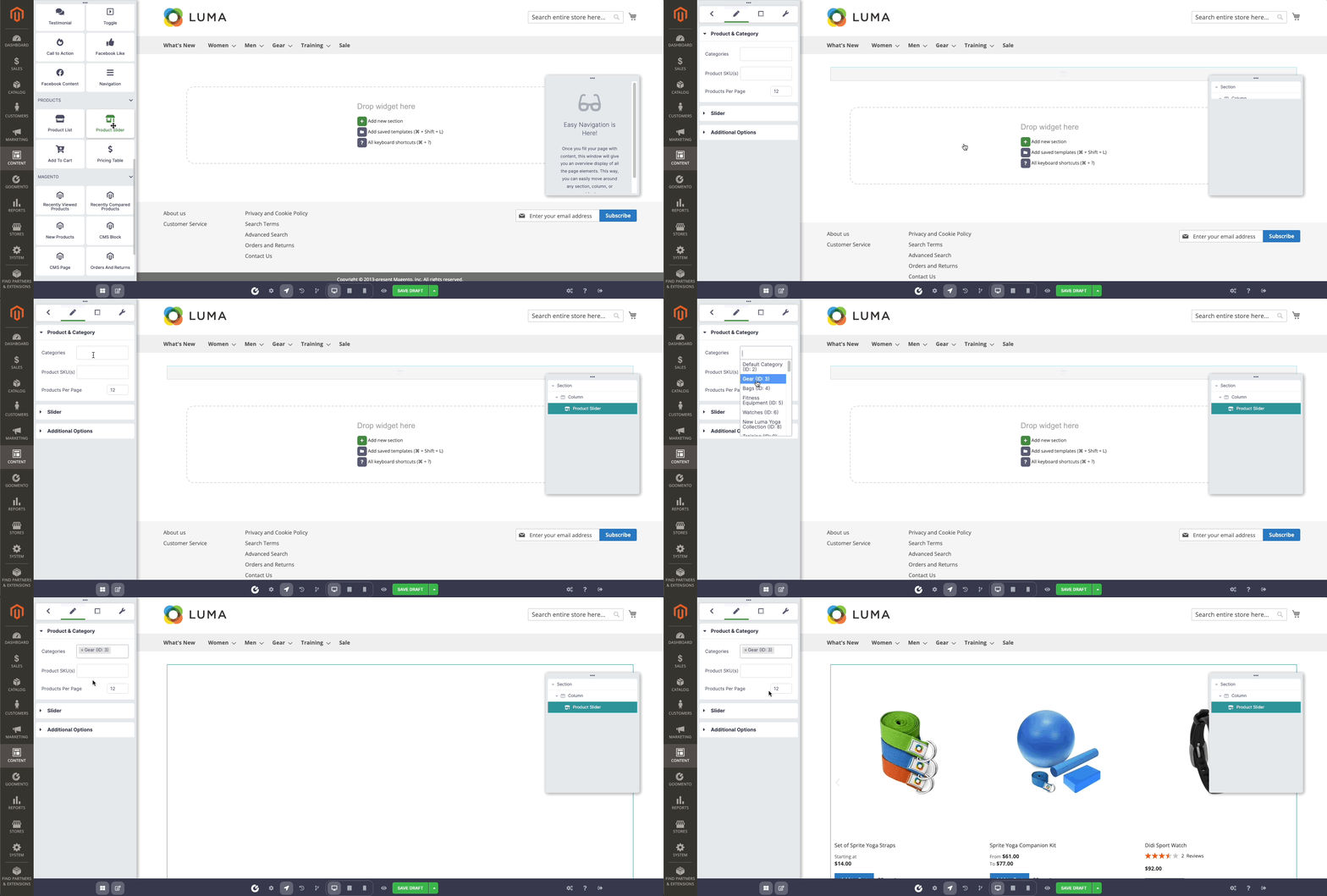
In general, Goomento is based on a drag-and-drop editor that accommodates sections, columns, and widgets
-
Sections:Containers for columns. -
Columns:Columns that contain widgets. -
Widgets:Individual elements are housed within columns.
You control the sections, columns, and widgets using the green handle. Just right-click the handle to edit follow the menu.
Note: Right-click the navigation item in the right also work as the same result
4. History And Revision
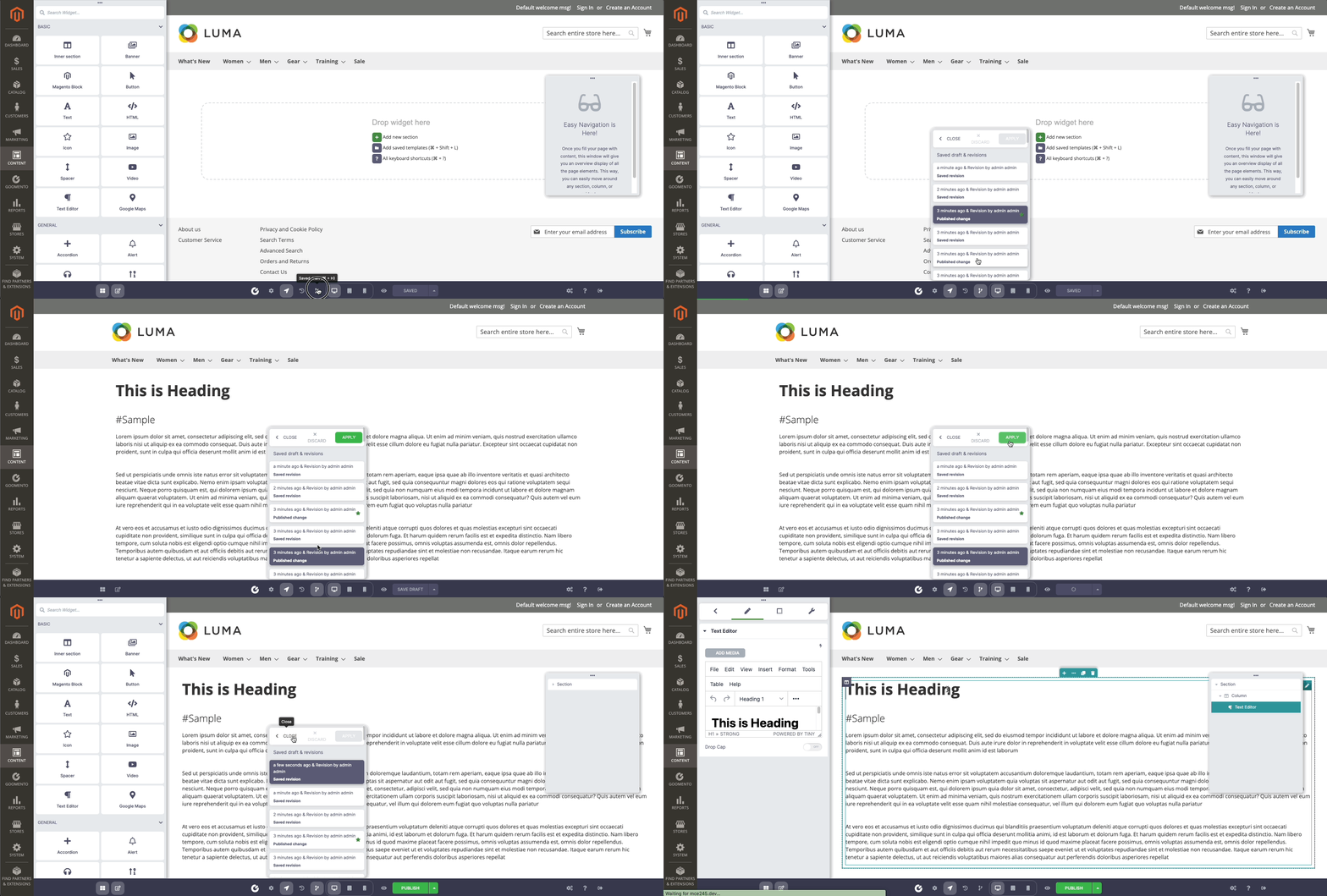
Easy to undo/redo by using the History panel - shortcut (⌘ + Shift + H) or revert the change in the long time ago using Revision panel - shortcut (⌘ + H). Both panels can open by click button in Control bar
5. Preview In Mobile, Tablet and Desktop
When you’re ready to preview your page, click on the eye icon on the bottom Control bar.
Your content will be displayed on three different devices: desktop, tablet, and mobile. You can also change all of the settings for each device by click on the device button - shortcut (⌘ + Shift + M)
6. Add Saved Template
Goomento allowed reuse saved template which created before or imported from somewhere, to use it, open the Template panel, click on folder icon in drop area or shortcut (⌘ + Shift + L)
Select the template and click to Insert button