Gen3 Getting Started - GT-Edge-AI/GT-AI-OS GitHub Wiki
Getting Started
Start Here
- To get the GT AI OS Tenant Quick Start Manual for your version of GT AI OS, go here.
- Ensure you select the manual for your currently deployed version of GT AI OS.
- Feel free to browse any version manual as you wish.
- Open the tenant app and confirm you can reach Agents, Datasets, and Conversations from the sidebar.
- Set your preferred light or dark appearance from the account menu (Accessibility); operators configure the organization default and accent branding in Control Panel Settings.
- Read the core workspaces table below and open the page that matches your first task.
- Pin favorite agents and datasets (Agents, Datasets) before long chat sessions.
- Review How to Build Your AI Workflow for document review, diagrams, and mock assessments.
- Configure external integrations in GT API when your account has GT API enabled and tools must call tenant models outside the UI.
Why this matters
Getting Started orients you to the active Gen 3 route surface so you do not hunt deprecated Gen 2 pages. It links chat, agents, datasets, groups, API access, and role-gated administration in one map.
Details
GT AI OS Gen 3 keeps the familiar GT2 pattern of working through agents and datasets, but the tenant shell now exposes that work through a smaller set of route-level workspaces. This instructions set documents only the pages that are actively surfaced in the current Gen 3 tenant experience.
Page headers without subtitles
Tenant workspaces use a unified page header (nav icon + title + optional meta chips and actions). Gen 3 removed marketing subtitles under main titles—expect the h1 and in-page guidance, not a second descriptive line under every page name. Deeper context lives in section cards, filter toolbars, or linked articles.
Sidebar layout
The tenant shell uses an expandable left sidebar. Expanded mode shows labels, inline submenus, and recent conversation history; collapsed mode shrinks to a rail of icons with flyout menus for Agents and Management.
Expanded navigation order
Top to bottom in the main nav card:
- Agents (submenu) — Favorites, Add Favorites, Configuration
- Datasets
- Conversations
- GT API — primary top-level link when GT API is enabled for your account (
gtApiEnabled); hidden when disabled - Management (dropdown) — Observability, Users (owners and managers only), Groups, Model Catalog
Below the nav card: Recent Conversations history. Footer: account menu (avatar) for Settings or Profile, GT AI OS Instructions, support links, and deployment/version labels.
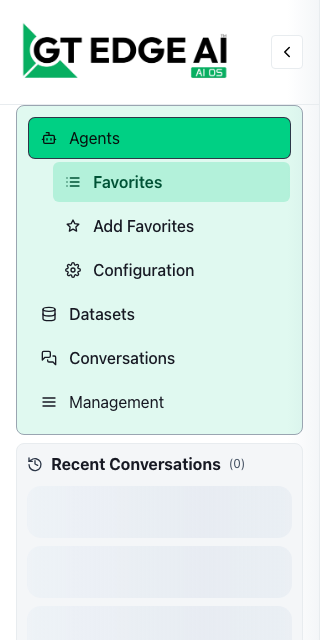
Collapsed rail
When collapsed, the rail shows icon buttons for Agents (flyout with the same three agent actions), Datasets, Conversations, GT API (when enabled), then individual icons for each visible Management route (Observability, Users, Groups, Model Catalog)—Management is flattened rather than nested in rail mode.

Account menu vs sidebar
GT AI OS Instructions and Account Settings / Profile live in the account menu at the bottom of the sidebar—not as primary sidebar nav items.
Core tenant workspaces
| Workspace | What you do there | Sidebar / access notes |
|---|---|---|
| GT Chat | Run live conversations, attach datasets, upload working files, and review assistant responses as they stream. | Open from an agent card or /chat; not a top-level sidebar item in Gen 3. |
| Agents | Maintain favorites, open the configuration workspace, create agents, and launch chat from an agent. | Sidebar Agents. |
| Datasets | Create datasets, upload or import source material, review documents, and manage sharing. | Sidebar Datasets. |
| Groups | Collaborate with other users, manage invitations, and share agents or datasets into a group. | Sidebar Groups. |
| Model Catalog | Browse read-only inference models, deployment defaults by capability, providers, and modality summaries. | Management → Model Catalog (alongside Observability, Users, and Groups). |
| Conversations | Search, review, reopen, and export stored conversation history. | Sidebar Conversations. |
| Observability | Review usage, conversation, storage, access, GT API, billing, and GT Helper analytics within your role scope. | Management → Observability (all signed-in roles; tabs vary by role). |
| Users | Manage tenant accounts when you are a tenant owner or tenant manager. | Management → Users (owners and managers only). |
| Account Settings | Review tenant policy, profile-facing details, and account-recovery settings. | User account menu at the bottom of the sidebar (Settings for tenant owners, Profile for other roles)—not a sidebar nav item. |
| Accessibility | Per-user light/dark override, chat speech guidance, and layout pointers to Chat Window Preferences. | Account menu Light mode / Dark mode toggles. |
| Support | Reach support contacts and use built-in help/reporting paths. | Support menu / footer links. |
| GT API | Publish inference names, manage API keys, and integrate OpenAI-compatible clients (/gt-api). |
Primary sidebar link between Conversations and Management when GT API is enabled for your account (gtApiEnabled). |
| How to Build Your AI Workflow | Follow guided sequences for document review, diagram review, and mock assessments. | Instructions drawer / help shelf. |
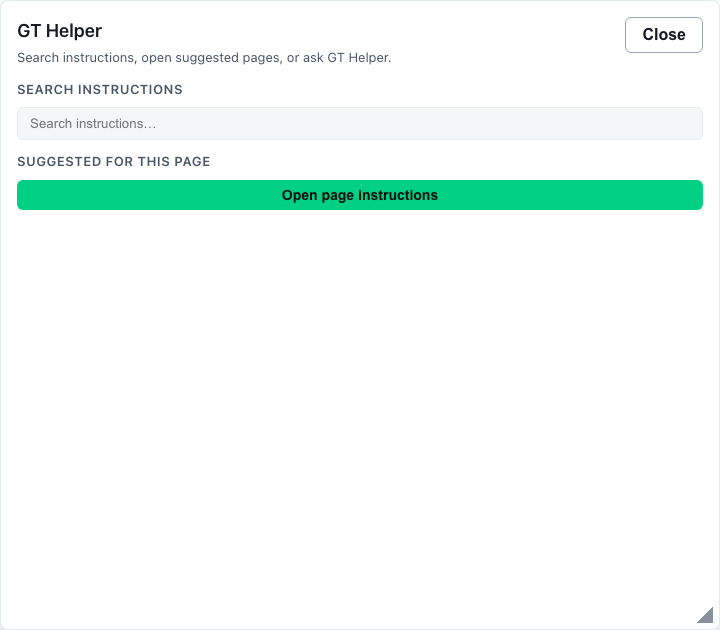
| GT Helper | Ask product questions in the ? help shelf; browse the full wiki from the account menu. | ? bubble on the tenant shell. |
Routes that are present only as redirects, aliases, or secondary workspaces are intentionally not part of the active Gen 3 instructions tree.
Recommended first-day workflow
- Open Agents and choose the agents you expect to use most often.
- Visit Datasets to confirm the documents and retrieval sources available to those agents.
- Use Groups if your work depends on shared resources or managed collaboration.
- Launch chat from a favorite agent or open GT Chat directly.
- Use Conversations and Observability to review what happened after the fact.
How the routes work together
GT Chat and Conversations
GT Chat is the live workspace. Conversations is the history workspace. Use chat when you are doing work right now, and use conversations when you need to search, reopen, or export prior work.
Agents and Datasets
Agents define behavior. Datasets provide searchable source material. Many tenant workflows move back and forth between these two pages before returning to chat.
Groups, Users, and Settings
Groups handle collaboration at the resource-sharing layer. Users handles tenant-account administration for authorized roles. Account Settings (opened from the user account menu, not the sidebar) holds tenant policy and recovery settings rather than collaboration controls.
Role-aware navigation
- Tenant User sees the core workspace routes, Management → Model Catalog, Management → Observability (personal scope and a subset of tabs), and the ? instructions helper. Does not see Management → Users or top-level GT API unless GT API is enabled for the account.
- Tenant Manager can open Management → Users, Management → Model Catalog, and Management → Observability with manager-appropriate tabs and scope.
- Tenant Owner has the full tenant administration posture, including tenant-wide user management, billing observability, and broader filters.
If you do not see a page referenced in these instructions, confirm your tenant role and whether GT API enabled applies to that route. Restricted wiki links in the Instructions drawer show a role badge on the link so you know why a destination may be unavailable.

Migration note
Gen 2 and Gen 3 instructions remain live in parallel during migration. Gen 3 pages use the dedicated gen3/... namespace so the tenant drawer can move forward without removing the still-supported Gen 2 wiki tree.