Gen3 Agents Building - GT-Edge-AI/GT-AI-OS GitHub Wiki
Building Agents
Start Here
- Open Agents → sidebar Configuration (or Agent Configuration view).
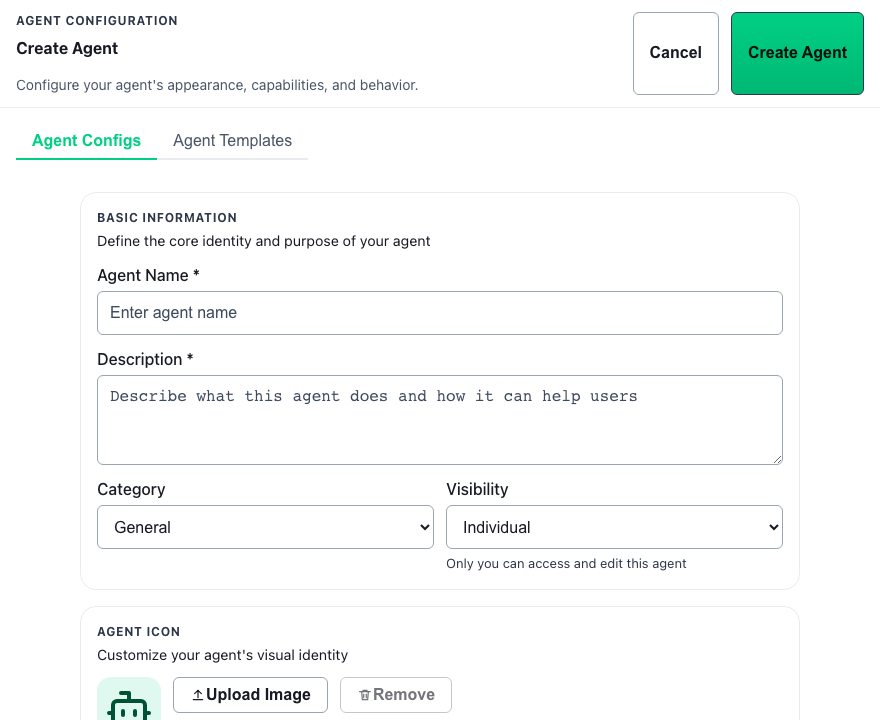
- Select Create Agent and choose Agent Configs for a blank form or Agent Templates to preload from the catalog.
- Set instructions, model, datasets, category (create, edit, or delete inline when allowed), modality tabs, and Web Search Settings as needed.
- Save the agent and test immediately in GT Chat.
Why this matters
Well-built agents encode repeatable behavior so operators do not re-type complex prompts and policy in every conversation. Gen 3 separates quick template preloads from deep capability tuning so you can start fast without guessing which tools and models apply.
Details
Use the Agent Configuration workspace on Agents when you need to create a new agent or revise an existing one. In the active Gen 3 product, agent creation is a practical workflow: pick a starting point (blank or template), define behavior, choose the right model posture, attach datasets, enable managed tools where appropriate, then validate the result in chat.
Start from a template
When you select Create Agent, the configuration panel exposes two top-level tabs:
| Tab | Use when |
|---|---|
| Agent Configs | You want a blank form or you already applied a template and are editing the preloaded fields. |
| Agent Templates | You want to browse the live template catalog and preload an agent from a CSV starter. |
Catalog source and refresh
Templates are not bundled inside the tenant app. The catalog is fetched live from GT-Edge-AI/GT-AI-OS/agent-templates/*.csv through the tenant API (Control Panel proxies GitHub on behalf of the tenant). Opening Agent Templates triggers a fresh catalog fetch; use Refresh templates to retry after network or GitHub errors.
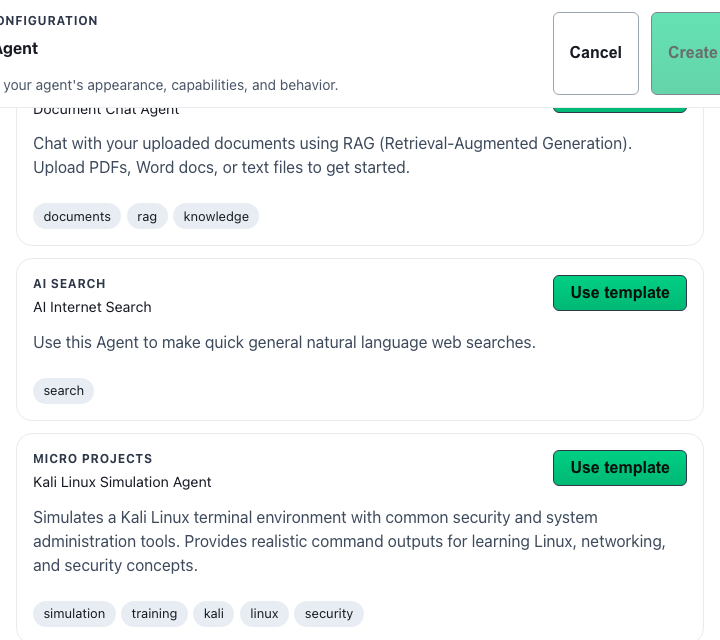
New .csv files added to agent-templates/ in the instructions repository appear automatically on the next catalog load—no tenant redeploy required.
Preload matrix (CSV → editor)
The tenant API reads the header row and first data row of each template CSV. Mapped columns populate the agent editor:
| CSV column(s) | Editor field |
|---|---|
name |
Agent name |
description |
Description |
category |
Category (or create inline in the agent editor via + Create new category…) |
tags |
Tags (comma- or pipe-delimited) |
model / model_id |
Chat model (resolved against tenant chat models by id, model id, or display name) |
prompt_template / system_prompt / systemprompt |
System prompt |
disclaimer |
Disclaimer |
temperature |
Temperature |
easy_prompts / easy_buttons |
Easy buttons (pipe-delimited) |
visibility |
Visibility (individual/private → private; team/group → group; organization/tenant → tenant) |
selected_dataset_ids / dataset_ids / selected_dataset_names / dataset_names |
Attached datasets (UUID or dataset name match) |
web_search_access / web_search_agent / web_search_enabled |
Web search access (enabled / disabled). When omitted, matches the Control Panel Enable web search tool for agents by default setting (same as a blank new agent). |
web_search_model_id / web_search_model |
Optional override for the agent web search model (resolved like model) |
default_memory_mode / memory_mode |
Default Contextual Memory scope for new chats (this_conversation, this_agent, all_agents; legacy memory_type values are normalized). When the mode implies recall, Enable Contextual Memory for this agent is turned on after apply. |
contextual_memory_allowed |
Optional explicit Enable Contextual Memory for this agent (true / false). When set, overrides inference from default_memory_mode. |
vision_model_id / vision_model |
Agent Vision Settings model (resolved against tenant vision models) |
Ignored columns: max_tokens, dataset_connection, and category_description are present in legacy template CSVs for compatibility but are not applied to Gen 3 agent records.
Capability templates: Starters that need managed tools set explicit CSV flags where possible (for example internet-search-agent.csv sets web_search_access=enabled). Speech, image generation, and vision still require a configured model on the matching modality tab when the deployment does not supply a usable default—vision-chat-agent.csv reminds operators to pick a vision model after apply.
Selecting Use template switches you to Agent Configs with a Template applied banner so you can review, adjust, and save.

Available templates (8)
| Template file | Purpose |
|---|---|
document-chat-agent.csv |
Document Q&A with RAG over uploaded files |
internet-search-agent.csv |
Web research with sourced answers (enable web search separately after apply) |
system-prompt-reviewer.csv |
Review and improve system prompts |
nemotron-agent.csv |
Local Nemotron on Ollama for advanced reasoning |
nemotron-mini-agent.csv |
Fast Nemotron Mini on Ollama |
python_coding_microproject.csv |
Python / Streamlit coding tutor |
vision-chat-agent.csv |
Vision-enabled RAG over image datasets (configure vision tab after apply) |
kali_linux_shell_simulator.csv |
Simulated Kali Linux terminal for training |
Template failure modes
| Symptom | Likely cause |
|---|---|
| Catalog fails to load | Tenant cannot reach Control Panel / GitHub; check network and retry Refresh templates. |
| Empty catalog | No .csv files in agent-templates/ or GitHub listing error. |
| Card shows summary error | Individual CSV could not be parsed (malformed quoting, missing data row). |
| Apply fails | CSV missing required header/data row or tenant API rejected the fetch. |
| Model field empty or wrong | Template model string does not match any tenant chat model; pick a model manually on Chat Model Settings. |
| Datasets not attached | Names or UUIDs in CSV do not match datasets in your tenant. |
Templates preload text and defaults only—they do not create datasets or publish models.
Agent capabilities and tools
Inside Agent Configs, Agent Settings uses modality tabs. Model pickers label deployment defaults as Default LLM, Default Vision Model, Default STT Model, Default TTS Model, Default Image Generation Model, and Default Web Search Model so you can distinguish platform baselines from explicit per-agent overrides.
- Chat Model Settings — Text Chat LLM, temperature, system prompt
- STT / TTS Settings — speech input and output models
- Vision Settings — vision model for image understanding
- Image Generation Settings — image creation defaults
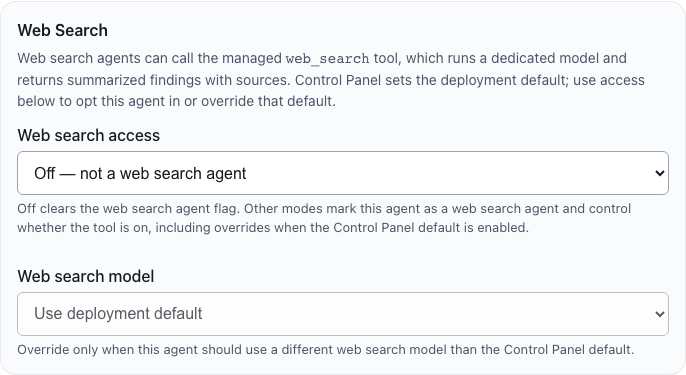
- Web Search Settings — managed public-web research tool
- Contextual Memory (when the platform layer is enabled) — per-agent allow gate, default-on for new chats, and default recall scope
Text Chat LLM and Tool use
The Text Chat LLM field (formerly labeled AI Model) is the agent’s primary chat model for GT Chat. It must be a text-in / text-out chat model — never a web-search backend such as groq/compound (those belong under Web Search Settings).
When this agent uses tools, the Text Chat LLM must have Tool use enabled in Control Panel. Agents call managed tools for many basic jobs, including:
| Capability | How tools are involved |
|---|---|
| RAG / datasets | search_datasets retrieval |
| Image analysis | analyze_image |
| Internet search | web_search |
| Image generation | generate_image |
| Contextual Memory | search_agent_memory (and related memory tools) |
If the selected model does not have Tool use enabled on Control Panel Models → Configured Models, the agent editor shows a warning with expandable detail (Why Agents need tool use). Save is blocked while that agent still requires tools.
Models that cannot do tool use: Some LLMs (including many small local models) do not support tool calling. You can still assign them as the Text Chat LLM when the agent has no tool-oriented settings (no datasets, web search, MCP-style tools, vision/image/speech tool models, or Contextual Memory). Expect only a basic text conversation. If you enable tools anyway, tool calls will error and results will be mixed.
Operator checklist
- On Control Panel Models → Configured Models, open the chat model and enable Tool use only when the upstream model truly supports tools.
- Prefer a tool-capable Text Chat LLM for any agent that attaches datasets, enables web search, uses multimodal tools, or allows Contextual Memory.
- Keep web-search backends off the Text Chat LLM field—enable Web search access and let the managed
web_searchtool use the deployment (or per-agent) web search model.
Contextual Memory (agent configuration)
When your deployment's Contextual Memory platform layer is enabled (Control Panel Super Admins configure indexing, embedding models, and TTL), Agent Settings exposes a Contextual Memory section:
| Control | Purpose |
|---|---|
| Enable Contextual Memory for this agent | Master allow for this agent. When off, the GT Chat brain control is hidden and memory tools cannot run for this agent—even if the platform layer is on. |
| On by default for new chats | When on, new conversations start with memory enabled; when off, users opt in per chat from the brain control. |
| Default recall scope | This conversation only, Just conversations with this agent, or All my conversations when memory is on by default. |
Users can still override per conversation from the brain control when memory is allowed for the agent.
Memory modes and agent identity
Contextual Memory has three layers: platform (Control Panel indexing), agent (this section), and per-conversation (brain control in GT Chat). The active mode for a chat determines what prior threads can be recalled. Audience scope is explicit in the mode—self-only modes always filter to the current user; cross-user recall requires group or all-users modes (role-gated).
| Role | Per-chat scope options (when memory is on) |
|---|---|
| Tenant user | Memory off; Just this agent; All my conversations (self only) |
| Tenant manager (no managed groups) | Same as tenant user |
| Tenant manager (managed groups) | Above plus Selected groups (multi-select managed groups) |
| Tenant owner | Above plus Selected groups (any tenant group) and All users |
| Per-chat scope | What gets recalled | Agent identity note |
|---|---|---|
| Memory off | Only the open thread | No cross-thread recall. |
| Just conversations with this agent | User's prior chats with this agent only | Assistant lines in hits are that agent's prior replies. |
| All my conversations | User's prior chats across every agent they use | Cross-agent citations must name the cited agent. |
| Selected groups | Conversations in chosen group(s) where conversation.group_id matches and the message owner is a group member |
May include other users' threads; citations name agent • title • date. |
| All users (owner only) | All tenant users' conversations | Tenant-wide; citations name agent • title • date. |
Managers do not gain cross-user recall via user delegation (managed_by_user_id); group governance (teams.is_managed, manager_user_id, group_members) is the only manager-mediated path.
GT Chat injects ACTIVE CHAT CONTEXT at runtime so the model knows which agent it is and which memory scope is enabled.
GT Helper uses automatic widest recall per role (no brain control): tenant user → all my conversations; tenant manager → my conversations plus managed-group conversations; tenant owner → all tenant conversations.
GT Helper and tenant chat agents are separate surfaces—memory about product coaching in GT Helper is not the same as memory from a tenant chat agent unless the citation says so.
Managed chat tools (tenant UI)
Gen 3 exposes a fixed set of managed tools the chat model may call during GT Chat. The agent configuration UI does not expose arbitrary MCP integration pickers—operators tune behavior through datasets, modality tabs, and web search gates below. The Text Chat LLM must have Control Panel Tool use enabled whenever these tools (or Contextual Memory search) can run—see Text Chat LLM and Tool use.
| Tool | When the model uses it | Operator notes |
|---|---|---|
search_datasets |
Retrieve and count evidence from conversation-attached datasets, agent default datasets, or staged upload documents in the current chat scope. | Requires dataset or document scope in the thread. Not a substitute for public-web research. |
analyze_image |
Direct vision review of images already stored in scoped datasets. | Requires vision model configuration and image-bearing documents. |
generate_image |
Create a new image from a text prompt using agent or deployment image-generation defaults. | Requires image generation model configuration. |
web_search |
Live public-web research through the deployment or agent web search model. | Requires deployment web search model configuration and agent Web search access set to Enabled (below). Separate from dataset retrieval. |
| Contextual Memory tools | Recall prior conversation context when memory is allowed for the agent and enabled in the chat. | Requires platform Contextual Memory, agent allow, and a tool-use Text Chat LLM. |
No MCP executable tools in the agent builder: Unlike legacy flows that surfaced configurable MCP integration ids in the UI, Gen 3 tenant agent configuration does not let operators attach arbitrary MCP servers. Managed tools above are executed by the platform when policy and model capabilities allow.
Web search access
The managed web_search tool runs only when:
- Deployment model — Control Panel Models → Default Models selects a web search model (and may enable web search for new agents by default; see Models).
- Agent access — Web Search → Web search access is Enabled for that agent (the UI exposes only Enabled and Disabled—no inherit mode). New agents start Enabled or Disabled according to the Control Panel Enable web search tool for agents by default setting.
If deployment web search is off or the agent access is Disabled, chat will not invoke web_search for that agent even when the user asks for current events.
Chat tool timeline
During streaming replies, GT Chat surfaces tool activity on the assistant message (for example “Search datasets”, “Web search”, “Generate image”). Completed, skipped, and failed tool steps appear in the activity strip so you can see whether retrieval ran, was deduplicated, or failed before the final answer.
Core build sequence (blank form)
- Give the agent a clear name that reflects the work it should do.
- Write instructions that define the job, constraints, and expected style.
- Choose a Text Chat LLM that matches the job—and ensure Control Panel Tool use is enabled on that model whenever the agent will use datasets, web search, multimodal tools, or Contextual Memory.
- Attach only the datasets that should travel with the agent by default.
- Configure modality and web search tabs when the job needs vision, speech, images, or public-web research.
- Save the agent.
- Test it in GT Chat.
What makes a good Gen 3 agent
Specific instructions
Agent instructions should describe a concrete operating posture, not a vague personality. Tell the agent what sources it should rely on, what kinds of outputs it should produce, and any workflow constraints that matter.
Intentional dataset defaults
Attach default datasets only when they should be part of nearly every use of the agent. If the source material changes per conversation, leave the agent lean and attach datasets from chat instead.
Model fit
Use the model that matches the task. The goal is reliable execution, not maximum size by default.
Build-review loop
After every meaningful change:
- launch the agent in GT Chat
- ask a prompt that represents the real use case
- confirm the behavior, tool usage, and source grounding are correct
- return to configuration only if the result shows a real gap
Common mistakes
- attaching too many datasets to one agent
- writing instructions that are too broad to produce repeatable behavior
- expecting web research from
search_datasetsinstead of enablingweb_search - changing multiple variables at once and then not knowing which change helped
- forgetting to re-test after model, dataset, or tool-setting changes
Best practices
- Build separate agents for separate jobs.
- Keep default retrieval context small and purposeful.
- Use favorites only after the agent is stable enough for regular use.
- Export important agents before large refactors.
- After applying a template, walk every modality tab before publishing to other users.