Gen3 Admin Models - GT-Edge-AI/GT-AI-OS GitHub Wiki
Models
Start Here
Local Ollama host (install scripts): Ollama Host Setup — platform presets, copy-paste install scripts, embeddinggemma pull, and LAN URL for discovery.
- Open Models (canonical provider and registry workspace).
- On Inference Providers, create or verify provider connectivity (use LAN-reachable endpoints for local hosts—not in-cluster bridge DNS names). For Ollama, follow Ollama Host Setup before discovery.
- On Configured Models, import or enable models tenants may use.
- On Default Models, set deployment-wide chat, embedding, vision, and GT Helper defaults.
- On Platform Multimodal Settings, confirm vision, STT, TTS, and image-generation gates match what tenants should see in chat and agent builders.
Why this matters
Models replaces legacy separate provider/API-key pages—tenant agents and GT API publishing depend on correct registry posture here.
Details
Models is the active Gen 3 operator workspace for inference-provider integration, configured model registry management, and deployment default model selection. In the current Control Panel, this page absorbs the old provider and API-key workflows instead of splitting them across separate destinations.
The four active tabs
| Tab | What it controls |
|---|---|
Inference Providers |
provider catalog, credentials, connectivity tests, discovery, and chat-auth validation |
Configured Models |
model registry entries, imports, manual adds, quick discovery adds, enablement, deletion, and select all matching bulk actions |
Default Models |
deployment-wide default chat, embedding, vision, GT Helper, STT, TTS, image-generation, and web search model choices |
Platform Multimodal Settings |
deployment gates for vision, STT, TTS, and image generation (all enabled by default); when disabled, tenant chat and agent modality UX hides matching controls and APIs return explicit deployment messages |
Inference Providers
Use the providers tab to:
- create or edit a provider
- configure endpoint and adapter details
- supply or replace credentials
- test the connection
- validate chat authentication with a minimal request
- discover models from the provider catalog
Preloaded providers can also expose a reset-to-default-endpoint action when catalog defaults should be restored.
Local LAN providers (Ollama, vLLM, SGLang, llama.cpp)
Self-hosted inference providers expect a LAN-reachable IP or hostname with the correct port and path (for example http://192.168.1.50:11434 for Ollama). Do not use localhost, 127.0.0.1, or in-cluster local-* bridge DNS names as the production endpoint—those bridge URLs were removed from defaults so operators enter real network addresses. QuickStart and universal baseline apply leave local providers unconfigured until you save a LAN endpoint. See Ollama Host Setup when discovery fails after endpoint entry.
Configured Models
Use the configured models tab to:
- review which models are actually registered for the deployment
- add models manually
- import models from a configuration bundle
- discover models from an upstream provider and import selected entries
- enable, disable, or delete registry entries
- select rows on the current page, then use Select all matching to apply bulk actions across the filtered registry (not only the visible page)
- set per-model capabilities, including Tool use, when editing a registry entry
Tool use (required for most GT Agents)
On a configured chat model, the Tool use checkbox tells GT AI OS that the model can call managed tools (function/tool calling).
Enable Tool use when the upstream model truly supports tools and tenants will use it as an agent Text Chat LLM for anything beyond plain text chat. GT Agents rely on tools for:
- RAG / dataset search (
search_datasets) - Image analysis (
analyze_image) - Internet search (
web_search) - Image generation (
generate_image) - Contextual Memory search
Leave Tool use off when the model cannot call tools (common for some small local LLMs). Tenants may still pick that model as the Text Chat LLM for tool-free agents, but they will only get basic text conversation—any tool the agent attempts will fail. Tenant agent configuration shows a warning with expandable detail (Why Agents need tool use) when a non–tool-use model is selected for an agent that needs tools.
Do not confuse Tool use with Web search:
| Capability | Meaning |
|---|---|
| Tool use | Chat LLM can orchestrate managed tools (datasets, memory, vision/image tools, web_search, and so on) |
| Web search | Model row is suitable as a web search backend (for example groq/compound)—not as the agent Text Chat LLM |
Web-search backends belong in Default Models → Default web search (and optional per-agent web search model overrides), not as the agent’s primary Text Chat LLM. See tenant Building Agents — Text Chat LLM and Tool use.
Tenant Model Catalog surfaces tool-use in the Capabilities column so operators and tenants can confirm posture before agent setup.
Platform Multimodal Settings
Super Admins use this tab to enable or disable deployment-wide multimodal capabilities:
- Vision models —
analyze_image, vision agent tabs, and image-bearing dataset ingestion UX - STT models — microphone and hands-free voice input in GT Chat
- TTS models — Read aloud on assistant messages
- Image generation models — Create Image in chat and image-generation agent settings
Text-only dataset ingestion remains available when vision is disabled. Changes propagate to tenant agent builders, GT Chat, and GT API modality routes.
Default Models
Use the defaults tab to choose the deployment-wide default model selections consumed across GT AI OS. These defaults matter whenever a tenant workflow depends on the system's baseline model posture rather than a custom per-agent override.
Super Admins can set:
- Default embedding model and Default vision model — paired dataset defaults when creating datasets without explicit model choices.
- Default LLM — deployment-wide text model when a flow does not specify one.
- Default GT Helper model (
defaultInstructionsHelperModelId) — chat-capable model used by the integrated ? help shelf when users ask GT Helper in the tenant app or Control Panel. If this field is unset or invalid, Ask helper returns503with a configuration error until an enabled chat-text model is selected. - Default STT, Default TTS, and Default image generation model — speech and image flows that omit explicit model selections.
- Default web search — off by default. When enabled, selects a deployment web search model. Each agent still requires Web search access set to Enabled (not merely inheriting a deployment default) before
web_searchruns in chat. New agents start Enabled or Disabled according to the Enable web search tool for agents by default toggle on this tab.
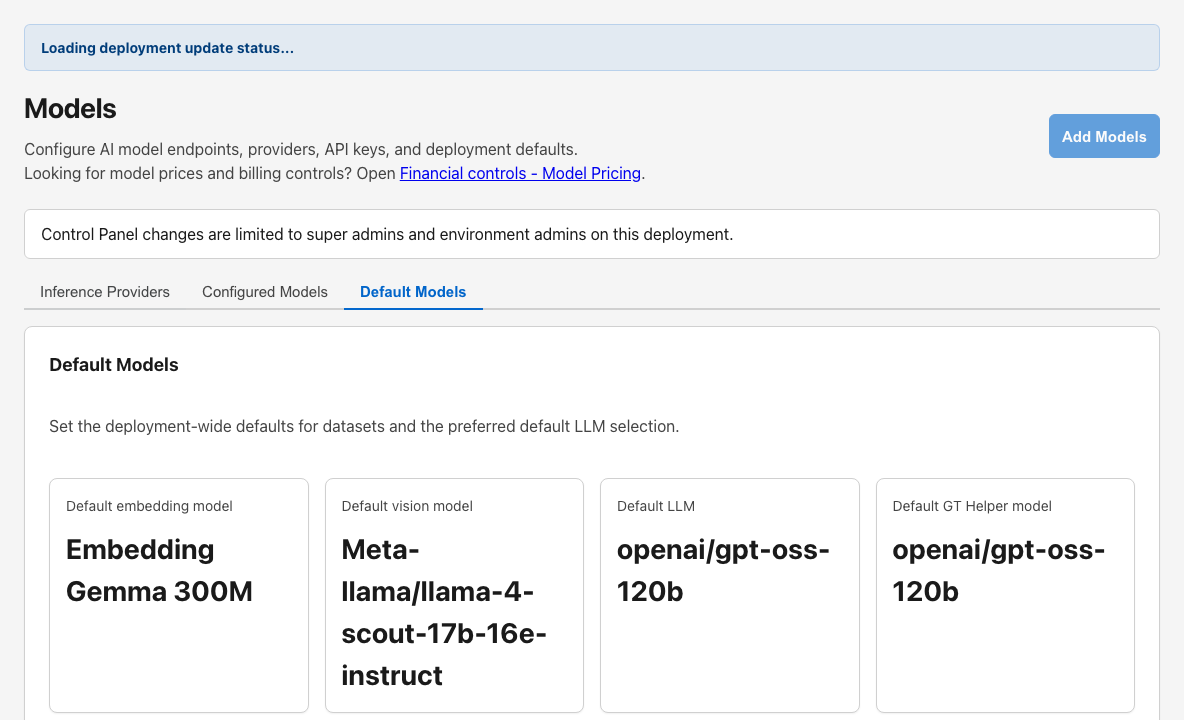
Only Super Admins can change default model selections; other operator roles can review the current posture on this tab.
Relationship to legacy routes
The Control Panel still contains redirect shims for providers and api-keys, but the active operator workflow lives on Models. Treat this page as the canonical location for provider, model, and default-model administration.
Recommended workflow for a new provider
- Create the provider on
Inference Providers. - Save credentials and endpoint details.
- Test connectivity.
- Validate chat authentication.
- Discover or manually add models.
- Set defaults if the provider will become the new deployment baseline.
Best practices
- Validate provider connectivity before importing models.
- Keep provider changes and default-model changes as separate operator decisions when possible.
- Import only the models the deployment actually plans to use.
- For chat models intended as agent Text Chat LLM baselines, enable Tool use only when the provider model supports tools—and verify tenant Model Catalog shows tools before coaching tenants to attach datasets or Contextual Memory.
- Review Financial Controls after major model-catalog changes so pricing stays aligned.
- Use Model Cards for Groq and Gemini vendor specifications; use Model Guides for GT AI OS workflows such as Orpheus vocal directions in tenant Read aloud.