Transkribus - DCMLab/ddd GitHub Wiki
- Sign up and download Transkribus here: https://readcoop.eu/transkribus/?sc=Transkribus
- Transkribus is platform independent and will run on Windows, Mac and Linux.
- Transkribus is written in Java. You need to have the newest Java 8 installed on your computer for Transkribus to work. This should be the case for most computers.
- You can get the latest java version here
- If you need to check your Java version read more here
- After download you will see a ZIP File in the download directory of your computer.
- Unzip the file before you try to start an executable (.exe) file.
- Open the Transkribus directory. There you will find the executable files for your operating system.
- Start Transkribus from your user interface via doubleclick:
- Windows: Transkribus.bat or use Transkribus.exe
- Mac OS – Apple: Transkribus.command
- Linux: Transkribus.sh
- If the OS is (or is based on) Ubuntu 17.04, installing libwebkit is necessary:
sudo apt install libwebkitgtk-1.0-0
- If you do not have “Administrator” rights, Windows will produce a warning message, such as: Your Computer is Protected by Windows”, etc.
- Do not confirm, but go to “More Information”. There you can agree that this is not malware and that you want to run Transkribus on your computer.
- If you run the program the first time, it may not start because it is a non-signed application (“… can’t be opened because it is from an unidentified developer” message)
- In this case, right-click (or control-click) the application and choose “Open”. In the appearing dialog box, click “Open” again!
- Or right click the Track Pad to open the Context Menu and add a security exception for Transkribus.
- Please note that Transkribus is developed and tested using the Java Virtual Machine (JVM) by Oracle in version 1.8. While it is known to run also on the JVM that comes with OpenJDK, other implementations are neither tested nor officially supported. The same is valid for Java versions > 9.
tbc...
During the segmentation process, including the automated one but more relevantly manual splitting of text regions, there is a chance of Transkribus creating unwanted or wrongly assigned lines.
It is possible to identify modified lines by looking at the "Layout" part of the GUI, specifically the column called "ID". In this column, the original lines are named something like "r1|17", whereas any newly created, modified or merged line has an ID starting with "line_" followed by a long string of digits, e.g. "line_161348484833475_848".
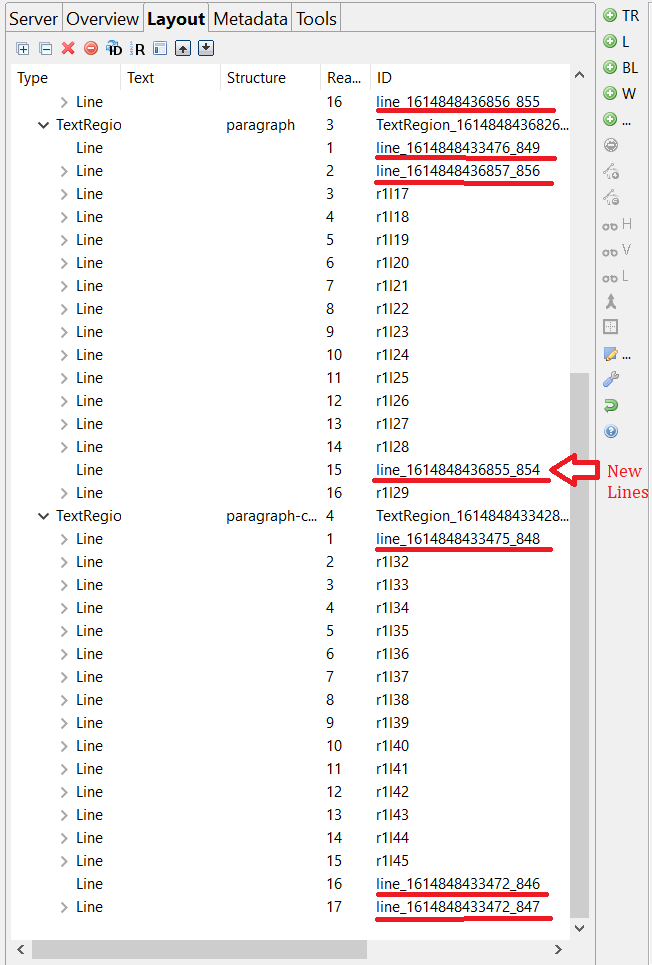
When encountering such IDs immediately after separating text regions, it is a helpful indication of where faulty lines may have been created.
On this page, we see several "line_16..." lines near the beginning or end of paragraphs. Clicking on them reveals that most of them are in fact empty, and should simply be deleted using the "remove a shape" button. In the screenshot above, they also do not have an arrow before them, because there is no baseline inside. Some of the modified lines with arrows may be perfectly fine though, so it's important to not delete blindly.
They sometimes might, however, be misplaced, which is the second possibly ramification of this bug: I have frequently experienced that the last line of a paragraph appeared to be missing, even though I see a red line under it on the image. In such cases, looking for "line_16xxx" lines in other paragraph helped to find it. They often at the end of a different paragraph. Such lines can then be simply reintegrated into the correct textRegion by drag-and-drop.
The cause of this bug, according to my experience, seems to be when segmentation interferes with some of the baselines by Transkribus. That is at least my best guess, as it often happened when I had to separate elements printed very close to each other. It also might more commonly happen when the image is at a lower resolution, but that is only a running hypothesis at this point.
The practical consequence of this bug's existence is that one should always (re-)check the lines after separating regions.
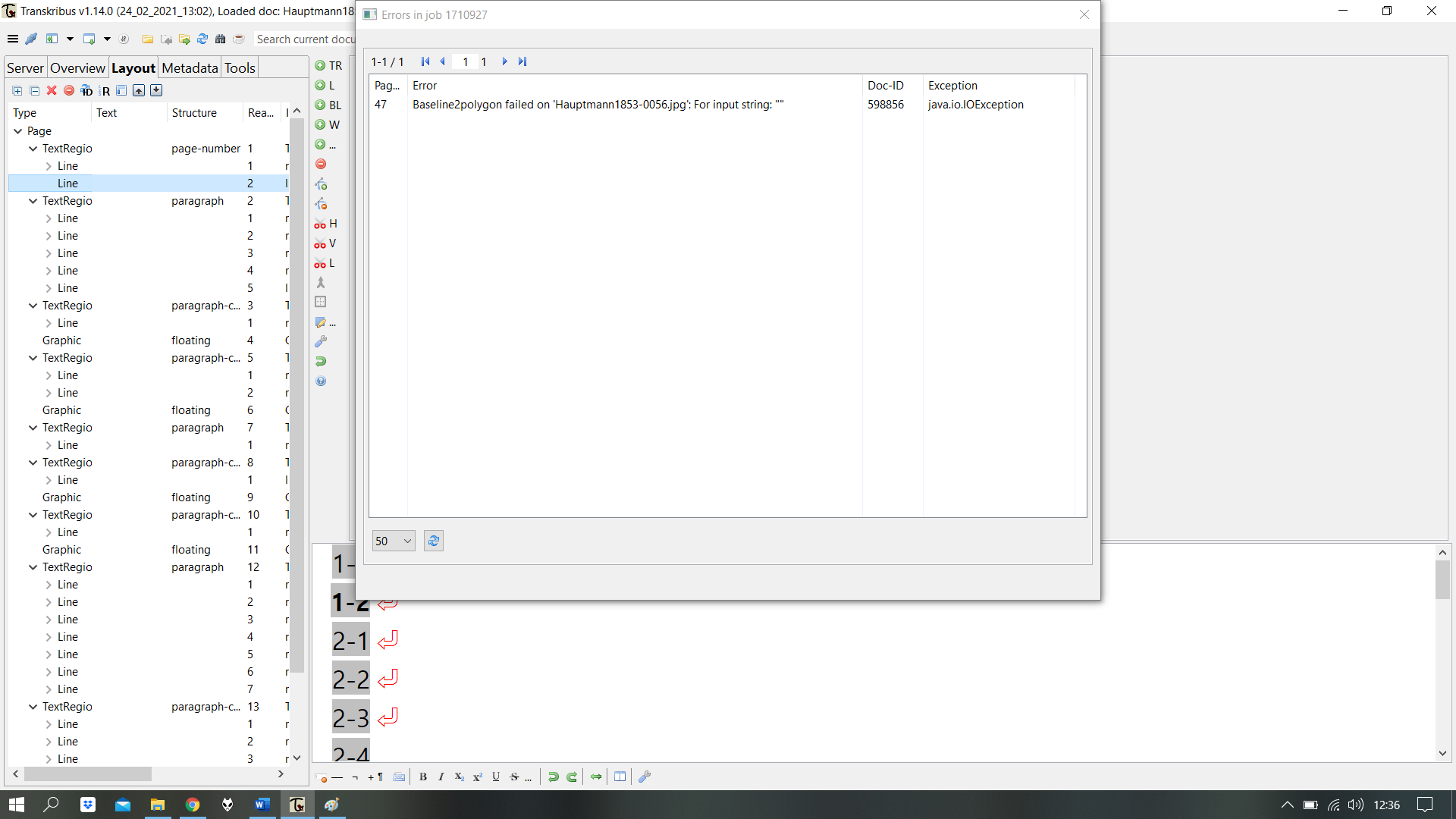
Warning: Empty lines lead to empty pages: The mentioned bug's relevance increases in conjunction with another: Running text recognition on a page that has an "empty" line will lead to the entire page not being transcribed. It causes an error called "Baseline2Polygon failed". So it is absolutely crucial to check each page for empty lines. It can be remedied though by simply deleting the empty line and re-running OCR on "current page".
Transkribus offers several models for OCR. Most are trained on and designed for handwritten documents, e.g. in the German kurrent script. There are also a number of models for printed texts in German.
For most documents in the corpus, the following setting is probably a good choice to run automated transcription:
CITlab HTR 10810
- Net Name: ONB_Newseye_GT_M1+
- Language: german
- Language model from training data
ONB_Newseye is described as follows:
"The model works well with German "Fraktur" script from late 18th century to mid of 20th century. It also reads roman typeface which might be included in the documents. The model was created in the NewsEye project and is based on training data coming from the ANNO collection of the Austrian National Library. Note: the model is trained on German language documents and will therefore be less performant on other languages."
Though designed primarily for Fraktur texts, it appears to yield great results for Faktur and non-Fraktur documents alike. While certain texts' typefaces may be better recognized by other models, the above setting is a good general starting point. Setting the language model to "training data" seems to improve performance, as the language in the training data largely matches the historical state of German used in the ddd-corpus.
- Avoiding scrolling when marking over several lines: When trying to highlight a word or phrase which extends over more than one line, it is generally advisable to make sure that the line is set near the center of the transcription box. Marking near the edge of the box can cause Transkribus to scroll extremely rapidly, since selecting the highest or lowest line on the screen moves the box automatically.
- Choice of font for proper display of special characters: In the default font of Transkribus 1.13, certain characters, most relevantly long lines and quotation mark, are not properly displayed in the transcription box. e.g. A long line would show up vertically instead of horizontally, making it hard to distinguish from "|". At the bottom of the box, there is a symbol called "Transcription settings..." to the right side. From there, the font can be changed according to preference.
-
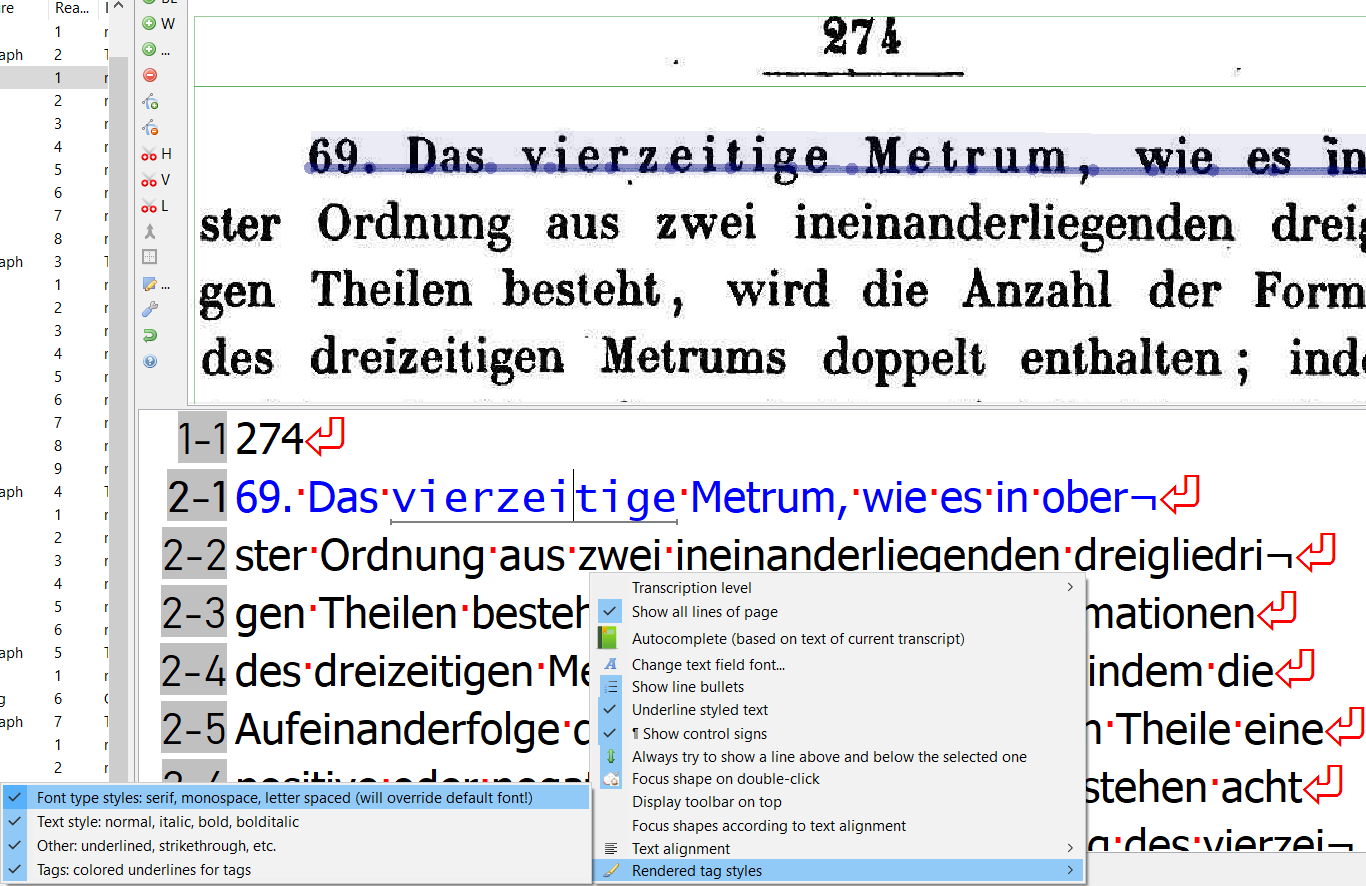
Rendering Letterspace: In the corpus documents, the use of letterspace is the most used means of emphasizing a word. By default, Transkribus does not show spaced letters in its transcription box, so the text style is only indicated by a line below it, which could stand for a number of different styles. It is therefore recommended to activate the rendering of letterspace, which can also be found in "Transcription settings"->"Rendered Tag Styles":
Client export
Export Formats:
- Transcribus
- TEI
- Simple TXT
- Tag Export (Excel)
TEI Export:
- only select "Zone per region"
- line breaks (
<lb/>)
Then synchronize to GitHub