Text Tricks on GitHub - CK3RealmsinExile/RealmsInExile GitHub Wiki
Here we will describe the tricks that you may need when writing changelogs or comments on GitHub. If you want more information, you can find it Here: https://guides.github.com/features/mastering-markdown/
Github supports the copypasting of images: Print Screen the game and Ctrl+V inside your comment or changelog. You can also take paste pictures by right cliking on them and copying them and paste them the same way. There is alo a way for a more customizable version of this, by using a Snip & Sketch picture (A default program for windows users), by using the keyboard keys; window-bottom + shift + s and post those pictures you customize yourself into the text.
To create a heading, add one to six # symbols before your heading text. The number of # you use will determine the size of the heading.
# The largest heading
## The second largest heading
###### The smallest heading
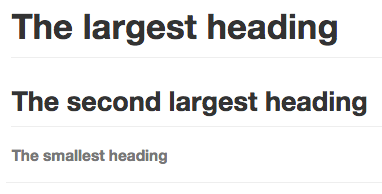
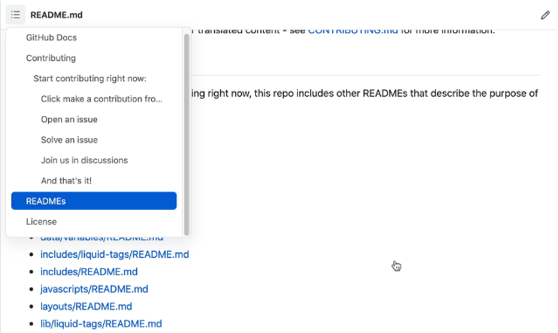
When you use two or more headings, GitHub automatically generates a table of contents which you can access by clicking
 within the file header. Each heading title is listed in the table of contents and you can click a title to navigate to the selected section.
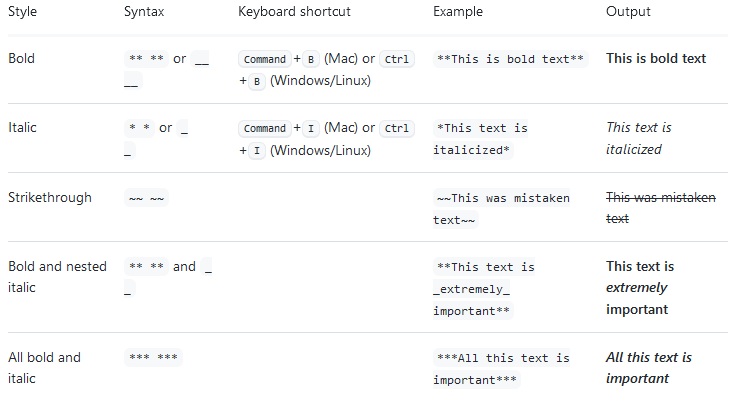
You can indicate emphasis with bold, italic, or strike through text in comment fields and .md files.
You can quote text with a > .

Tip: When viewing a conversation, you can automatically quote text in a comment by highlighting the text, then typing R. You can quote an entire comment by clicking , then Quote reply. For more information about keyboard shortcuts, see Keyboard shortcuts.
You can call out code or a command within a sentence with single backticks. The text within the backticks will not be formatted. You can also press the Command+E (Mac) or Ctrl+E (Windows/Linux) keyboard shortcut to insert the backticks for a code block within a line of Markdown.
Use git status to list all new or modified files that haven't yet been committed.

To format code or text into its own distinct block, use triple backticks. Some basic Git commands are:
" ``` "
git status
git add
git commit
" ``` "

For more information, see "Creating and highlighting code blocks."
If you are frequently editing code snippets and tables, you may benefit from enabling a fixed-width font in all comment fields on GitHub. For more information, see "Enabling fixed-width fonts in the editor."
Perhaps you've written something for a lore event but don't want people to be spoiled if they've not relevant to the issue but perhaps reads it anyway or perhaps you've want to post 15 images but don't want the page to be filled with these? Well then it could be recommended to hide your text or images inside Spoilers:
<details>
<summary>Click to expand</summary>

Text to hide

</details>
Important! Images don't work in spoilers if there's no empty line above the image.
You can create an inline link by wrapping link text in brackets [ ], and then wrapping the URL in parentheses ( ). You can also use the keyboard shortcut Command+K to create a link. When you have text selected, you can paste a URL from your clipboard to automatically create a link from the selection.
This site was built using [GitHub Pages](https://pages.github.com/).

Tip: GitHub automatically creates links when valid URLs are written in a comment. For more information, see "Autolinked references and URLs."
You can create Tables to organize your information with. You can create tables with pipes | and hyphens -. Hyphens are used to create each column's header, while pipes separate each column. You must include a blank line before your table in order for it to correctly render.
| First Header  | Second Header |
| ------------- | ------------- |
| Content Cell  | Content Cell  |
| Content Cell  | Content Cell  |
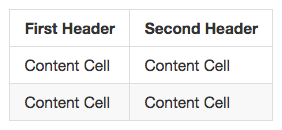
The pipes on either end of the table are optional.
Cells can vary in width and do not need to be perfectly aligned within columns. There must be at least three hyphens in each column of the header row.
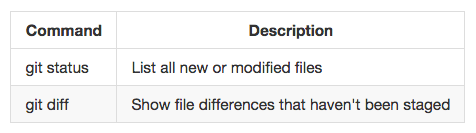
| Command | Description |
| --- | --- |
| git status | List all new or modified files |
| git diff | Show file differences that haven't been staged |
If you are frequently editing code snippets and tables, you may benefit from enabling a fixed-width font in all comment fields on GitHub. For more information, see "Enabling fixed-width fonts in the editor."
You can find more information on creating tables and more Here
A task list is a set of tasks that each render on a separate line with a clickable checkbox. You can select or deselect the checkboxes to mark the tasks as complete or incomplete.
You can use Markdown to create a task list in any comment on GitHub. If you reference an issue, pull request, or discussion in a task list, the reference will unfurl to show the title and state.
To create a task list, preface list items with a hyphen and space followed by [ ]. To mark a task as complete, use [x].
- [x] #739
- [ ] https://github.com/octo-org/octo-repo/issues/740
- [ ] Add delight to the experience when all tasks are complete :tada:

For more information check githubs guide here on About task lists