Art ‐ 2d How to put 2 dimensional art into the game - CK3RealmsinExile/RealmsInExile GitHub Wiki
So the purpose of this wiki page is to give information on where to generally to find 2 dimensional art assets in the folders and what kind of file & format size such 2 dimensional art.
(But some parts of this wiki is still WIP)
Generally all 2d graphical assets can be found in RealmsInExile\LotRRealmsInExileDev\gfx\ and RealmsInExile\LotRRealmsInExileDev\gfx\interface and these 2d graphical assets need to be in the format shown bellow;
CK3 graphic format notes
Icons:

Religion Icons: .dds, 100x100 pixels,  Format: 32bit-A8R8G8B8, no minimaps
Coat of Arms Colored Emblems: .dds, 512x512, Format:BC3/DXT5, minimaps
Coat of Arms Patterns: .dds, 256x256, Format: DXT1, minimaps
Regiment Types Icons: .dds, 120x120, Format: A8R8G8B8, no minimaps
Focuses Icons: .dds, 140x140, Format: A8R8G8B8, no minimaps
Faith Doctrine Tenet Icons:.dds, 260x400, Format: DXT5, no minimaps
Faith Doctrine Icon Banners:.dds, 260x400, Format: A8R8G8B8, no minimaps
Culture Innovations: .dds, 90x60, Format: A8R8G8B8, no minimaps
Character Interactions: .dds, 120x120, Format: A8R8G8B8, no minimaps
Building Type Icons: .dds, 150x130, Format: A8R8G8B8, no minimaps
Trait Icons: .dds, 120x120, Format: A8R8G8B8, minimaps
Lifestyle Perks: .dds, 120x120, Format: A8R8G8B8, minimaps
Lifestyle Backgrounds: .dds, 608x1546, Format: DXT5, no minimaps
Lifestyle Tree Backgrounds: .dds, 347x812, Format: DXT5, no minimaps
Legacy Tracks: .dds, 4216x368, Format: DXT5, no minimaps
Event Type Icons: .dds, 148x148

Illustrations:

Loading Screens:.dds, 3840x2160, Format: DXT1, no minimaps
Event Scenes:.dds, 1592x848, Format: DXT1, no minimaps
Event Scenes Frontend: .dds, 1592x828, Format: DXT1, no minimaps
Decisions: .dds, 1100x440, Format: DXT1, no minimaps
Council: .dds, 844x844, Format: DXT1, no minimaps
Character View: .dds, 1539x849, Format: DXT1, no minimaps
Holding Types: .dds,  2560x1168, Format: DXT1, no minimaps
Terrain Types: .dds, 1200x600, Format: DXT1, no minimaps
Men At Arms Small: .dds, 160x160, Format: DXT1, no minimaps
Men At Arms Big: .dds, 680x400, Format: DXT1, no minimaps

Bookmarks: .dds, 1920x1080, Format: DXT5, no minimaps

Clothing Textures:
Pattern properties: .dds 512x512, Format: DXT5, Minimaps
Pattern normal: .dds 512x512, Format: DXT5, Minimaps
Dimensions may have increased for some of these, but the smaller dimensions still work.
So, you want to add your newly Created CoA asset you've done to the mod? Well you need to first make sure it has the correct file size as seen above. Then you need to apply your work to the correct path, generally you either deal with colored emblems or patterns, which either goes into \RealmsInExile\LotRRealmsInExileDev\gfx\coat_of_arms\colored_emblems or \LotRRealmsInExileDev\gfx\coat_of_arms\patterns (Ceck examples bellow).
Click to expand
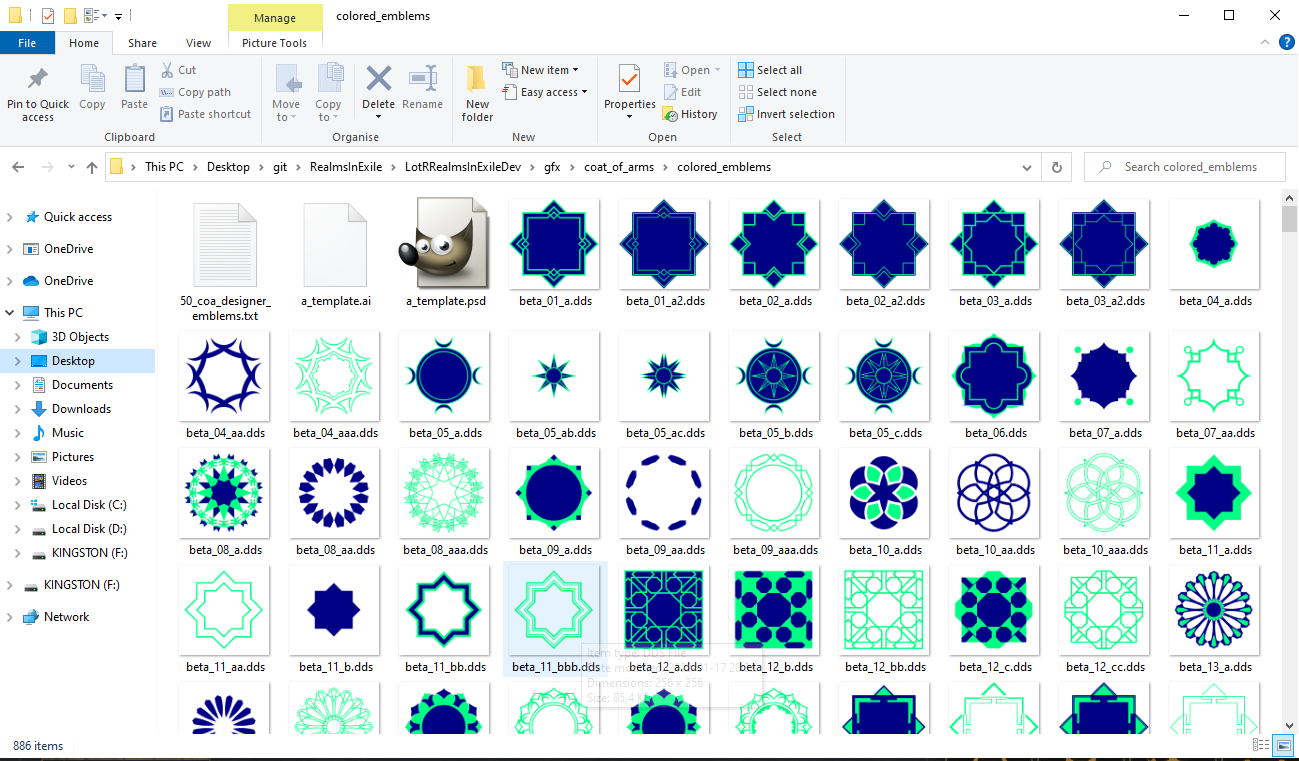
\RealmsInExile\LotRRealmsInExileDev\gfx\coat_of_arms\colored_emblems
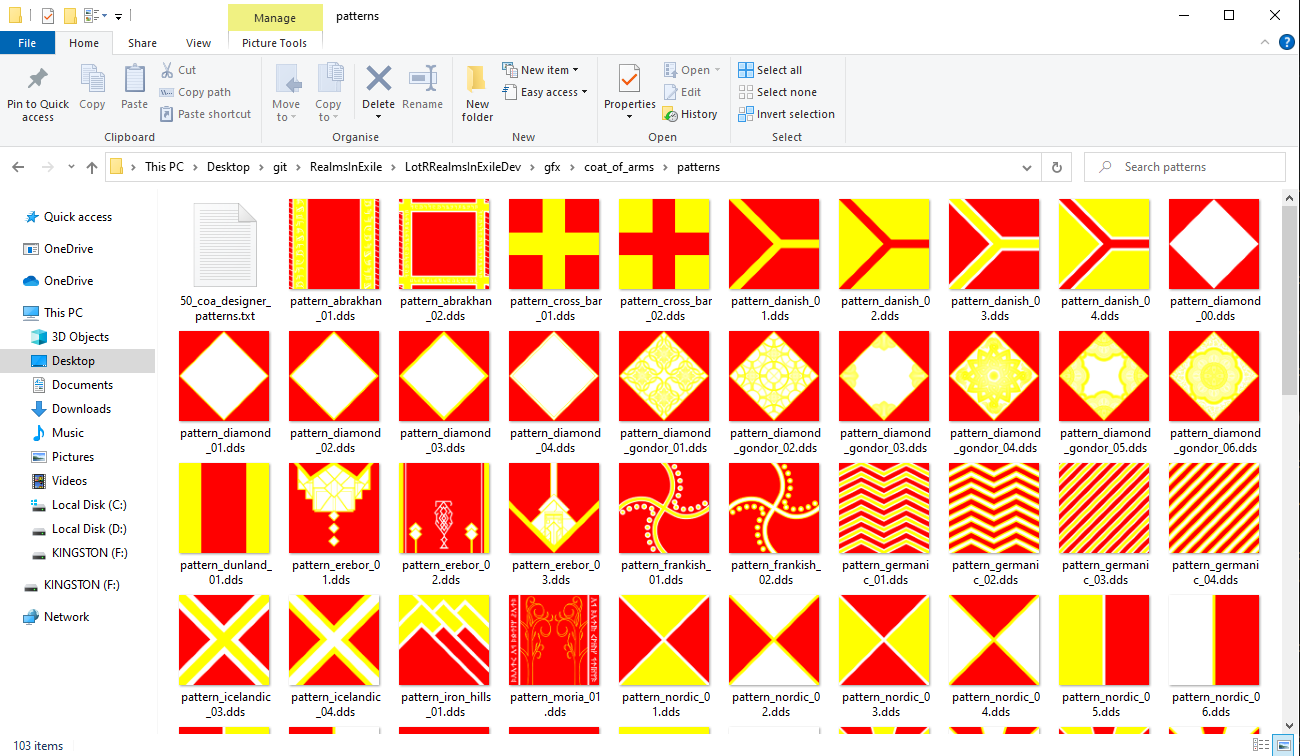
\LotRRealmsInExileDev\gfx\coat_of_arms\patterns
Then when you have applied your dds art asset you need to write it into the 50_coa_designer_(emblems/patterns) each folder has, generally you need to apply it under ### LotR: Realms in Exile ###, that you'll have to scroll down to. Then follow the same structures the other have. On the example bellow you can see ce_cc_sun_harad_02.dds { colors = 2 category = nature } the colors = number tell you how many colours that the dds picture file use, for example the ce_abrakhan_07.dds picture (see bellow) has 3 color that it uses. the category here sets where it will be shown in, on the CoA customizer ingame, so using the example ce_cc_sun_harad_02.dds { colors = 2 category = nature } it shows us that ce_cc_sun_harad_02.dds category is nature and we can see (on the picture bellow) that it is shown in nature in game.
Click to expand
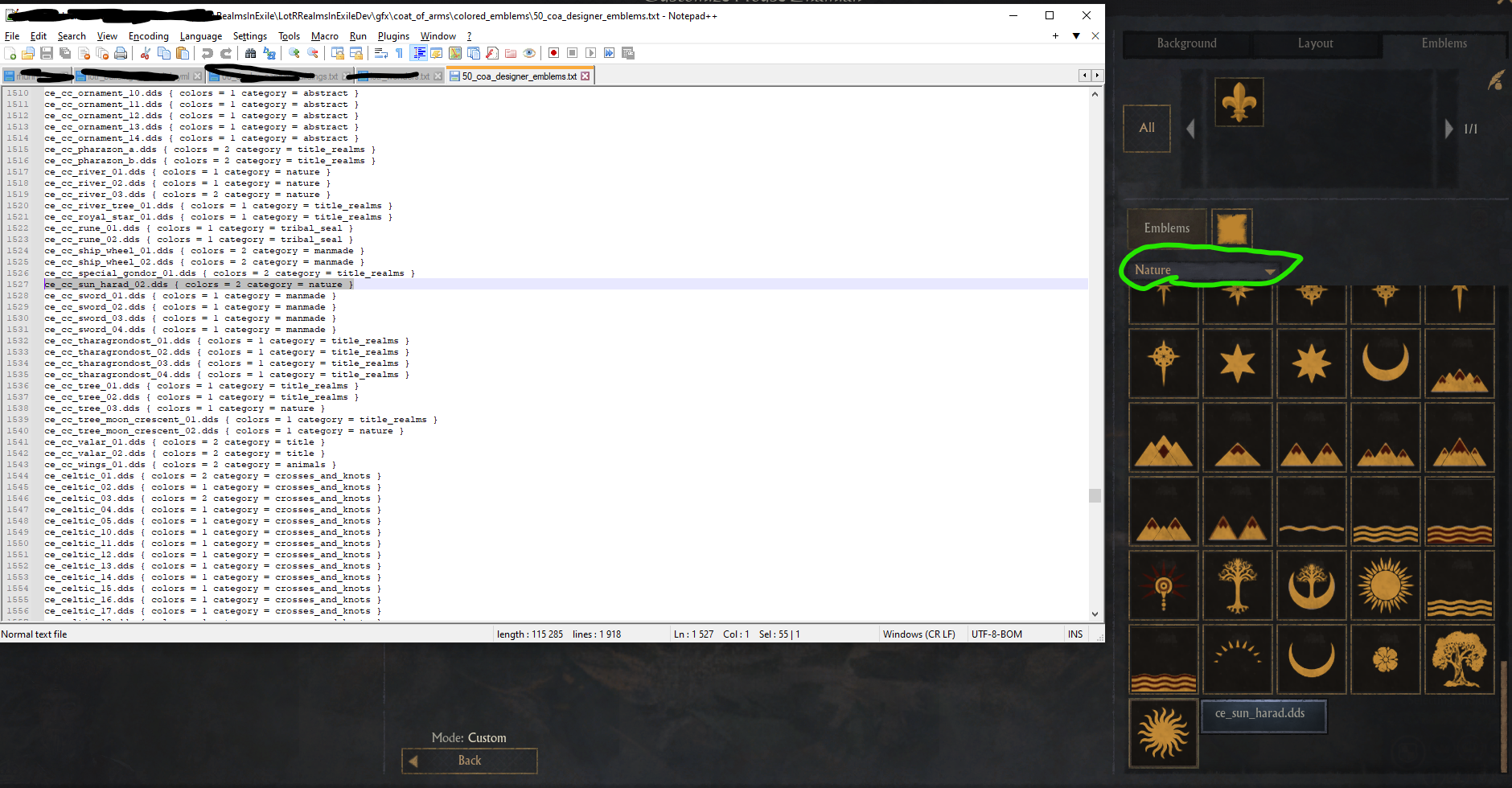
ce_cc_sun_harad_02.dds { colors = 2 category = nature } shown in notepad and how it appears ingame.
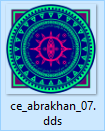
ce_abrakhan_07.dds
To create a new Category you need to you just need to create a new category in 50_coa_designer_emblems.txt where you normally would have the normal ones, then you need to localize that using file lotr_coa_designer_l_english.yml found in the folder path \LotRRealmsInExileDev\localization\english. So on the first picture bellow you see the art asset, then on the secound you'll see that i have put ce_easterling_claws.dds category code as title_easterling then on the third picture you'll see that i have localized it as "Easterling". After that it will show up ingame ass seen on the fourth picture!
Click to expand
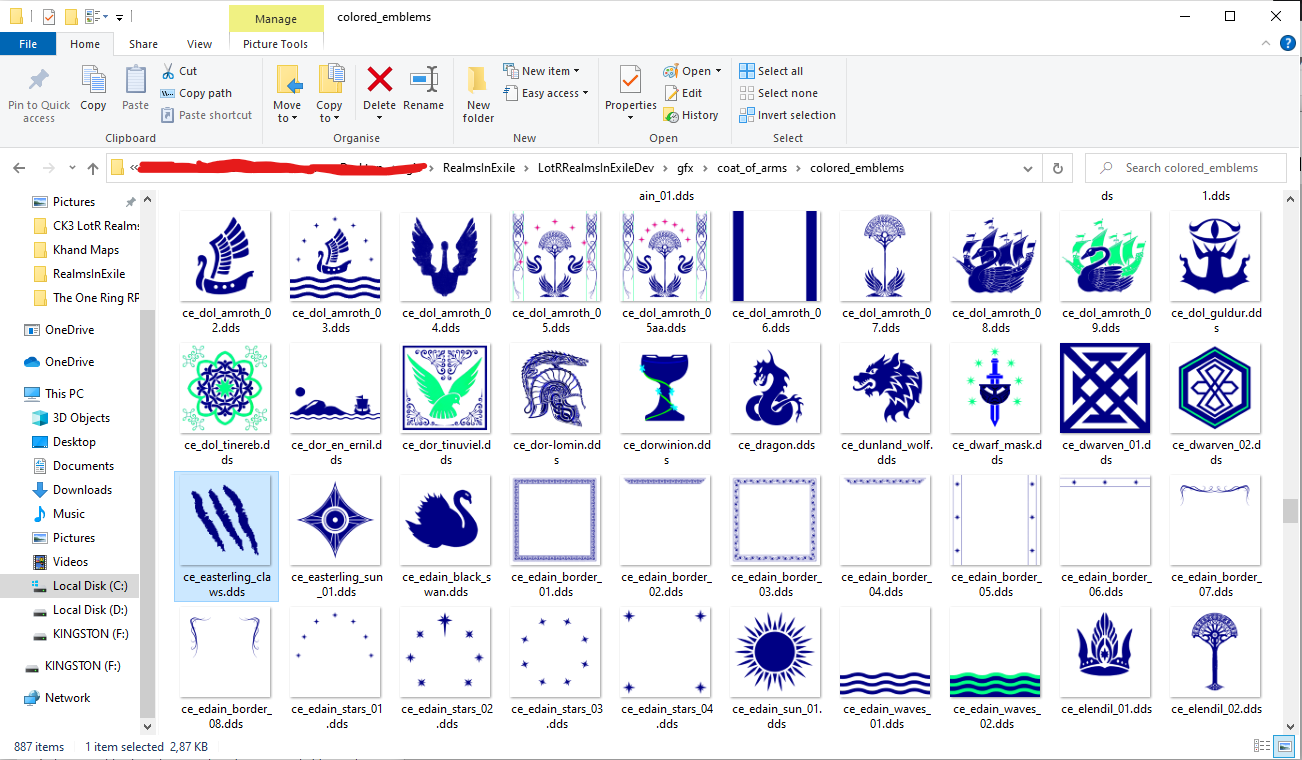 1sr picture showing the file
 ce_easterling_claws.dds
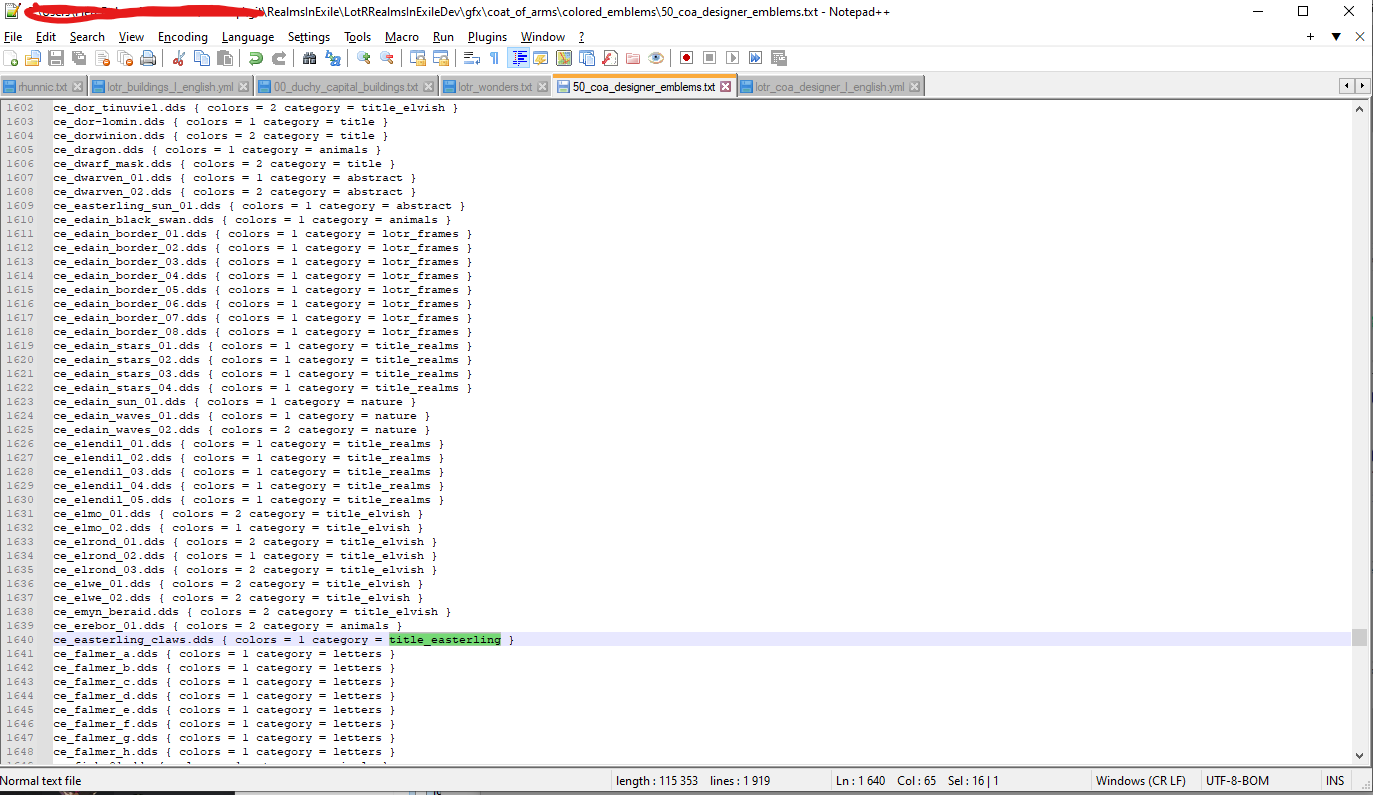 2nd picture shows ce_easterling_claws.dds code
 ce_easterling_claws.dds { colors = 1 category = title_easterling } showing the new category
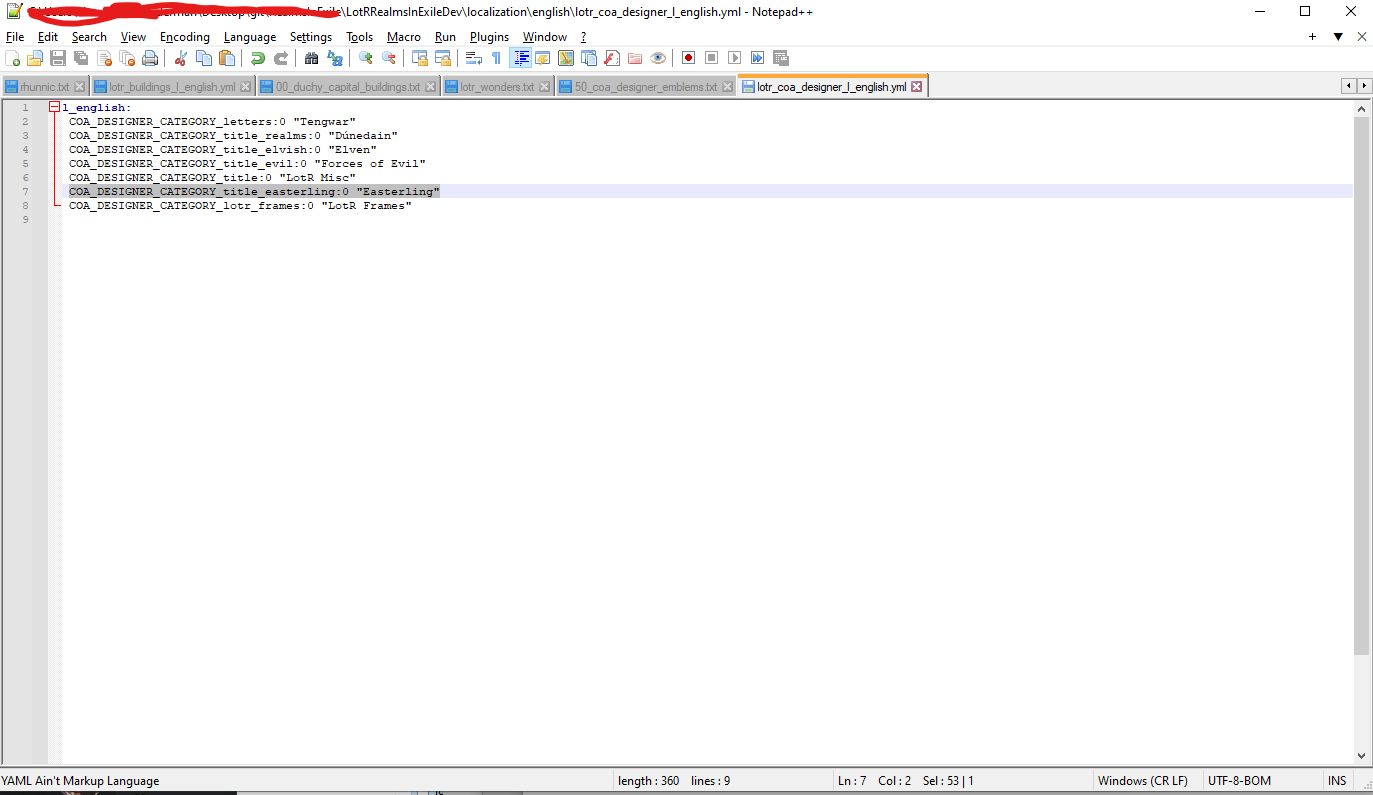 3rd picture showing the localization for
 title_easterling
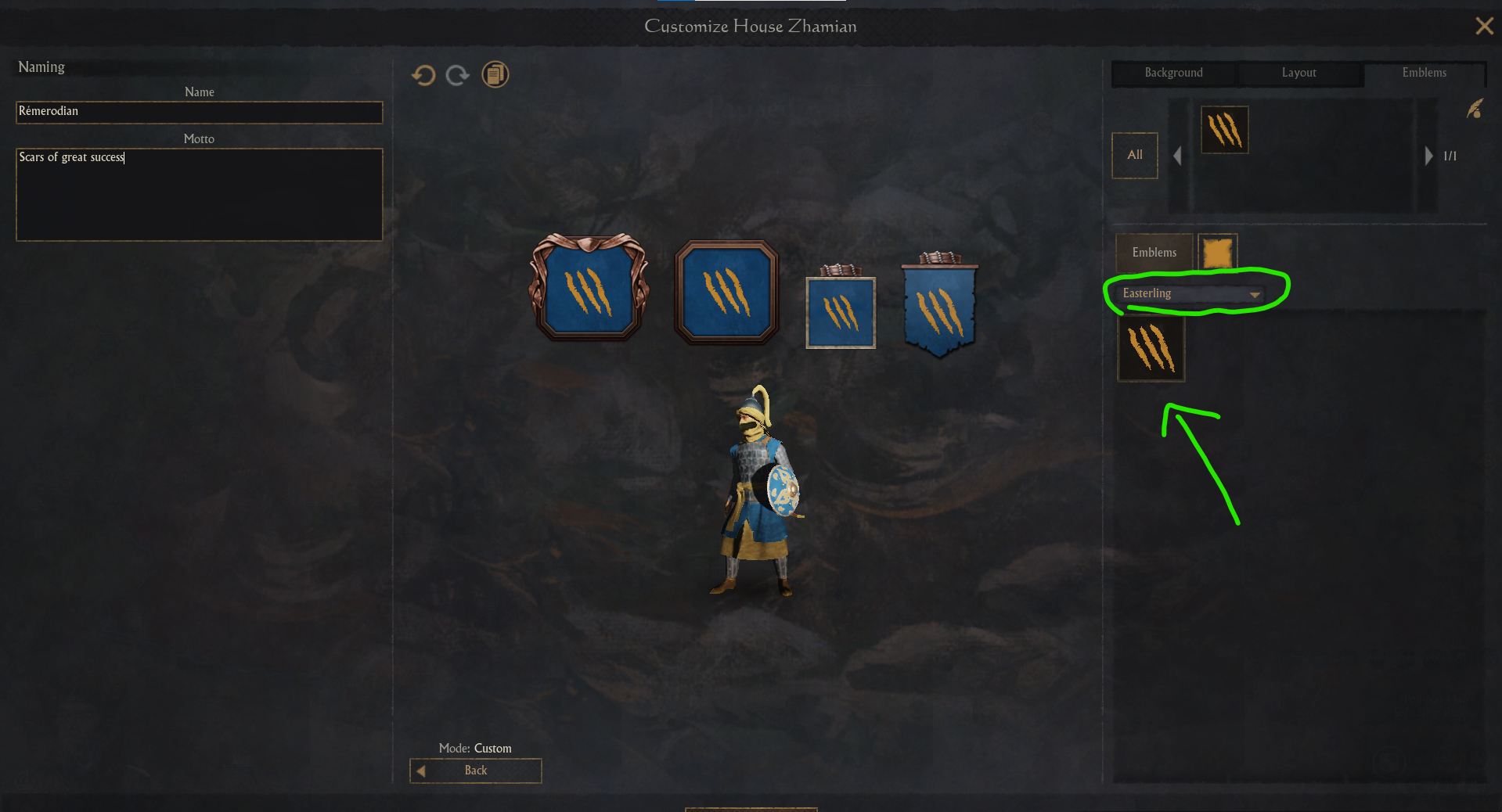 4th picture Shows how it will appear in game
And this should be it for your new CoA to appear ingame! (But if you wanna know more on how to apply CoA stuff for a dynasty or title you're creating, check this wiki page out Coat of Arms Modding )
WIP
So to create a MaA icon is simple first you need to get the image you want to use for that icon. Note: Make sure that the images you choose have the scale of 116 x 116 and that's it is properly converted to dds. Once you have your image setup you go to the folder path \LotRRealmsInExileDev\gfx\interface\icons\regimenttypes and place your icons. Now to get them to show ingame you would have to go to the folder path \LotRRealmsInExileDev\common\men_at_arms_types and select the .txt file that you have you MaA in and then go down to where it says something like this (icon = heavy_infantry) then replace the heavy_infantry with the name of your icon and you should be able to see the icon ingame.
WIP
WIP
WIP
WIP
WIP
WIP
WIP
The process is very straightforward : add the .png or .dds file in this folder: RealmsInExile/LotRRealmsInExileDev/gfx/interface/illustrations/event_scenes/
Then link the background to a name in this file: RealmsInExile/LotRRealmsInExileDev/common/event_backgrounds/zz_lotr_event_backgrounds.txt
The ambience and lighting should use the ones from the most similar vanilla background, until something custom can be made
WIP