User Guide - BHDynamics/dynossat-edu-obc GitHub Wiki
Having already seen an overview of the device, this section aims to provide you with a more detailed guide of how to get started with DynOSSAT-EDU.
If you’ve purchased the full DynOSSAT-EDU kit, you will get the following:
- 120x80 mm Safety box with foam padding to carry the device
- 1 x On-Board Computer board
- 1 x Electric Power System board
- 1 x Communications board
- 1 x Adapter Breakout board
- 2 x 3V/120 mA solar cells
- 1 x 868/915 MHz monopole antenna
Since the device boards are standalone, we also offer the possibility of getting only the pieces you want.
This guide is intended for the OBC and the EPS, since they are the UF2 compatible boards.
Important note: if you intend to use the full DynOSSAT-EDU stack, make sure to power it through the EPS! The power stages on the other boards are not rated to power the entire stack.
- Plug the board to a PC through an USB-C cable. The Power LED should turn on.
- A disk drive unit called CIRCUITPY should appear. In addition, the RGB LED should begin to emit a slow pulsating green light.
- Open the CIRCUITPY drive and you will see a file called code.py. Just open it with your favourite code editor and start coding!
- If you want to use libraries, just put them in the lib folder inside the CIRCUITPY drive. Although you can use libraries in raw .py format, in order to save memory we recommend you use them cross compiled to the .mpy format using mpy-cross.
We recommend that you use Mu, a simple but functional IDE for CircuitPython with official support for DynOSSAT-EDU. It integrates the serial console to check logs and access the REPL, and it also automatically recognizes the boards.
Open the latest version of the Arduino IDE. You will have to download the DynOSSAT-EDU boards definitions. Don’t worry, it’s really easy! Open the File -> Preferences window. In the Additional Boards Manager URLs field, add the URL to the JSON containing DynOSSAT-EDU boards:
https://bhdynamics.github.io/board_index/package_bhdynamics_index.json
- Plug the board (OBC or EPS) to the computer through USB. If you’ve not used the Arduino Framework before or if the CircuitPython firmware is active, a CIRCUITPY disk drive will appear. You can safely ignore it, since you’re not going to use CircuitPython for now.
- Press the Reset button twice to enter the UF2 bootloader.
- Then, you just have to select the board on Tools -> Board menu. Be sure you also select the right COM port (if you don’t have any other serial device plugged in your computer, it will be the only one on the list).
- Done! You can start sketching right away.
Please note that if you upload an Arduino sketch, the CircuitPython image will be erased and you will have to put it again.
Currently, the most commonly used PocketQube bus is the so-called PQ60 bus, introduced by the Libre Space Foundation. It’s kind of a de-facto standard, but a lot of PocketQubes are launched using their own, proprietary buses and connectors.
Since the 60-pin connector used in the PQ60 specification is a bit pricey and hard to use (it is rated to resist space conditions!), we decided to replace it with a lower cost and easier to find 2x20 1.27 mm pitch pin header, similar to the 2.54 mm pitch pin headers commonly used in the maker community, while respecting the PQ60 board form factor. We named the result PQBH40.
In order to support commonly used maker devices, we have designed a PQBH40 Adapter board that breaks out the bus to two 2x10 2.54 mm pin headers, fully compatible with standard Dupont cables.
Here is the PQBH40 pin definition:
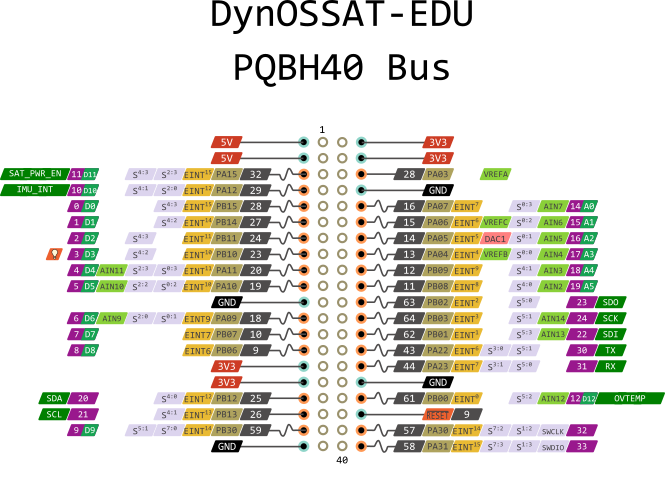
Please keep in mind that the PQBH40 specification refers to the On-Board Computer. For example, the BUS_SDO signal is the SDO line of the OBC.
In this section we will detail the connections on the On-Board Computer (OBC). It integrates an ATSAMD51 MCU working at an impressive 120 MHz, a set of sensors and a microSD card reader. You can read more about it on the Overview section of this document.
| Number | Pin name | ATSAMD Pin | Comments |
| Digital | |||
| 0 | D0 | PB15 | |
| 1 | D1 | PB14 | |
| 2 | D2 | PB11 | |
| 3 | D3 | PB10 | |
| 4 | D4 | PA11 | |
| 5 | D5 | PA10 | |
| 6 | D6 | PA09 | |
| 7 | D7 | PB07 | |
| 8 | D8 | PB06 | |
| 9 | D9 | PB30 | |
| Analog | |||
| 14 | A0 | PA07 | |
| 15 | A1 | PA06 | |
| 16 | A2 | PA05 | |
| 17 | A3 | PA04 | |
| 18 | A4 | PB09 | |
| 19 | A5 | PB08 | |
| Wire | PQBH40 I2C | ||
| 20 | SDA | PB12 | SERCOM4.0 |
| 21 | SCL | PB13 | SERCOM4.1 |
| SPI | PQBH40 SPI | ||
| 23 | SDI/MISO | PB01 | SERCOM5.3 |
| 24 | SDO/MOSI | PB02 | SERCOM5.0 |
| 25 | SCK | PB03 | SERCOM5.1 |
| Serial1 | PQBH40 UART | ||
| 30 | TX/D30 | PA22 | SERCOM3.0 |
| 31 | RX/D31 | PA23 | SERCOM3.1 |
| SPI1 | Flash SPI | ||
| 34 | FLASH_SDI/SDI1 | PA18 | SERCOM1.2 |
| 35 | FLASH_SDO/SDO1 | PA16 | SERCOM1.0 |
| 36 | FLASH_SCK/SCK1 | PA17 | SERCOM1.1 |
| 37 | FLASH_CS/SS1 | PA19 | Digital IO, active low |
| Miscellaneous | |||
| 38 | SD_CS/D38 | PB22 | Chip select for SD card, active low |
| 10 | INT_IMU/D10 | PA12 | IMU interrupt input, active high |
| 11 | SAT_PWR_EN/D11 | PA15 | Power enable signal from EPS, active high |
| 13 | LED/D13 | PA08 | NeoPixel RGB LED |
| 12 | OVTEMP/D12 | PB00 | Overtemperature alert signal from EPS, active high |
| 32 | SWCLK/D32 | PA30 | SWD clock for programming and debugging. Can be used as digital IO |
| 33 | SWDIO/D33 | PA31 | SWD data for programming and debugging. Can be used as digital IO |
The SD card reader is connected to the PQBH40 SPI bus. The SGP30 gas sensor, MCP9808 temperature sensor and ICM-20948 IMU are connected to the same PQBH40 I2C bus.
The above definitions are the default ones included in the provided CircuitPython build and Arduino core , but you can use the pins as any supported peripheral. For example, you may configure PQBH40 SPI pins as UART or I2C. In order to know what peripherals are supported on each pin, refer to the datasheet of the microcontrollers, I/O Multiplexing and Considerations section. You can also refer to the excellent Adafruit documentation in that regard!
Since our main focus was to make the boards as versatile as possible, we wanted to make them fully standalone, meaning that you can use every board individually without needing the complete stack to work. Because of that, we designed the OBC so you can power it through USB, the EPS or directly from an external supply.
The OBC has three different voltage rails: 5V, 3.3V and 1.8V. The main voltage of the board is 3.3V since it’s the voltage the MCU works at. Both the IMU and the gas sensor are not 3.3V tolerant, so they need to be powered and controlled at 1.8V. Because of that, we included a simple voltage level translator so we are able to control it from the MCU I2C lines.
Powering through USB. Just plug an USB-C cable to the board. The 5V rail will be the VBUS USB voltage (typically between 5 - 5.25V), which will go through a 500 mA LDO to generate the 3.3V rail. Those 3.3V will go through another LDO to generate 1.8V for the IMU and gas sensor.
Powering through the EPS. If the EPS is plugged into the OBC, powered on and with the SAT_PWR signal active, the OBC’s 5V and 3.3V rails will be taken from the EPS. The SAT_PWR signal will turn off a P-Channel MOSFET to prevent the 3.3V rail voltage from colliding with the on-board 3.3V LDO output.
External powering. Just plug a 5V supply into any of the 5V pin of the PQBH40 header. Ih then will be the same as powering through USB. If you plug a 3.3V supply instead, you will not have the 5V rail available. We recommend that you also connect the SAT_PWR pin to VDD to prevent possible problems.
If you have the OBC powered from the EPS or an external supply, you can connect the board to a PC through USB-C without trouble. Protection electronics are in place to prevent any backpowering.
Important note: if you intend to use the full DynOSSAT-EDU stack, make sure to power it through the EPS! The power stages on the other boards are not rated to power the entire stack.
On the other hand, the analog reference pin (AREF) is tied to 3.3V by default through a closed solder bridge. In the rare case you need another reference, you’d have to cut the bridge and solder a wire with the new reference.
Finally, the reset button pulls the nRESET line of the ATSAMD51 low, resetting the microcontroller. This signal is also connected to the RESET pin of the PQBH40, so it will also reset other boards or components plugged to the bus. The exception being the EPS, since it has an independent reset line.
If you press the reset button twice, the board will enter bootloader mode. A disk drive unit called OBCBOOT will appear on your PC, where you can just drag and drop the .uf2 firmware files without the hassle of needing an external programmer.
It’s time to get your first program running on your OBC! We’re assuming you will be using Windows, but the procedure on other operating systems is basically the same.
The first time you plug the board to the computer, Windows will automatically install the USB drivers. When the process is finished (it should take no more than 30 seconds), you will have a new USB device in the form of a 4 MB disk drive called CIRCUITPY, and a Virtual COM Port available:
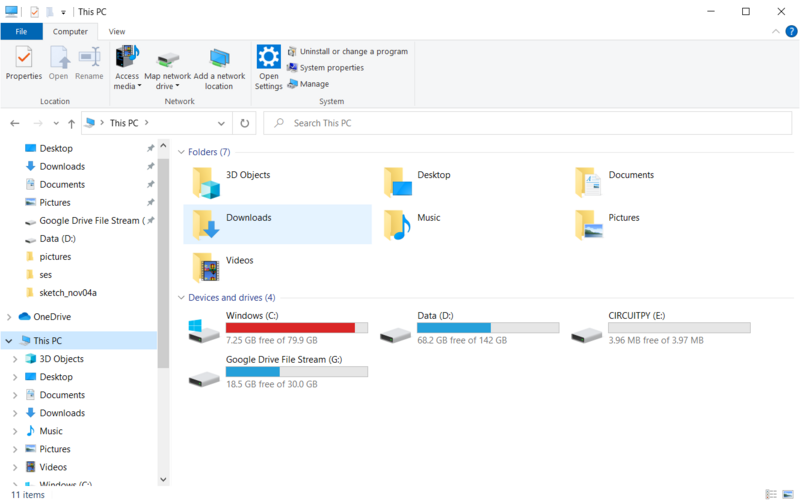
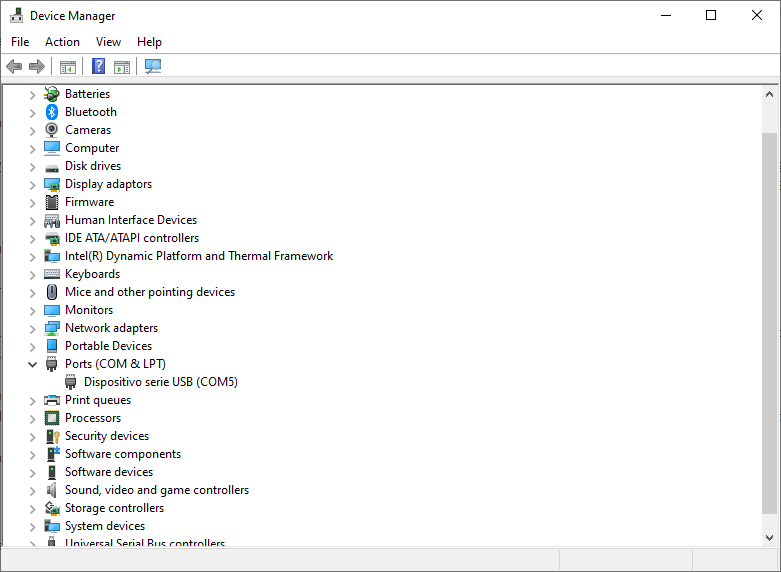
If you open the CIRCUITPY drive, you will find, among others, a file called code.py. That’s the main source code file, where you have to put your CircuitPython code. You can just open the file with your favourite text editor (NotePad++, VS Code, Sublime, etc.) and begin writing code; when you save the file the board will automatically begin execution. If you open a serial console on the right port (such as Termite), you will see CircuitPython’s output there.
Anyway, a more convenient way of writing CircuitPython code exists. The open-source, user-friendly Mu Editor has native CircuitPython support and has an integrated serial terminal, which makes it the ideal choice for developing with these boards.
Important note: the build you can download from Mu's website is an old build that does not include the latest features, among them DynOSSAT-EDU support. For now, until a new stable build is released, you'll have to use the latest nightly build. Scroll to the bottom of this page, select your operating system and download the latest executable (DynOSSAT-EDU support is included from October 23rd).
If you have the board plugged, Mu will automatically configure everything for you when you open it:
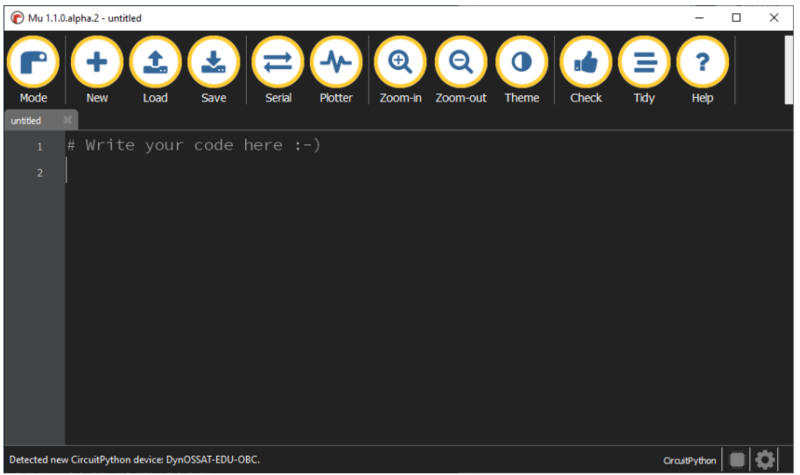
If not, you just need to click the Mode button and select CircuitPython. It will automatically recognize any connected CircuitPython device.
Then, you just need to click Load to open the code.py file present in the CIRCUITPY drive and start coding. Open the Serial console with the corresponding button to access the output of the board and the command line (REPL).
For more details about CircuitPython and what to do next, please refer to the Adafruit's documentation page. There you can find things like how to install libraries, common REPL commands, etc.
Please note that, before unplugging the USB cable, it is necessary to eject the CIRCUITPY drive. Operating with an SPI flash like the one the OBC and the EPS carry is not the same as working with a real USB drive. Because of that, it’s more susceptible to corruption and I/O errors, rendering your device unusable in the worst case.
While tinkering with the board, sometimes the worst happens, the flash memory gets corrupted and you lose access to the CIRCUITPY drive. You may still boot into the UF2 bootloader and load firmware, but CircuitPython won’t work because the flash is stuck.
Luckily, you can easily fix this doing a flash mass erase. You can do it in a few different ways:
- If you have access to the REPL (i.e, CircuitPython is working but just without access to the CIRCUITPY drive) through Mu or any serial terminal, just type:
>>> import storage
>>> storage.erase_filesystem()
The flash will be erased and the CIRCUITPY drive should appear again after a reset.
- If you don’t have access to the REPL, you can write a small Arduino program that performs the erase. To ease things, we provide a .uf2 file that you can just drag to the bootloader’s OBCBOOT drive (press the reset button twice and it should appear). Here is the GitHub link to the source .ino file and the precompiled .uf2 binary:
SOON
- If that does not work because the flash is truly corrupted or damaged, you can replace it with a soldering iron. You can get those flash chips (GD25Q32CNIGR) from Mouser or LCSC for cheap.
Lastly, if things go REALLY wrong, the bootloader itself gets corrupted and the board doesn’t boot anymore, you can flash it again using a J-Link programmer. We recommend using the official J-Link Mini EDU, which is small, reliable and cheap for non-commercial use (under 20€). Here is the latest version:
SOON
If you don’t want to use CircuitPython, you can program the board using the Arduino Framework.
The first time you plug the board to the computer, Windows will automatically install the USB drivers. When the process is finished (it should take no more than 30 seconds), you will have a new USB device in the form of a 4 MB disk drive called CIRCUITPY, and a Virtual COM Port available. Since we won’t be using CircuitPython, you can safely ignore it, but we recommend entering the bootloader so the Arduino IDE gets the correct COM port. To do that, just press the reset button twice and you will see a new disk drive named OBCBOOT. The RGB LED will turn on green.
Before starting writing code, you will need to install the DynOSSAT Arduino core and board definitions to your IDE. It’s as easy as following these steps:
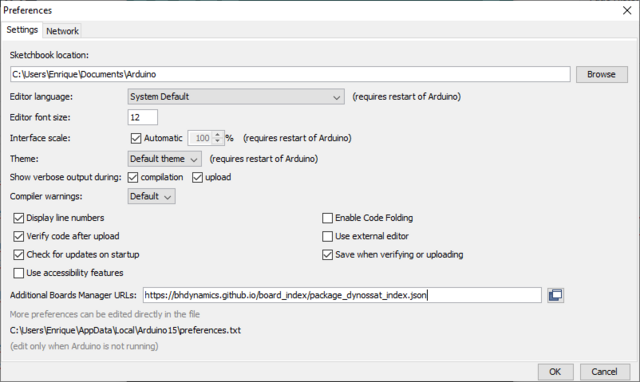
- Start the Arduino IDE. Select File -> Preferences:
- In the “Additional Boards Manager URLs” text box, paste the URL where we store the files:
https://bhdynamics.github.io/board_index/package_bhdynamics_index.json
Important note: we have updated the board link. The previous one was https://bhdynamics.github.io/board_index/package_dynossat_index.json that NO LONGER WORKS. Please use the new one!
- Go to Tools->Board->Boards Manager. Search for "DynOSSAT" and install the packages:
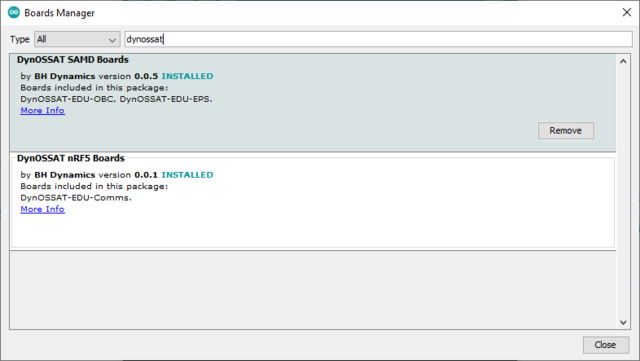
- It’s done! You just have to select the board on Tools->Boards and the right COM port and start writing Arduino code. DynOSSAT-EDU should be fully compatible with any SAMD-based Arduino library.
Please note that uploading Arduino programs will delete CircuitPython from the board (but it won’t erase the SPI flash contents, so your Python code should be safe for later). To recover it, just enter the bootloader (remember, press reset twice) and drag and drop the CircuitPython .uf2 image file to the OBCBOOT drive.