DropToScript Documentation - BCLibCoop/nnels-a11y-publishing GitHub Wiki
Using the app
After you have installed the app (see further), using it is simple.
Select one or more files to be processed in the Finder or Explorer. These will most probably be HTML or XHTML files.
Drag them onto the app icon or an alias/shortcut thereof.
By default, if you have more than one DropScript in the DropScripts folder, the app will show a dialog with a popup menu where you can select the operation you want to be performed.
If you need to process many files with the same DropScript, you can avoid this dialog.
To pre-select a particular DropScript, you need to double-click the DropToScript app icon. This brings up a configuration screen where you can pre-select a DropScript.
After you do that, any dropped files will be processed with the pre-selected DropScript, without any dialogs appearing.
Installing
Downloadable Instructional Videos
Windows
https://app.box.com/s/ch7nqbbeuw4bqlbs5k9a71t9n85jd9fe https://app.box.com/s/8nobrjxxmewstbkomii3mpf40pghst99
Mac
https://app.box.com/s/u4ega8qdq7opbxjpfcfnaj90p03xhj9y
Written Instructions
You can download the DropToScript app, bundled with any available DropScripts from here:
https://github.com/BCLibCoop/nnels-a11y-publishing/tree/master/ReleaseVersions
Click the latest DropToScript.a.a.a_s.s.s.zip in the list.
As you can see there are two version numbers, which I am representing them by a.a.a and s.s.s, in the .zip file name.
The a.a.a version number is the version number of the DropToScript app.
The s.s.s version number is the version number for the DropScripts command line scripts that are included with the app in the same .zip file

On the next web page, click the 'Download' button.

Once you have downloaded the file, unzip it.
Inside you'll find three different versions of the DropToScript app: one for Mac, one for Windows, one for Linux.
Move the appropriate version to a convenient location on your hard drive (e.g. on your desktop is fine).
Always make sure to move the whole DropToScript folder.
The app will not work unless the executable file (i.e. the .app, .exe or Linux executable) stays together with the associated subfolders (DropScripts, DropToScript Libs...).

Once you have moved the correct DropToScript folder to a convenient spot, you can create an alias (Mac) or shortcut (Windows) or symbolic link (Linux) to the application icon inside the folder, and put it on your desktop.
Example on a Mac:

You will then be able to drag/drop any files you want to process with one of the DropScripts onto this alias or shortcut icon.
On some older versions of Windows, you will find the app does not work because of a missing Windows redistributable.
If that is the case, download and install the file ReleaseVersions/vc_redist.x86.exe
Install and Configure
The DropToScript app needs to have access to a PHP program installed on your computer.
Linux
On Linux, the PHP program is automatically installed - the DropToScript app does not need to be reconfigured
Mac
On a Mac, the PHP program is automatically installed - the DropToScript app does not need to be reconfigured.
However, after downloading the app cannot yet function: it is not permitted to access the 'DropScripts' folder by the Mac OS.
To allow the app to the DropScripts folder we need to right-click the initialSetupConfigApp.command file which lives beside the app.
In the contextual menu, select 'Open'
A dialog should appear. Click the 'Open' button.

This only needs to be done immediately after downloading.
Windows
Downloading PHP
This only needs to happen once. You do not need to do it again after you download an update to the DropToScript app.
https://github.com/BCLibCoop/nnels-a11y-publishing/wiki/Installing-PHP-on-Windows
Configuring the app
Downloadable video:
This needs to happen every time you update the DropToScript app on your computer.
After unzipping, double-click the DropToScript app icon (or the shortcut you might have created).
Some versions of Windows will bring up a warning dialog. Allow the app to run.
On Windows 10, you need to click 'More Info'.

Then click 'Run anyway'.

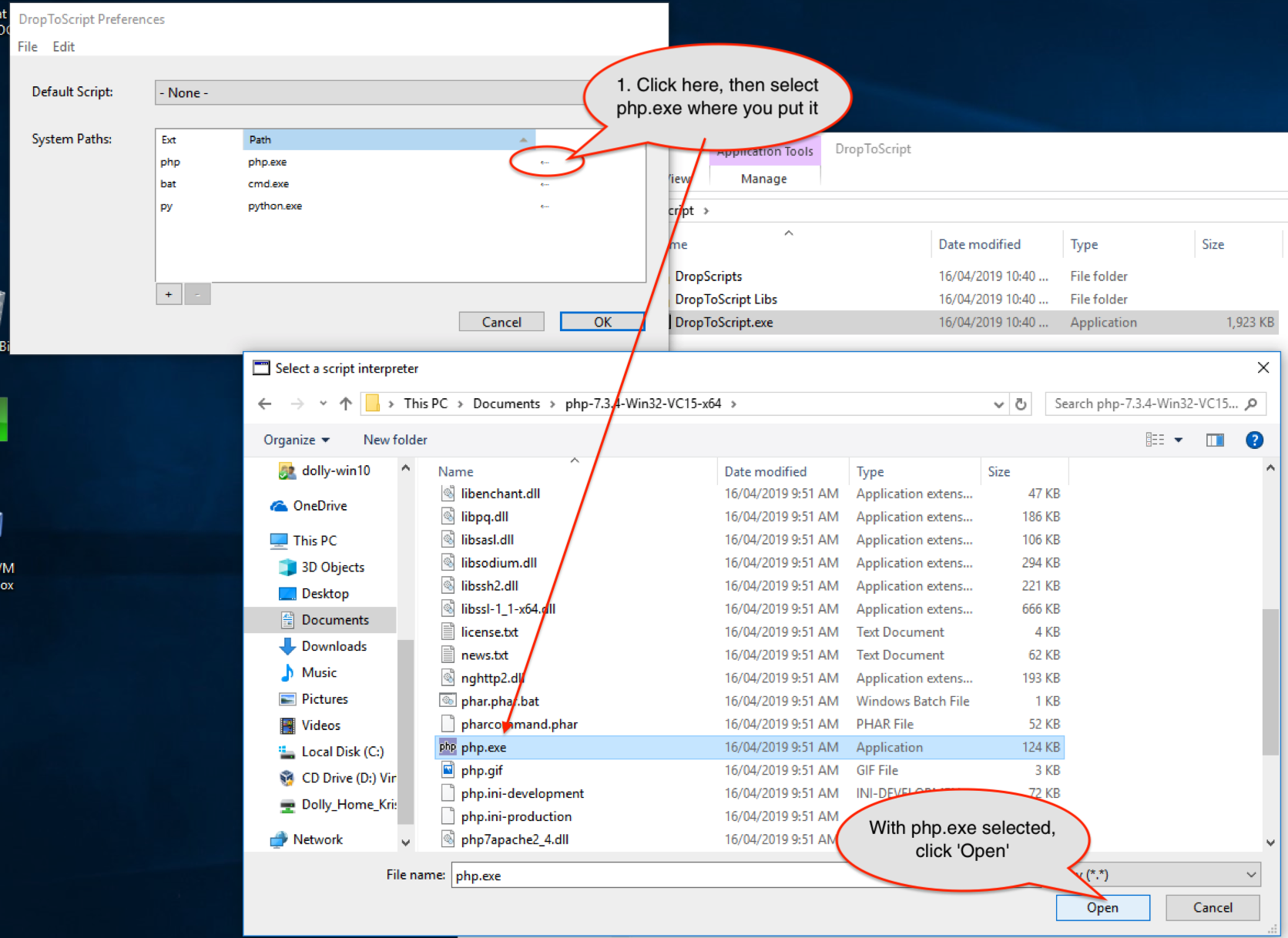
You now need to point out where the php.exe is located.
Click the small left-pointing arrow on the 'php line: