Transforming Website Deployment Template for Test Drive - Azure/AzureTestDrive GitHub Wiki
Let's look to the following website template:
https://github.com/Azure/AzureTestDrive/raw/master/samples/webapp/template.json
This template creates Web App service, and deploy a simple website using a prebuilt Web Deploy package from GitHub. You can find both source code and Web Deploy package here.
The template accepts six parameters and you can use it for manual deployment on Azure Portal.
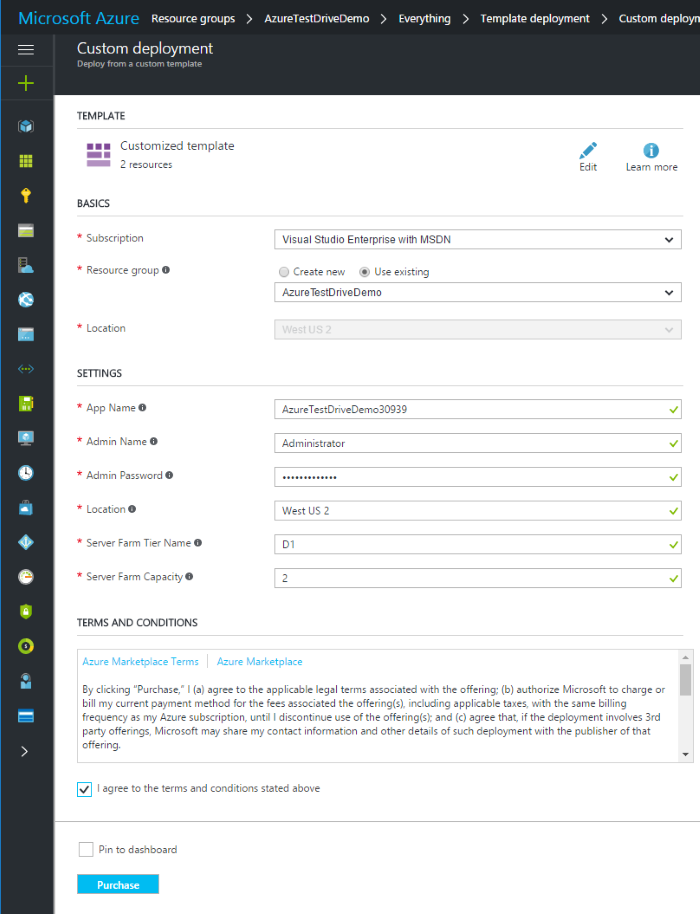
Let's see how to transform this website deployment template for a Test Drive. You can find the final version here:
https://github.com/Azure/AzureTestDrive/raw/master/samples/webapp/main-template.json
The first thing you need to do is to instruct Test Drive how to populate template parameters, or turn these parameters into constant values. Also, you need to make sure that all names which must be globally unique, are globally unique. For example, storage account name should be unique across all Azure data centers.
Let's walk through the website deployment template parameters one by one and update them.
This parameter is used to build the website Uri, so it must be globally unique:
"parameters": {
  "appName": {
    "type": "string",
    "metadata": {
      "description": "Unique app name."
    }
  },
  ...
}
When you deploy this template manually, you can just pick any available name. For the Test Drive, you have to use a variable instead of parameter, and assign a [unique value for this variable ].
"variables": {
  "appName": "[concat('contosowebapp',uniquestring(resourceGroup().id))]",
  ...
}
These two parameters specify Administrator user name and password for your website:
"parameters": {
  ...
  "adminName": {
    "type": "string",
    "metadata": {
      "description": "Admin user name."
    }
  },
  "adminPassword": {
    "type": "securestring",
    "metadata": {
      "description": "Admin password."
    }
  },
  ...
}
When you deploy this template manually, you can pick any valid name and password. For the Test Drive, you can use constant values or instruct Test Drive to generate a random user name and password:
"parameters": {
  "adminName": {
    "type": "string",
    "metadata": {
      "type": "username",
      "description": "Admin user name."
    }
  },
  "adminPassword": {
    "type": "securestring",
    "metadata": {
      "type": "password",
      "description": "Admin password."
    }
  },
  ...
}
Now Test Drive will populate these parameters with random values:
| Parameter | Sample Value |
|---|---|
| adminName | admin68876 |
| adminPassword | Lp!ACS^2kh |
You can generate as many user names and passwords for your Test Drive as you want.
This parameter specifies Azure region where we want to deploy your website:
"parameters": {
  ...
  "location": {
    "type": "string",
    "metadata": {
      "description": "Deployment location."
    }
 },
  ...
}
For the Test Drive, you can pick one or more Azure region for your lab when publishing your template. Because your template should work correctly in every region, you need to replace this parameter with a variable and initialize it using resource group location:
"variables": {
  ...
  "location": "[resourceGroup().location]",
  ...
}
These two parameters specify server farm tier and capacity for your website:
"parameters": {
  ...
  "serverFarmTierName": {
    "type": "string",
    "metadata": {
      "description": "Server Farm tier name."
    }
  },
  "serverFarmCapacity": {
    "type": "int",
    "metadata": {
      "description": "Server Farm capacity."
    }
  },
  ...
}
When you deploy this template manually, you can choose any server farm which satisfy your needs. For the Test Drive, you need to find a balance between Lab requirements and service cost, and then pick an appropriate server farm size and use it as constant values:
"variables": {
  ...
  "serverFarmTierName": "D1",
  "serverFarmCapacity": 1,
  ...
}
Another thing you need to do is to define deployment template outputs. When you deploy this template manually, you know your website name, user name and password. But Test Drive generates these values during deployment, so you need to save them and show them to a user .
For your website, you need to send the automatically generated website Uri, administrator user name , and password back to the Test Drive and then to a user. The following code shows how to do send this information back:
"outputs": {
  "App Uri": {
    "type": "string",
    "value": "[concat('http://',variables('appName'),'.azurewebsites.net/')]"
  },
  "User Name": {
    "type": "string",
    "value": "[parameters('adminName')]"
  },
  "Password": {
    "type": "string",
    "value": "[parameters('adminPassword')]"
  }
}
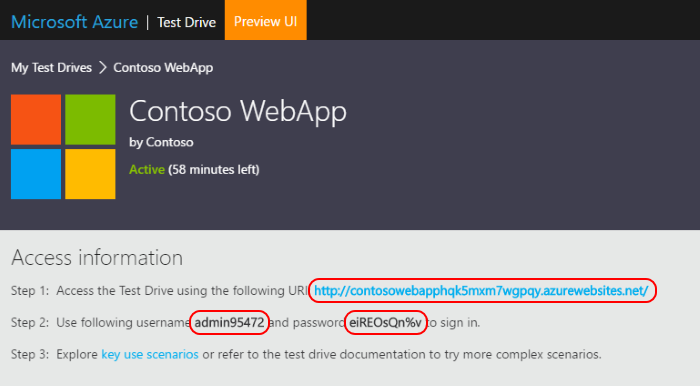
While configuring the lab, you can refer output variables in access information template:
Access the Test Drive using the following URI: **{{App Uri}}**
Use following username **{{User Name}}** and password **{{Password}}** to sign in.
So a user will see customized access information on the Lab page:
The original template downloads Web Deploy package from GitHub. This technique works for Test Drive, but I recommend include all resource into a Test Drive deployment package.
| package.zip | Test Drive blob container |
|---|---|
| main-template.json | https://<...>.blob.core.windows.net/<...>/main-template.json |
| contoso_webapp.zip | https://<...>.blob.core.windows.net/<...>/ contoso_webapp.zip |
Inside your template, you can use [Base Uri] parameter to construct a Uri of any file from your Test Drive deployment package. For example, you can construct Web Deploy package Uri as shown below:
"variables": {
  ...
  "packageUri": "[concat(parameters('baseUri'),'contoso_webapp.zip')]"
}
See also: