1. Operating modes - Automattic/stories-android GitHub Wiki
There are three main states or modes in which the library can operate. These modes directly relate to the purpose and mission the user is going to be performing at each moment, which are different from one another, these being:
- Live preview / capture mode
- Story editing mode
- Error handling mode
In this mode, the user is able to capture still images or record videos using the camera. The live preview allows them to see what the camera is capturing, and they can control what to do with simple intuitive gestures:
tapping once on the shutter control (big circle at the bottom part of the screen) will take a still image and return it to the Story editing mode as an added slide (appended to the right of existing slides) They can record a video using tap and hold on the shutter control. Visual as well as vibrating feedback is given so the user knows the video started being recorded.
Videos are capped at 30 seconds in length. Currently, we only use autofocus when available. Also noteworthy, pinch to zoom is not available at the moment.
See video here.
Users can also benefit from the Flash state button (auto, on, off) which is available depending on the camera selected, and they can also flip to use the front camera and vice versa, using the flip button to the right of the shutter.
The button to the left of the shutter (labeled "Upload") is a direct link to the media picker, if a media picker is provided (it is mandatory, the app will crash on purpose when a media picker provider is not set).
This is the main mode, or the mode in which we expect the user to be spending most time in.
The Story editing mode screen is composed of two main parts:
- the Background surface manager
- the Story frame selector
The Story frame selector provides a seamless way to ehm, select slides (frames) that will be shown on the main part of the screen.
The Surface manager is a component of the library which handles quickly switching between static image background slides to video slides. Videos are played in an infinite loop, and they re-start each time the user taps on the selector to change slides.
The creation tools available here are:
- Pinch to zoom on the background image
- Add fancy text
- Pinch to zoom on added text
- Add emoji (currently disabled due to bugginess, but the provisions for it are mostly in place)
Watch this short video here to see how these tools play together.
When the user is ready to save a Story to produce output, they'd tap on the check ✅ button on the top-right corner of the screen. Slides will be composed and saved to new files. The progress will be broadcasted with granular events so you can take action (or display progress if needed) at different points in time. The library already provides a foreground progress notification.
When something goes wrong in the saving process and a slide can't be saved, this will be indicated using an error notification as well as a snackbar (when a snackbar provider is set).
Tapping on an error notification, its quick action, or on the snackbar's action button will take the user to the Story composer (ComposeLoopFrameActivity) and put it in Error handling mode:
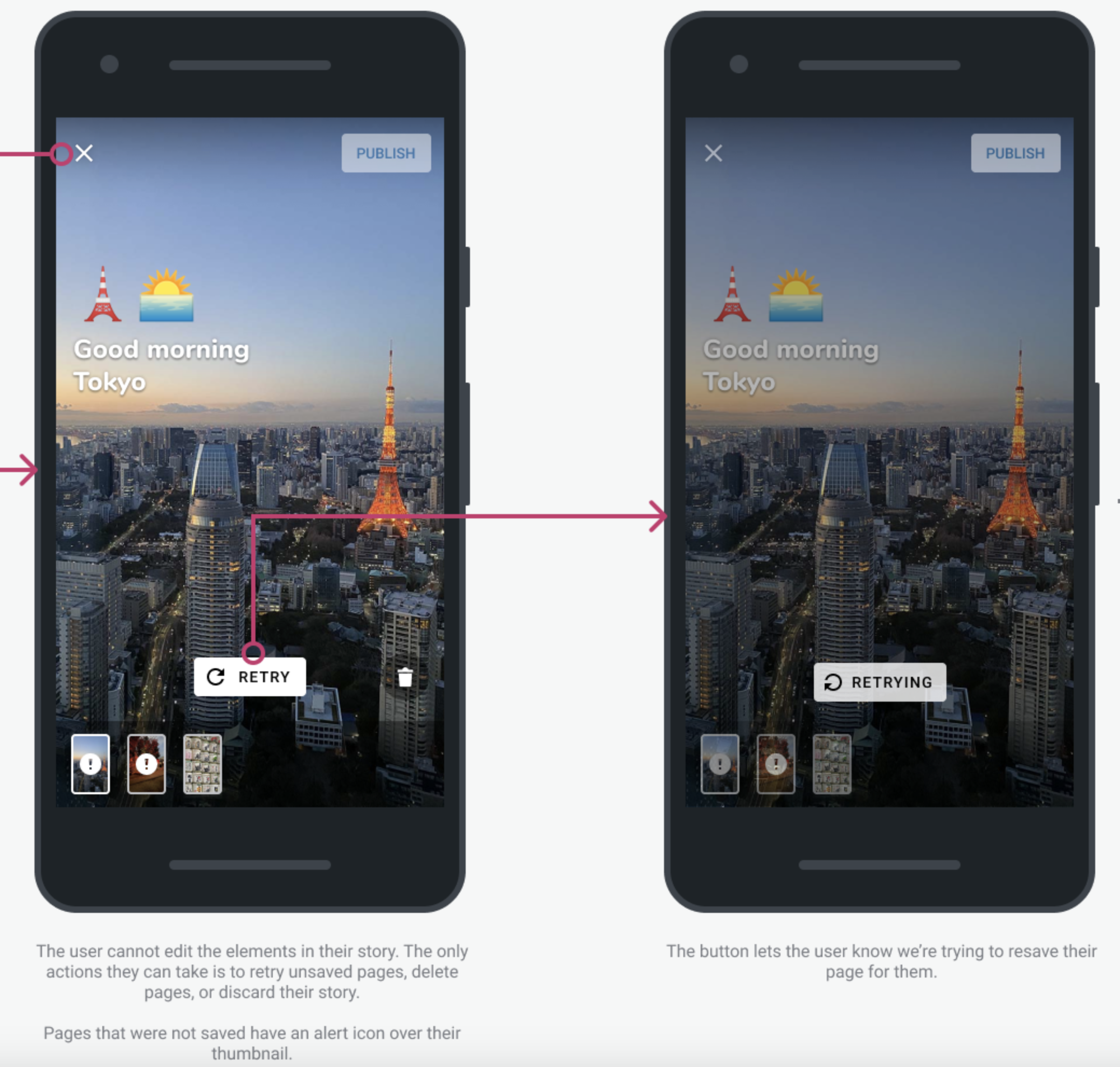
The error handling mode has the following particularities:
- It focuses on solving errors
- It does not allow slide editing
The intent here is to either retry a failed save, or remove a slide completely. This is due to the fact that save errors are rather temporary (so an individual slide retry should work most of the time), or definitive (in which case, it only makes sense to remove the slide entirely and start over). Temporary errors are typically due to some combination of concurrency and device space availability, so most of the time things should be retriable.
Once all slides have been successfully retried (and thus, the whole Story is deemed as successfully saved), the Activity transitions from error handling mode to Editing mode again.
Next: library API