Home - Atmosplay/AtmosplayAds-Unity GitHub Wiki
This guide is intended for publishers who want to monetize a Unity app.
Integrating the Atmosplay Ads Unity plugin into an app, which you will do here, is the first step toward displaying Atmosplay ads and earning revenue. Once the integration is complete, you can choose an ad format (such as native or rewarded video) to get detailed implementation steps.
-
To deploy to iOS
- Xcode 10 or higher
- iOS 8.0 or higher
- CocoaPods
-
To deploy to Android
- Target Android API level 14 or higher
The Atmosplay Ads Unity plugin enables Unity developers to easily serve Atmosplay Ads on Android and iOS apps without having to write Java or Objective-C code. The plugin provides a C# interface for requesting ads that is used by C# scripts in your Unity project.
Use the links below to download the Unity package for the plugin or to take a look at its code on GitHub.
Download the Plugin
View Source Code
Open your project in the Unity editor.
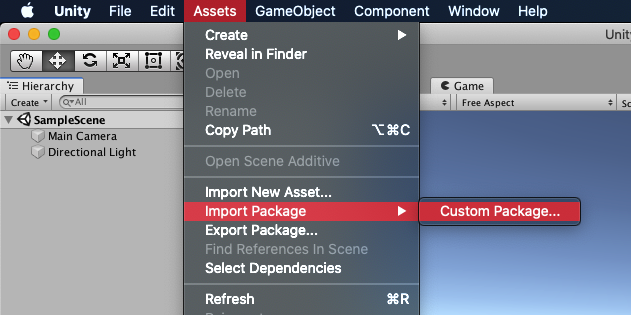
Select Assets > Import Package > Custom Package and find the AtmosplayAds.unitypackage file you downloaded.
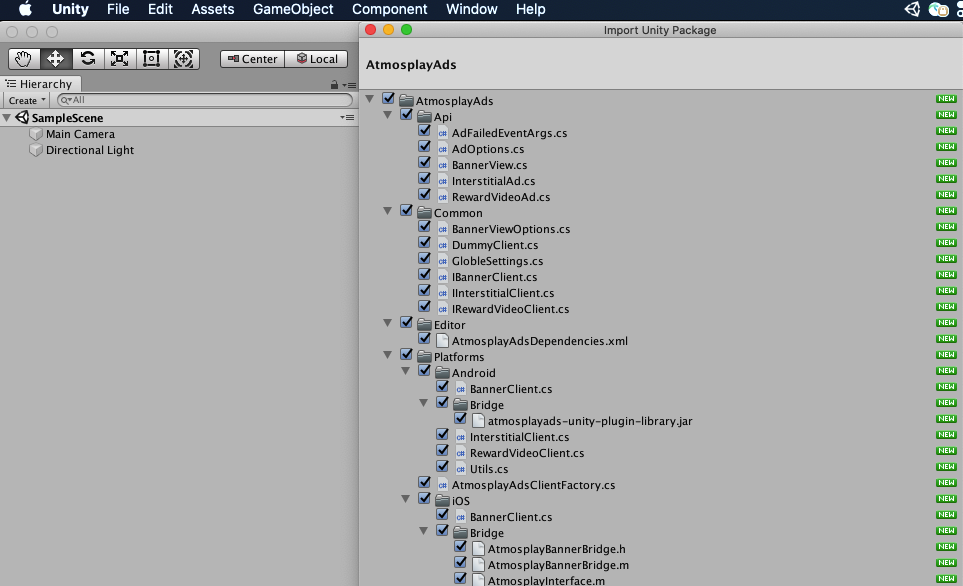
Make sure all of the files are selected and click Import.
The Atmosplay Ads Unity plugin is distributed with the Unity Play Services Resolver library. This library is intended for use by any Unity plugin that requires access to Android specific libraries (e.g., AARs) or iOS CocoaPods. It provides Unity plugins the ability to declare dependencies, which are then automatically resolved and copied into your Unity project.
Follow the steps listed below to ensure your project includes the Atmosplay Ads SDK.
No additional steps are required to include the Atmosplay Ads SDK into the Unity project.
After building, open xcworkspace project.
Note: iOS dependencies are identified using CocoaPods. CocoaPods is run as a post build process step.
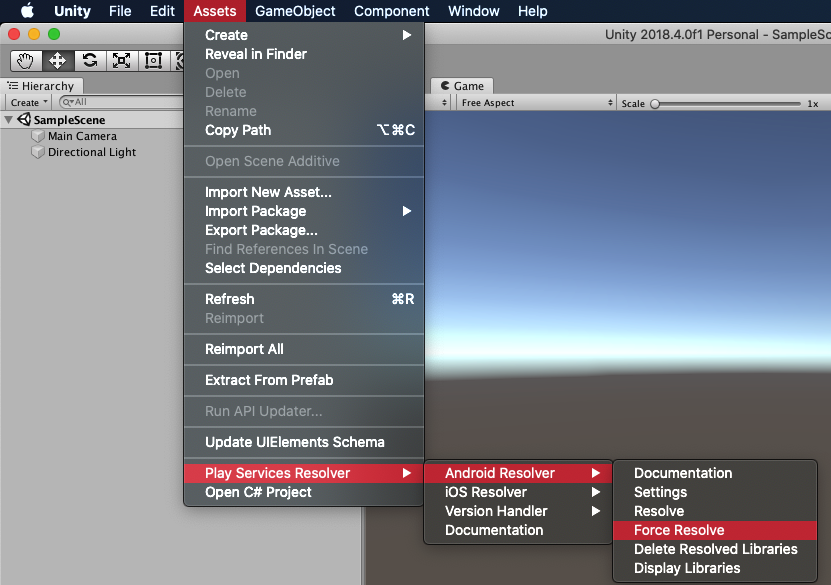
In the Unity editor, select Assets > Play Services Resolver > Android Resolver > Force Resolve. The Unity Play Services Resolver library will copy the declared dependencies into the Assets/Plugins/Android directory of your Unity app.
To enable the Atmosplay SDK can to read OAID values using the MSA SDK, copy the MSA SDK (AAR file) to the Assets/Plugins/Android directory of your project and set the dependency. You also need to copy the supplierconfig.json to the Assets/Plugins/Android/assets directory of your project.
You can find the MSA SDK and detailed instructions here.