Setting resolution on remote host - Ashark/aten-ip8000 GitHub Wiki
When you are watching remote host screen, you may want to set its resolution to 1280x1024 - it is maximum of supported resolution by ip8000 that can be placed in a full hd screen. Setting this resolution allows you to avoid adjusting video zone in aten client viewer. So you could view all screen at once and your mouse is always in sync. It may be even more convenient to set remote resolution to 1280x960, because it allows you to place viewer window in a full hd monitor while not hiding your local taskbar.
In X11 or Wayland mode
Just set wanted resolution in system settings.
In tty mode
It is a problem, when remote monitor is bigger, in my case also full hd.
When using nouveau driver
No need to disable kms. See here. Just add kernel parameter video=1280x960 to your bootloader. For early kms start (i.e. forcing this mode while in initramfs stage), edit /etc/mkinitcpio.conf by adding nouveau to MODULES=(...). Then run mkinitcpio -P.
I still do not know if tty resolution can be changed in the fly.
In Windows 10
There are two things in Windows 10: Desktop resolution and Active signal resolution. Windows settings change Desktop resolution. It means that real resolution that goes to monitor stays unchanged and on monitor of remote system you see black fields around viewable area. ip8000 viewer strangely displays it: left side is placed correctly, but right side is moved to the left, so we see horizontally squashed image with black field on the right.
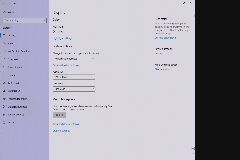 So this mode is not what we want.
To be able to change Active signal resolution, we can:
- in Display settings click Advanced display settings -> Display adapter properties for Display 1 -> then in appeared window click List All Modes -> select resolution there and click Apply.
- in Nvidia control panel click Change resolution -> select resolution there and click Apply.
- in Intel or Amd control panel you should also be able to change resolution, but I did not tested it.