Debug system - Arma-TCL-TypeX/TCL-TypeX-docs GitHub Wiki
T.C.L. provides a powerfull debug system. Using debug system is probably the best way to learn how T.C.L. works and to better use its power. Just activate the debug system in your T.C.L. enhanced mision, eventually tune it (see below configuration), then just sit down and look.
Configuration
AddOn version
Change the options in userconfig\TCL\TCL_Debug.sqf
Script version
Add an array in the init.sqf file, for example :
TCL_Debug = [True, True, False, False, False, False, False];
Don't forget to insert in your init.sqf the following line after the last TCL configuration array :
TCL_Initialize = True;
Settings
Array index 0 - T.C.L. System Debug
Activate (True) / desactivate (False) the whole debug system.
Default: False
Array index 1 - T.C.L. Map Marker Debug: ( System )
This is a "pretty basic" (dixit snkman) marker debug showing the target / enemy spot marker and the A.I. group(s) movement marker(s) only.
Default: False
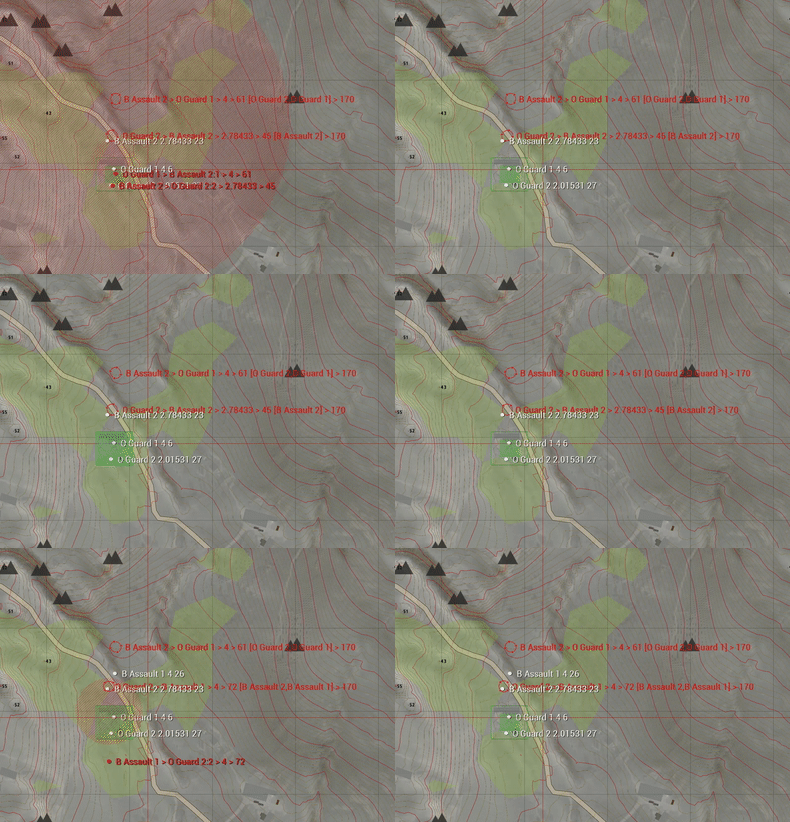
- Red circles : enemy identified at the position of the center of the circle. Additionnal informations about the target are displayed on the right of the circle
- white dots : unknown
- Red flashing ellipse : hostile spotted at the center of the flashing red ellipse
- Yellow flashing ellipse : unknown
- Green flashing square : area covered with a TCL_Hold trigger
Array index 2 - T.C.L. Map Marker Debug: ( Objects )
This enables A.I. unit(s) / A.I. group(s) map markers debug depending on what was set right below by T.C.L. Map Marker Debug Type: ( Units / Groups ).
Default: False
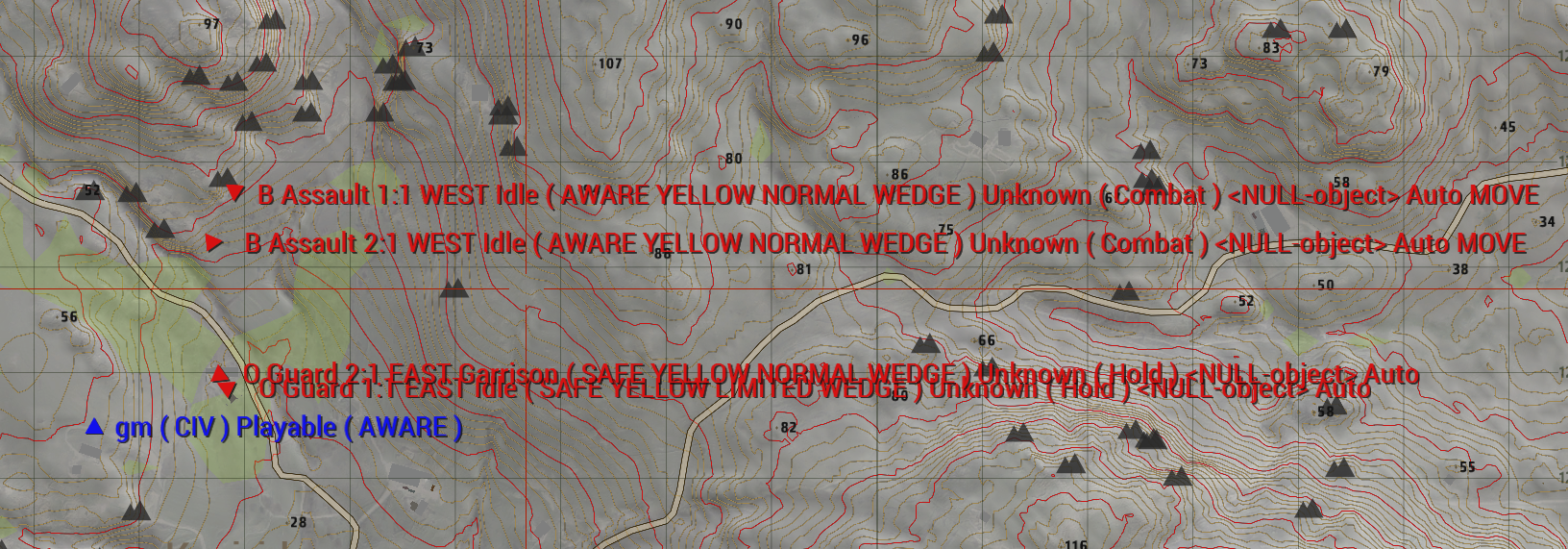
When Array index is false, only group leaders are shown on the map, as seen in the image just below :
- Red triangle for T.C.L. controlled group leader
- Blue triangle for player/playable/swichable leader No marker for leader not controlled/managed by T.C.L. system
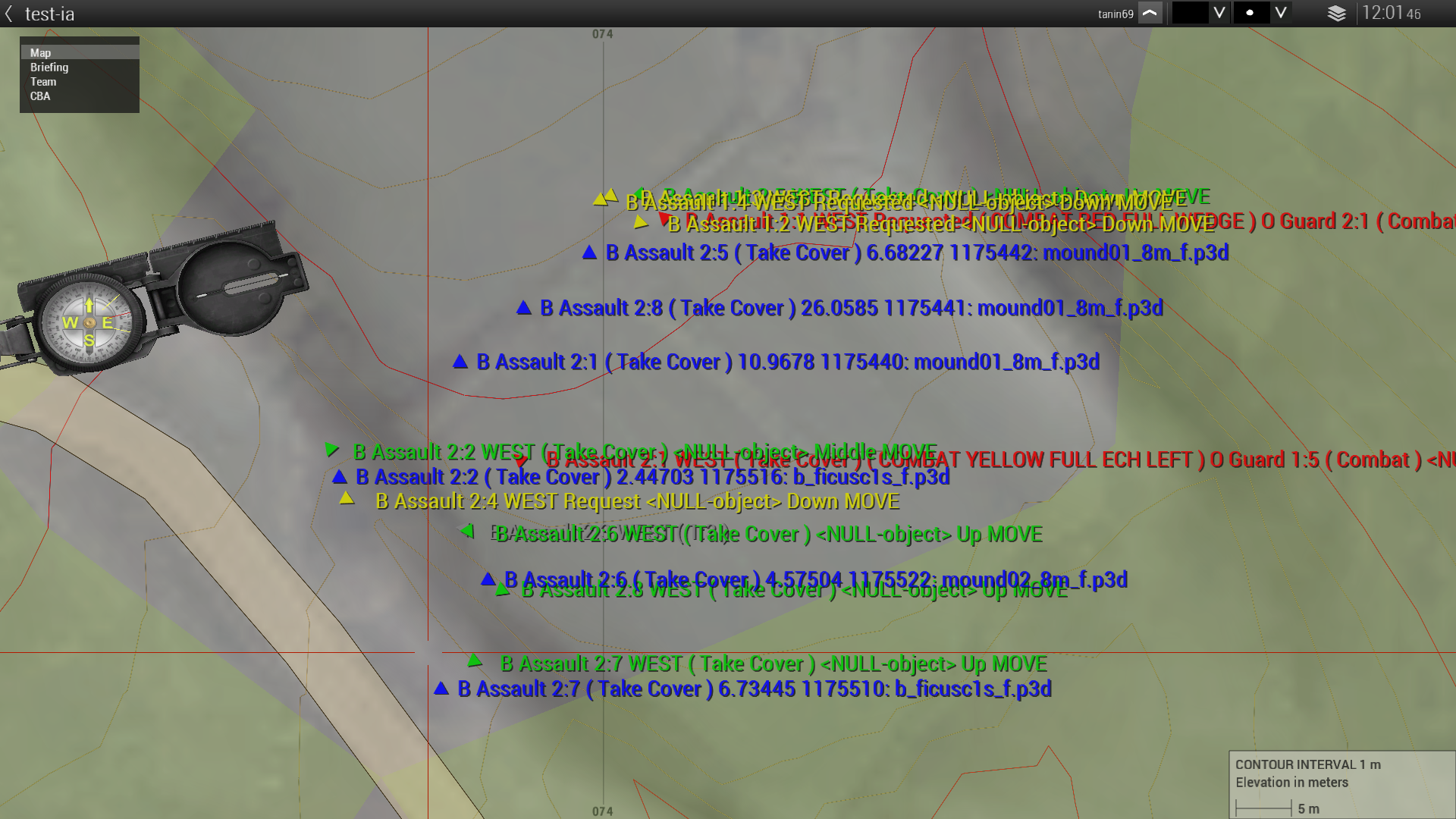
Array index 3 - T.C.L. Map Marker Debug Type: ( Units / Groups )
True to enable Map Marker Debug for A.I. unit(s), False to enable Map Marker Debug for A.I. group(s).
Default: true (AI units)
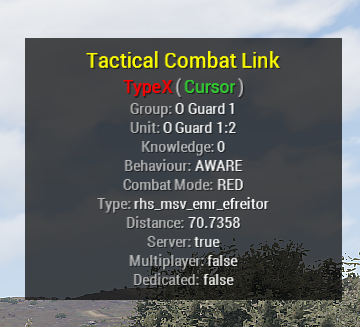
Array index 4 - T.C.L. Cursor Debug: ( System )
If enabled this will show a hint with informations about the object ( unit ) you are aiming at e.g. unit(s) name, unit(s) behaviour, unit(s) combat mode, unit(s) distance to you, unit(s) knowledge about you and so on...
Default: False
Array index 5 - T.C.L. Mission Debug: ( System )
This debug will show a hint where you can see how many A.I. group(s) and A.I. unit(s) are aware of you.
Default: False
Array index 6 - T.C.L. Development Debug: ( System )
This debug includes in - game A.I. Take Cover marker(s) and Bullet Whiz By indicators. ( Visual Markers ).
Take cover markers

Arrow helpers represent positions during group or unit tactical movement. Their colors indicate different status :
- Pink : A.I. group(s) current move position.
- Blue : A.I. unit(s) cover object.
- Green : A.I. unit(s) at / reached cover position / object.
- Red : If A.I. unit(s) cover position is within 100 meters to their current movement position then they have a 50% chance to stay in cover for much longer time. In this case the marker will turn red.
Bullet Whiz indicators
Lines are drawn between a unit and an opposing unit. Their color indicates :
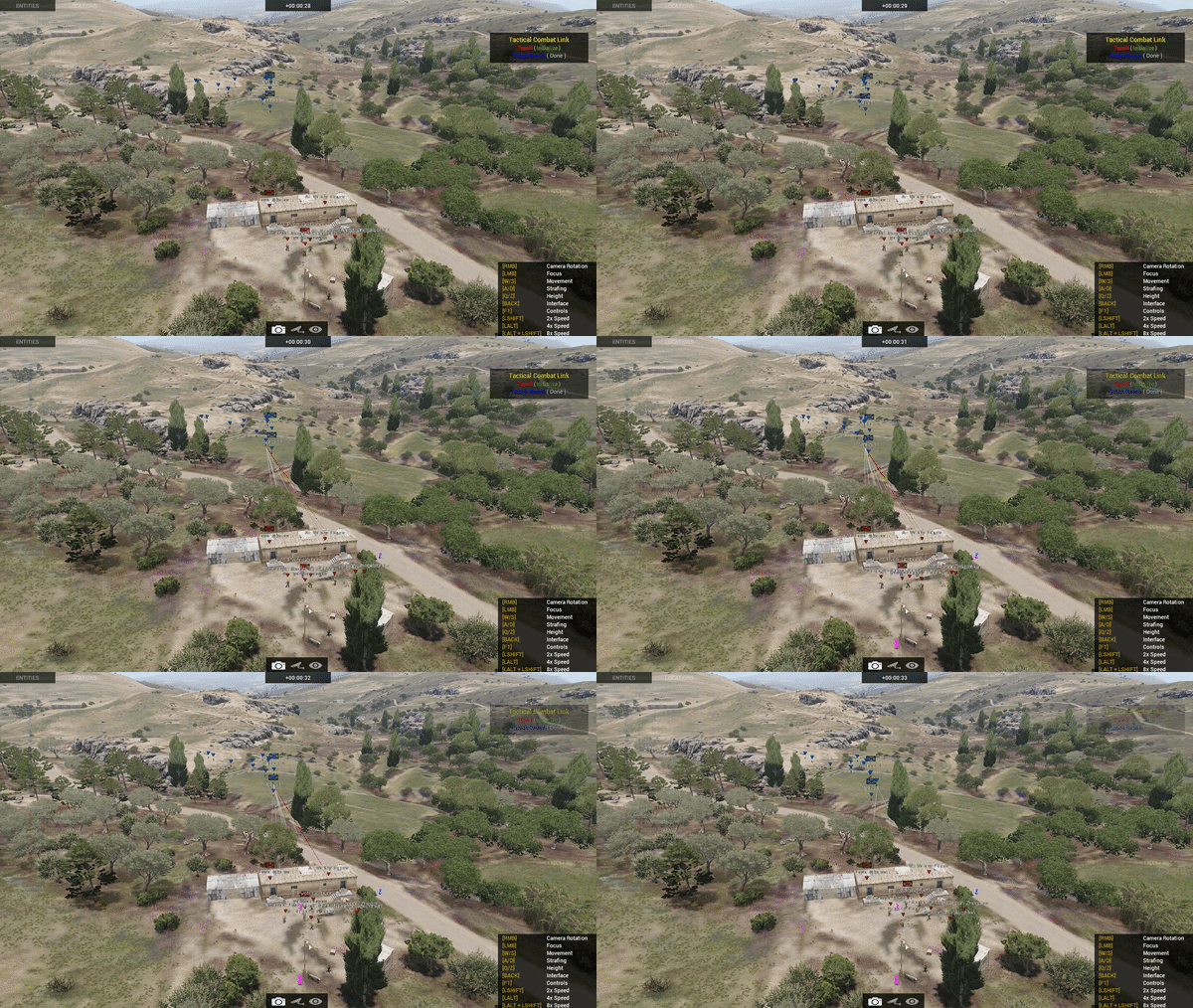
- Red : A.I. unit(s) have line of sight to their enemy.
- White : A.I. unit(s) doesn't have line of sight to their enemy, but have a certain knowledge of enemy unit position
Default: False