Writing a domain specific profile - Arkisto-Platform/describo-online GitHub Wiki
Describo profiles are a way to limit what your users can describe. By default, Describo makes available all of Schema.org. Often times we don't want to expose all of this to our users so profiles are a way for a community to tell Describo exactly what users are allowed to describe.
Profiles are composed of three main sections:
{
    "metadata": {
        "name": "NYINGARN Profile",
        "description": "A profile for the NYINGARN project",
        "version": 0.1,
        "warnMissingProperty": true
    },
    "classes": {
       ...
    },
    "enabledClasses": [...]
}
Metadata
The metadata section describes this profile. It must have
name,description, version, warnMissingProperty properties. Name and description can contain free
text whilst version must be a number.
warnMissingProperty
If a property is defined in an ro-crate but that property is not found in the current profile an error will be displayed. Use this to turn that error off.
Classes
This section contains class definitions a user can use in their dataset description.
Class Definitions
A class definition can be as simple as the following:
{
    ...
    "classes": {
        "Dataset": {
            "definition": "override",
            "subClassOf": [],
            "inputs": [
                {
                    "id": "https://schema.org/name",
                    "name": "name",
                    "label": "Title",
                    "help": "The name of this dataset",
                    "required": true,
                    "multiple": false,
                    "type": ["Text"]
                }
            ]
       }
    }
}
- The name of the class is the key: e.g.
Dataset - This class definition is set to
override. This means the whole definition will come from this profile. If the definition was set toinheritThen the inputs defined here would be joined in with the inputs defined for a Dataset at schema.org. That is,inheritallows you to augment the schema.org definition with additional properties. subClassOfdetermines the parental hierarchy of this class. Describo will join in the properties from all parents when building this class definition. In this example, given that the definition is set to override, this Dataset will only have a single propertyname.- name / id: The short name and the URL to the definition of this property respectively. You can reference properties in other ontologies this way.
label: The property label to display in the UI. This is optional.help: Help text defining the type of data the property can accept.required: Whether a value is required to be defined for this property.multiple: Whether this property should have a single value or an array of values.type: This is described in the next section in detail.
Types
The types property tells Describo what type of data can be provided for this property. It can be an
array of classes like ["Person", "Organisation"] or simple data types like
["Text", "Number", "Date"].
The simple data types you can define for a type are as follows:
Text
- Text: a simple text box
TextArea
- TextArea: a simple text area box
Number
- Number: A number input
Date, DateTime, Time
- Date: A date input
- DateTime: A date time input
- Time: A time input
Geo
- Geo: A geo selection input; allows selecting an area or a single point
URL
- URL: Allows the user to input a URL and the component will return:
{ @id: ${URL}, @type: 'URL' }
Select, SelectURL, SelectObject
- Select: A control where the user can select from a number of predefined options:
{
    ...
    "type": ["Select"],
    "values": [
        "Yes = in copyright",
        "No - out of copyright",
    ]
},
- SelectURL: A control where the user can select from a number of predefined URLs and get back a URL object:
{
    ...
    "type": ["SelectURL"],
    "values": [
        "http://schema.org",
    ]
},
- SelectObject: A control where the user can select from a number of complete objects defined in the profile:
{
    ...
    "type": ["SelectObject"],
    "values": [
       { "@id": "http://schema.org/Person", "@type": "rdfs:Class", name: 'Person', description: 'It's people!" },
       { "@id": "http://schema.org/Organization", "@type": "rdfs:Class", name: 'Organization', description: 'It's not people!" },
    ]
},
returns the selected object as defined and links it into the graph.
Value
- Value: A control where a specified value is set for a property
{
    ...
    "type": "Value",
    "value": "red"
}
Enabled Classes
An array of classes that the user can use. Users will not be allowed to create classes other than those in this list.
Layouts
Describo supports the definition of UI layouts in profiles. By adding a top level key layouts and
then defining the class and a layout for that class Describo can render a tabbed interface with the
fields you define, and in the order in which you define them.
This looks like:
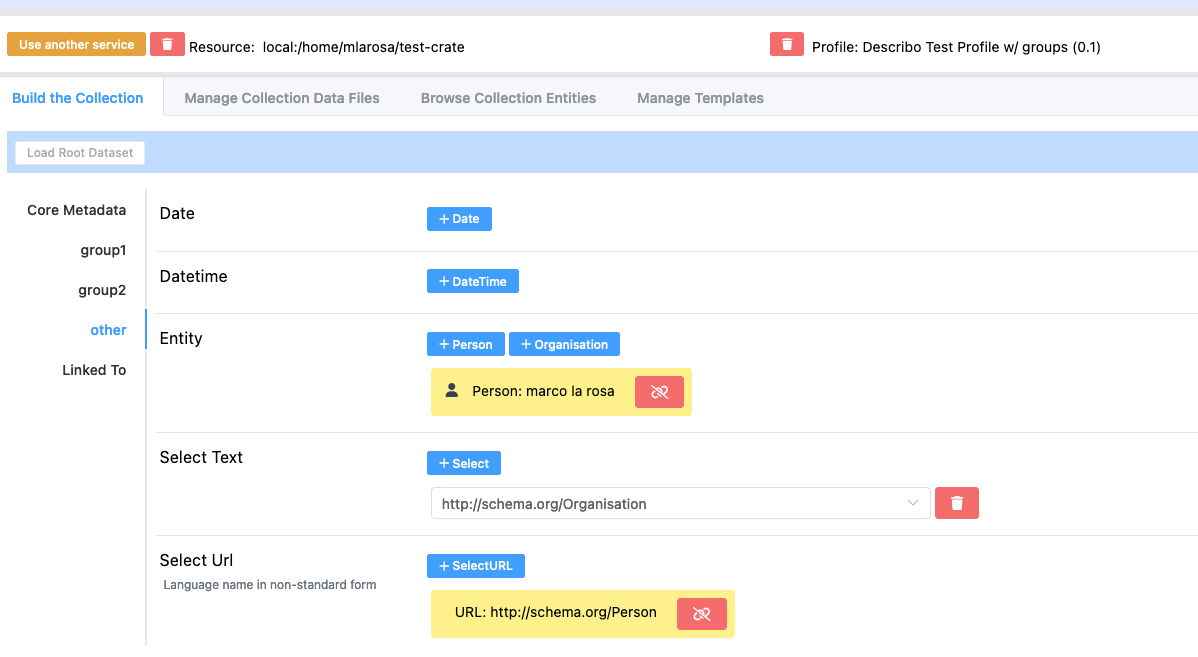
To configure this update your profile as follows:
"metadata": {
        "name": "Describo Test Profile w/ groups",
        "description": "A profile with entries for each of the supported datatypes",
        "version": 0.1,
        "warnMissingProperty": true
    },
    "layouts": {
        "Dataset": [
            { "name": "group1", "description": "", "inputs": ["location"] },
            { "name": "group2", "description": "", "inputs": ["contributor", "author", "depositor"] }
        ],
        "Dataset, SoftwareSourceCode": [ ... ],
        "Dataset, RepositoryObject": [ ... ]

    },
    "classes": {
    ...
}
In this example we are saying that entities of type Dataset should be rendered across two tabbed
interfaces with the first containing one property location and the second three properties -
contributor, author and depositor, in that order. If the profile defines other properties that are
not listed in the layout they will be added to a final tab.
Notice that you can also define layouts for entities with multiple types. Just be sure to sort the entity types and stringify (with comma space between types) as that's how the code will map the layouts.
Hide Layout Properties
When layouts are defined, you can also hide specific properties from the user. Just add a top level
property hide as follows (it follows the same format as the layout property):
"metadata": {
        "name": "Describo Test Profile w/ groups",
        "description": "A profile with entries for each of the supported datatypes",
        "version": 0.1,
        "warnMissingProperty": true
    },
    "hide": {
        "Dataset: ['location'],
        "Dataset, SoftwareSourceCode": [ ... ],
        "Dataset, RepositoryObject": [ ... ]
    }
    "layouts": {
        "Dataset": [
            { "name": "group1", "description": "", "inputs": ["location"] },
            { "name": "group2", "description": "", "inputs": ["contributor", "author", "depositor"] }
        ],
    ...