How To Add A Space Anomaly - Angel-125/Blueshift GitHub Wiki

Blueshift offers a number of different space anomalies that can be discovered by the player, including mysterious tetrahedrons, alien jumpgates, naturally occurring wormholes, and more. Other mods can add space anomalies as well. With Kerbal Flying Saucers installed, for instance, players can find fully functional flying saucers that resemble the crashed saucers found on Kerbin and the Mun.
Space Anomalies appear in game as Space Objects with the "UNK" prefix and they can be tracked like asteroids. When a player spacecraft rendezvouses with a Space Anomaly, like an asteroid, ownership transfers to the player and it is no longer subjected to any limited lifespans that its configuration may have.
Adding A Single-Part Space Anomaly
To add a single-part space anomaly, you need to define a SPACE_ANOMALY config node that specifies the part to spawn, where to spawn it, how often it spawns, and how long it lasts. Blueshift includes the SPACE_ANOMALY config node and PART config node in the same file for the sake of convenience, but it's not necessary to do so.
IMPORTANT NOTE: Blueshift will NOT spawn a Space Anomaly if the specified part doesn't exist in the game. Thus, be sure to only use either stock parts or parts from a mod that are guaranteed to exist on the player's computer.
The anatomy of a SPACE_ANOMALY node is as follows:
SPACE_ANOMALY
{
	// Unique identifier for the space anomaly.
	name = tetrahedon

	// Name of the part to spawn
	partName = wbiTet

	// Type of vessel the anomaly should become when it is claimed by the player. Default is Debris.
//	vesselType = Station

	// Anomalies are typically named "UNK-" and a sequence of letters and numbers, but you can override the name of the vessel if desired.
	// This field should be used with unique anomalies (maxInstances = 1).
	// Omit this field to use the default nomenclature.
//	vesselName =

	// Type of anomaly.
	// generic: This is the default if this field is omitted.
	// jumpGate: Reserved for jumpgates.
	anomalyType = generic

	// Like asteroids, space anomalies have a size class that ranges from Size A (12 meters) to Size I (100+ meters).
	// The default is A.
	sizeClass = A

	// How does an instance spawn. Default is randomOrbit.
	// randomOrbit: Spawns in a random solar or planetary orbit.
	// randomSolarOrbit: Spawns in a random solar orbit.
	// randomPlanetOrbit: Spawns in a random planetary orbit.
	// everyLastPlanet: Spawns in random orbit of every last planet in each star system. Ignores maxInstances.
	// everyPlanet: Spawns in random orbit of every planet in each star system. Ignores maxInstances.
	// fixedOrbit: Spawns in a fixed orbit. One anomaly per orbit. Ignores maxInstances and orbitType.
	spawnMode = randomOrbit

	// The type of orbit to create. Default is elliptical.
	// elliptical: Garden variety elliptical orbit.
	// flyBy: Fly-by orbit.
	// random: Randomly pick either circular or flyBy.
	orbitType = elliptical

	// For flyBy orbits, the max number of days until the anomaly reaches the closest point in its orbit. Default is 30.
//	maxDaysToClosestApproach = 30

	// For orbitType = random, on a roll of 1 to 100, what is the chance that the orbit will be flyBy. Default is 50.
//	flyByOrbitChance = 50

	// For the fixedOrbit spawnMode, the celestial body to spawn around.
//	fixedBody =

	// For fixedOrbit, the Semi-Major axis of the orbit.
//	fixedSMA =

	// For fixedOrbit, the eccentrcity of the orbit.
//	fixedEccentricity =

	// For fixedOrbit, the inclination of the orbit. Default is -1, which enables random inclination.
//	fixedInclination =

	// For undiscovered objects, the minimum number of seconds that the anomaly can exist. Default is 86400 (1 day).
	// Set to -1 to use maximum possible value. When set to -1, maxLifetime is ignored.
	minLifetime = 86400

	// For undiscovered objects, the maximum number of seconds that the anomaly can exist. Default is 1728000 ( 20 days).
	maxLifetime = 1728000

	// Timestamp when the anomaly expires and is removed from the game. If set to -1 then it never expires. If set to 0 (the default) then a random time is selected.
//	expirationDate = 0

	// Spawn chance on a roll between 1 and 1000. If the roll meets or exceeds the target number then an instance of the space anomaly will be spawned.
	spawnTargetNumber = 600

	// Maximum number of objects of this type that may exist at any given time. Default is 10.
	// Set to -1 for unlimited number.
	maxInstances = 10

// JUMPGATE SPECIFIC FIELDS

	// Flag to indicate whether or not the gate should automatically be added to the network's known gates and/or is automatically tracked by the Tracking Station.
	// If set to false (the default), then players must visit the gate in order for it to be added to the network.
	// Applies to anomalyType = jumpGate.
//	isKnown = false

	// Only gates with matching network IDs can connect to each other. Leave blank if the gate connects to any network.
	// If there are only two gates in the network then there is no need to select the other gate from the list.
	// You can add additional networks by adding a semicolon character in between network IDs.
	// If omitted then the jumpgate can operate on any network.
	// Applies to anomalyType = jumpGate.
//	networkID =
}
Adding A Vessel Anomaly
It's possible to add an entire vessel as a Space Anomaly instead of a single part, but it takes a bit more work to accomplish. Vessel Anomalies use the same SPACE_ANOMALY config node as a single-part Space Anomaly, but instead of specifying a partName, you specify a protoVesselFilePath instead. For example:
	// You can specify a file path to a vessel that you wish to spawn instead of a single part.
	// IMPORTANT NOTE: If the vessel contains parts that the player doesn't have, then Blueshift cannot spawn the vessel.
	protoVesselFilePath = WildBlueIndustries/Blueshift/Parts/SpaceAnomalies/testCraft.ship
You can't simply use a .craft file in your protoVesselFilePath due to the way the game works. Instead, you need to export a vessel from the Tracking Station. Follow these steps to obtain your vessel:
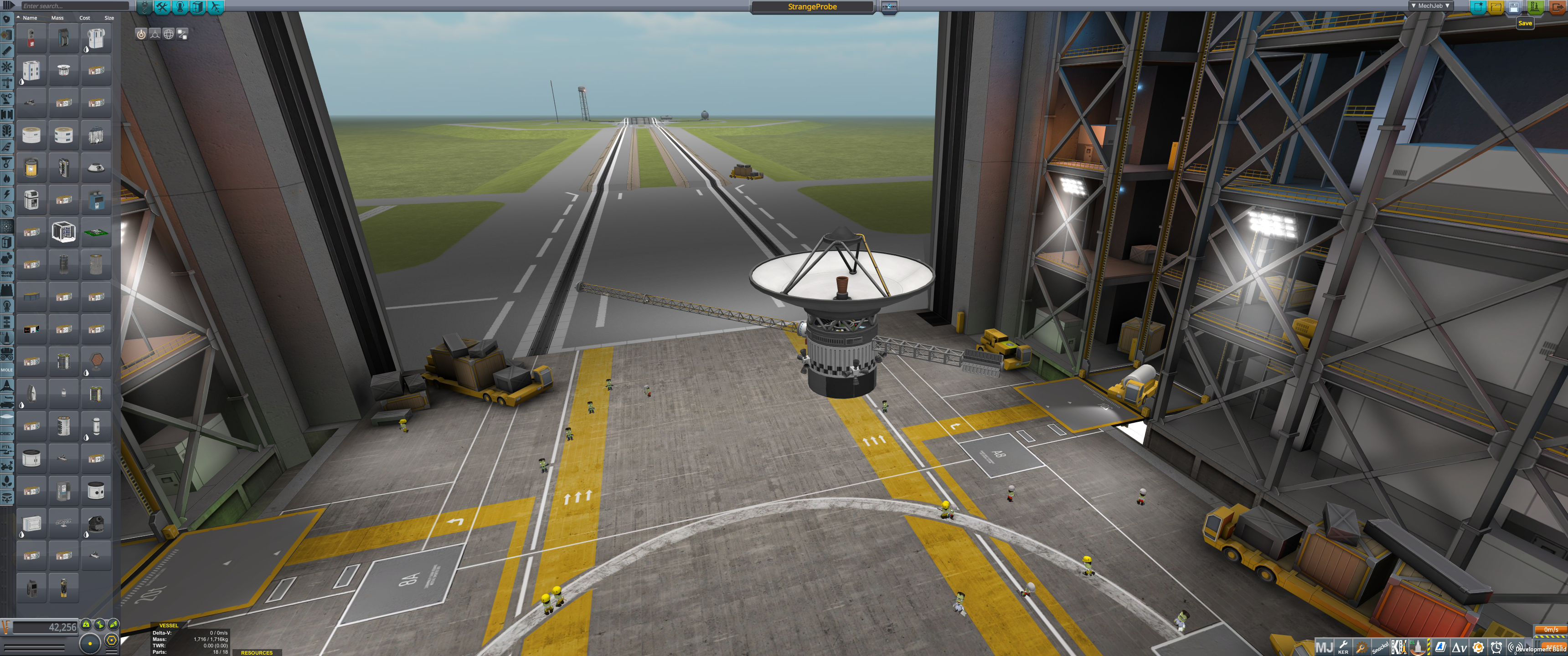
1. Build a vessel.
First, you need a vessel that you want to use as a space anomaly. Again, be sure to only use parts that you know the players will have on their machines, or Blueshift won't be able to create an instance of your space anomaly.
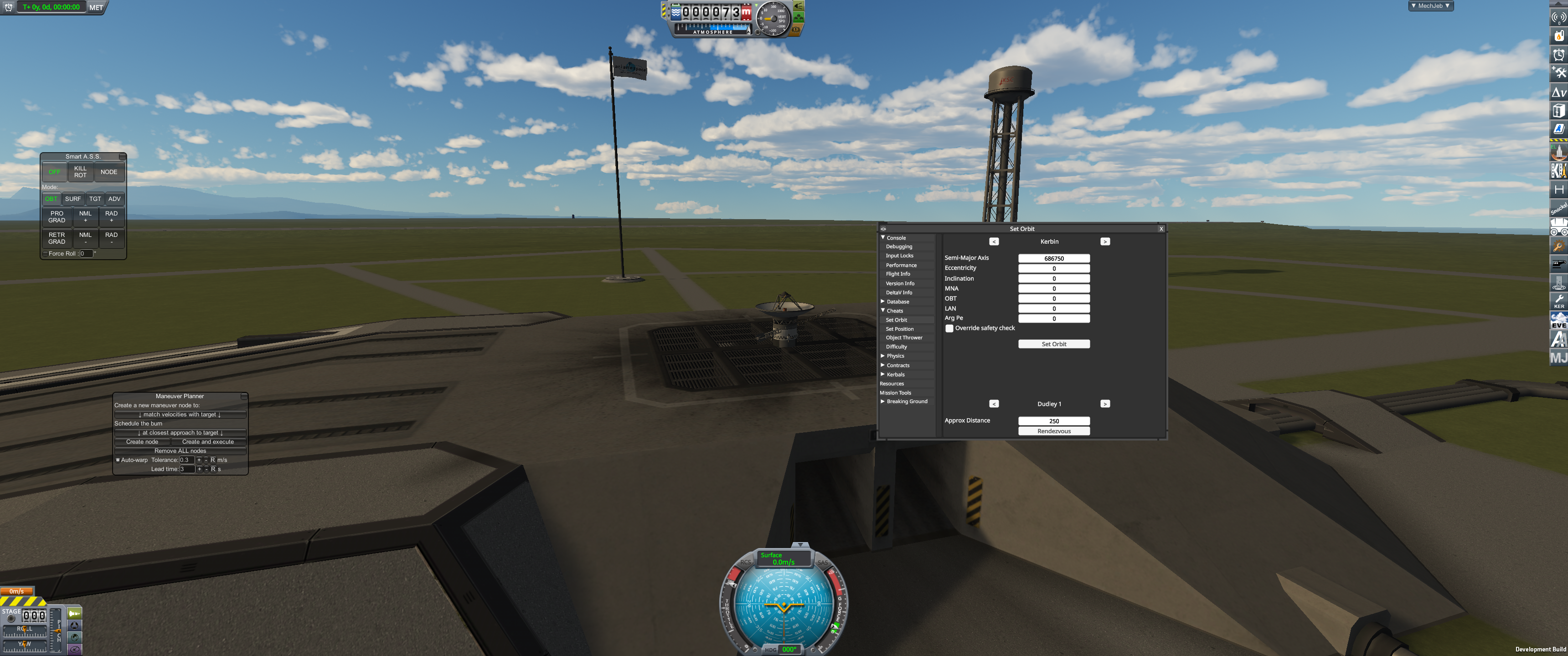
2. Yeet your vessel into orbit
It doesn't matter how you get your vessel into orbit or which planet it orbits. Just get the thing into orbit.
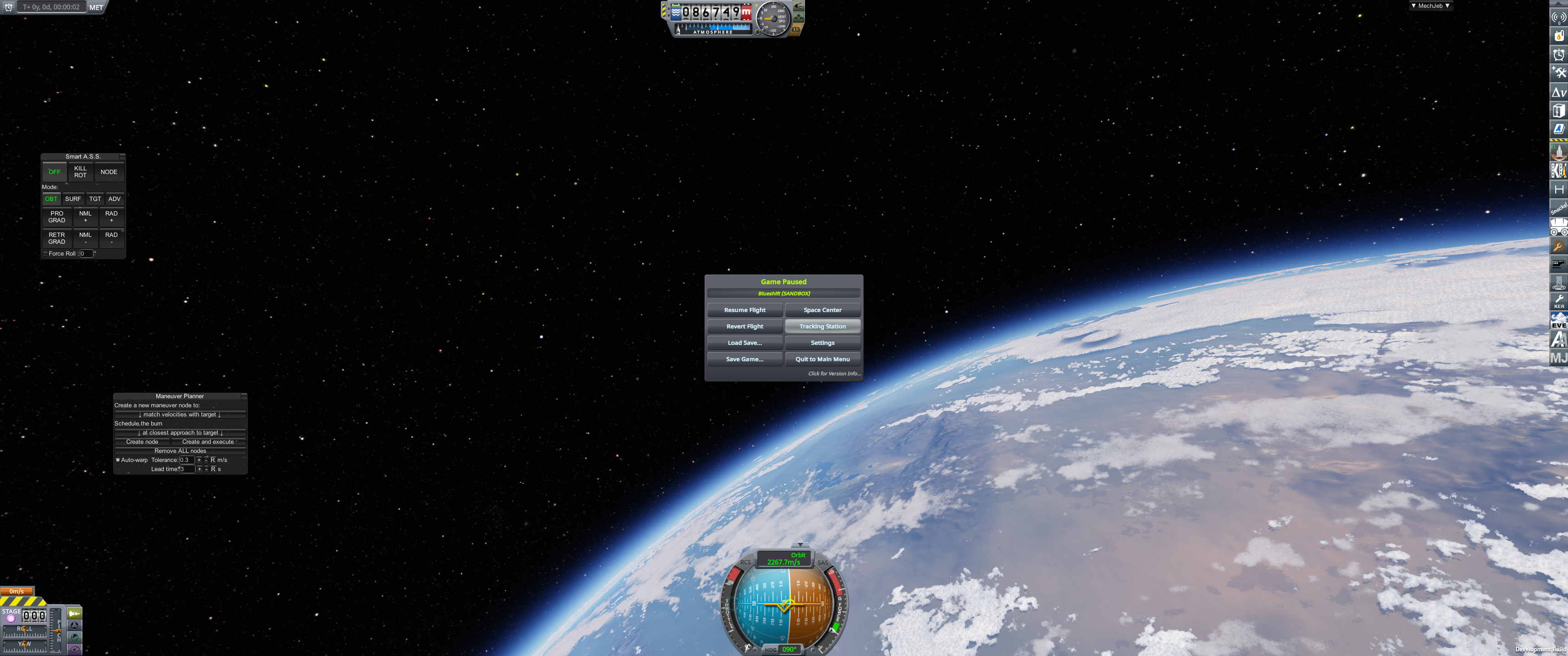
3. Go to the Tracking Station
To export your vessel, you'll need to go to the Tracking Station.
4. Select and export the vessel
From the Tracking Station, select the vessel that you want to export. DO NOT PRESS FLY! Next, tap the Export button in the from the app buttons list.
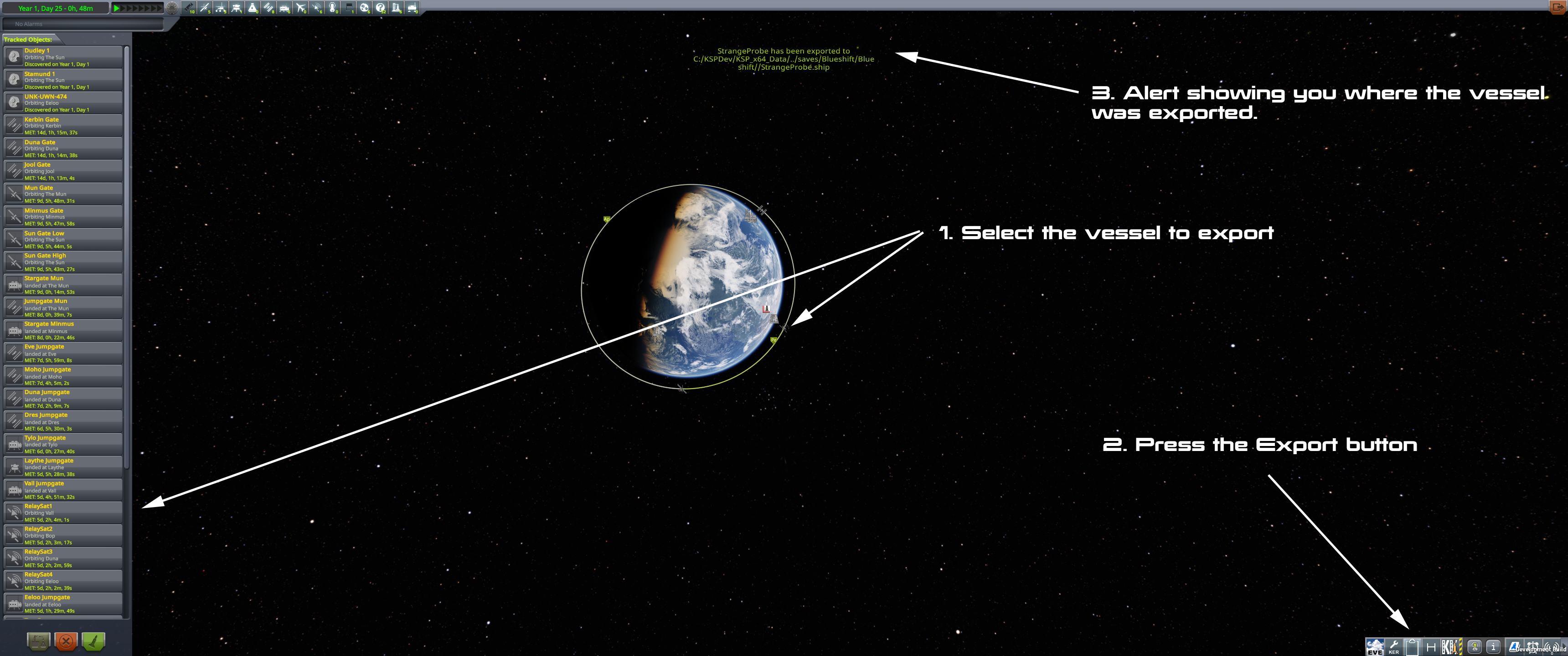
5. Locate your Save folder
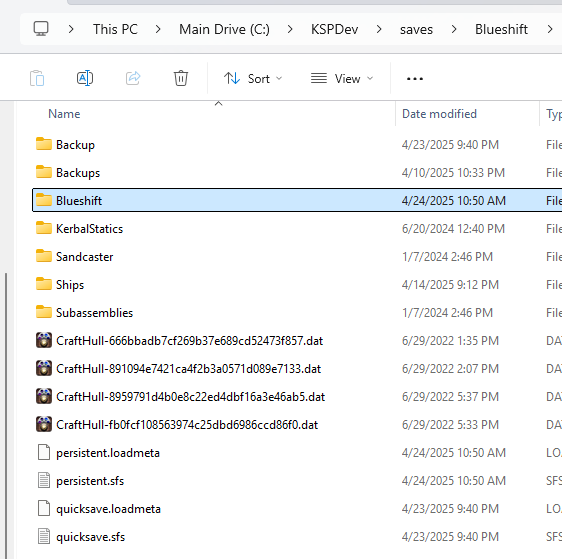
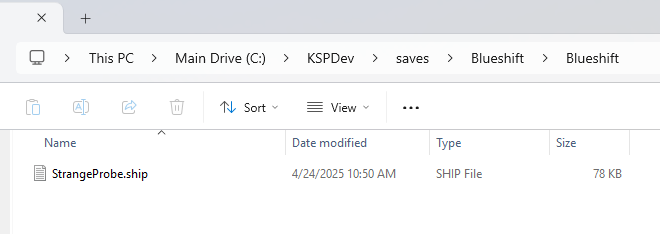
Your newly exported vessel will be located in your saves/save_game_name/Blueshift/your_exported_vessel_name folder. Copy this file to your mod's folder.
6. Set the protoVesselFilePath to the file path of your exported ship
The final step is to tell the SPACE_ANOMALY config node where to find your exported ship file. After that, just test it in game and you're done!