4. User Guide - AlexTape/UniBox GitHub Wiki
User Guide
If you have installed the UniBoxServer as decribed in the previous section, you should be able to request the login mask via http://server:port/UniBox.
Log in using your credentials:
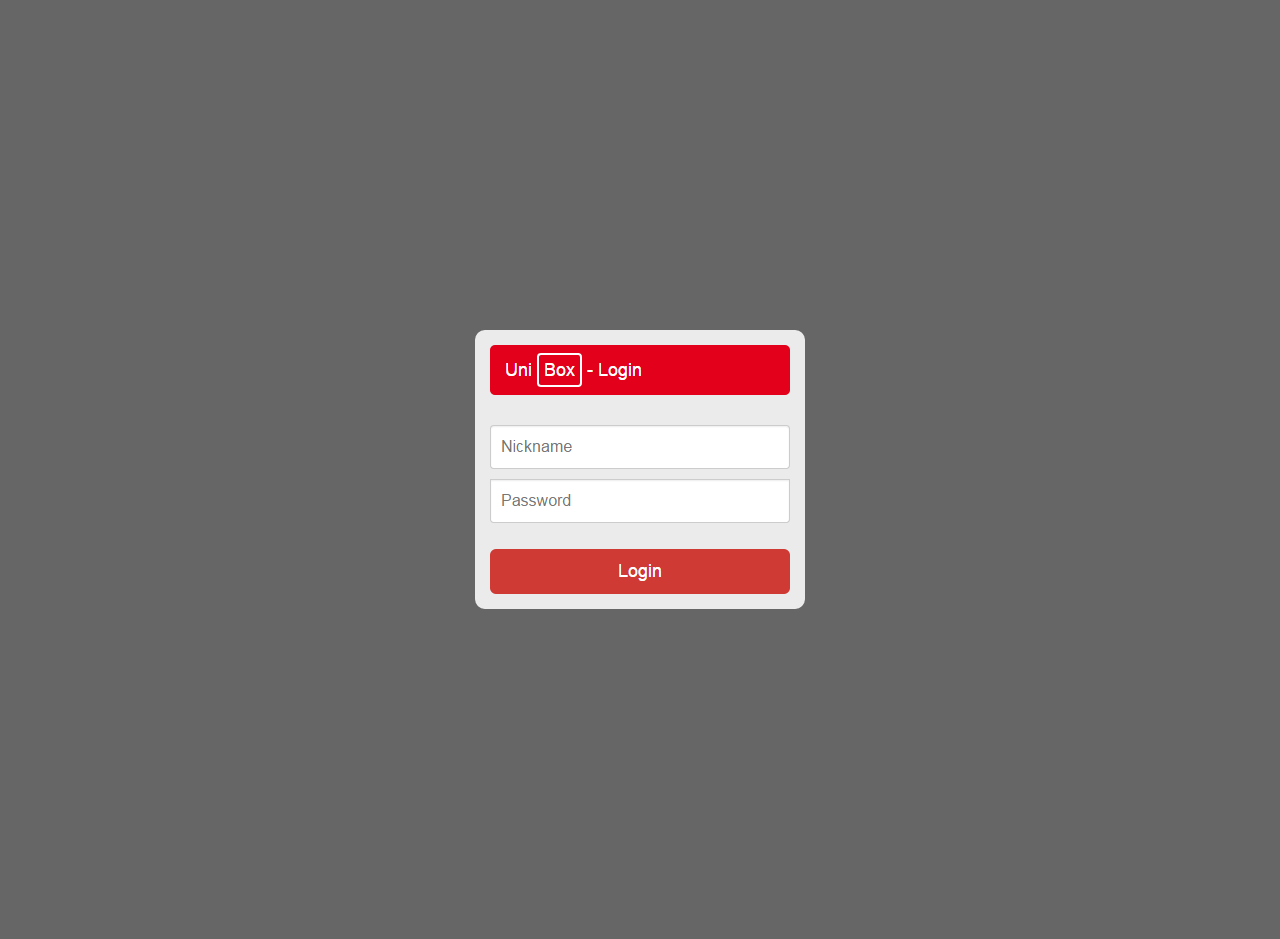
You should see the Dashboard. Good job!
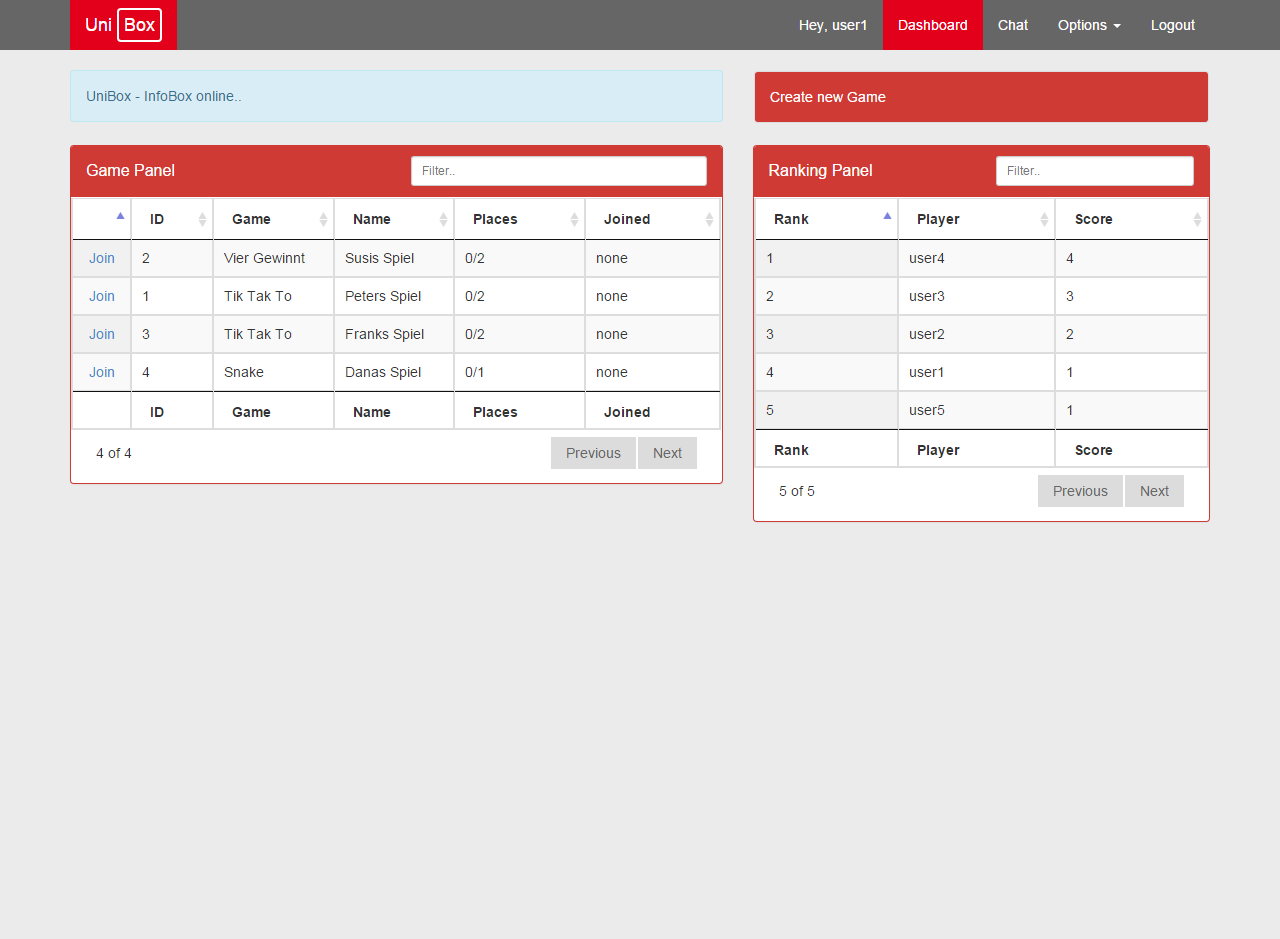
Usage
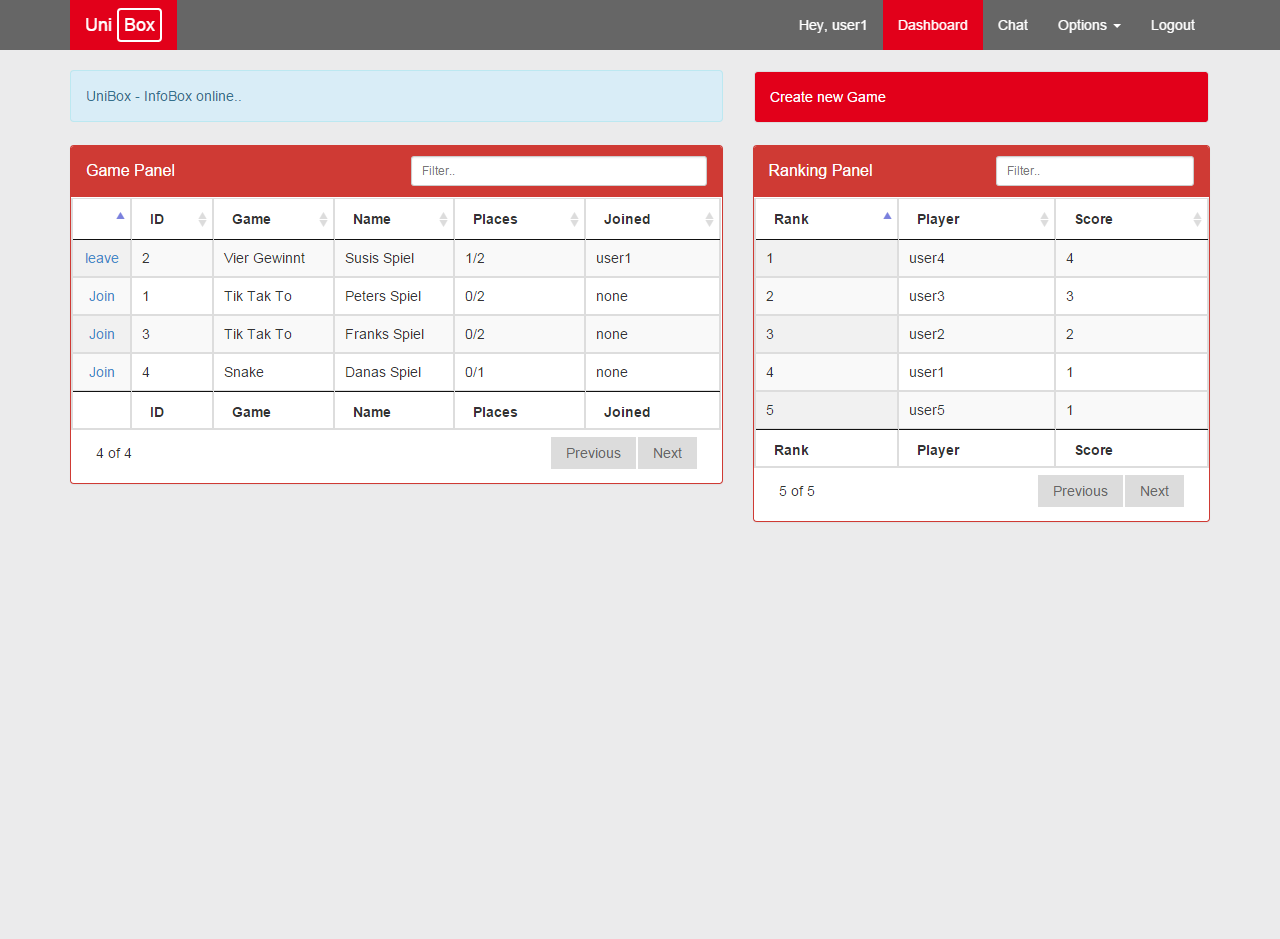
On the dashboard view you can create, join or leave games via the Game Panel. You can see current rankings in the Ranking Panel. Each Panel has input and column filters to find a certain entity fast, even in pagination mode.
First of all you should change your password. There is a options pane in the right top corner:
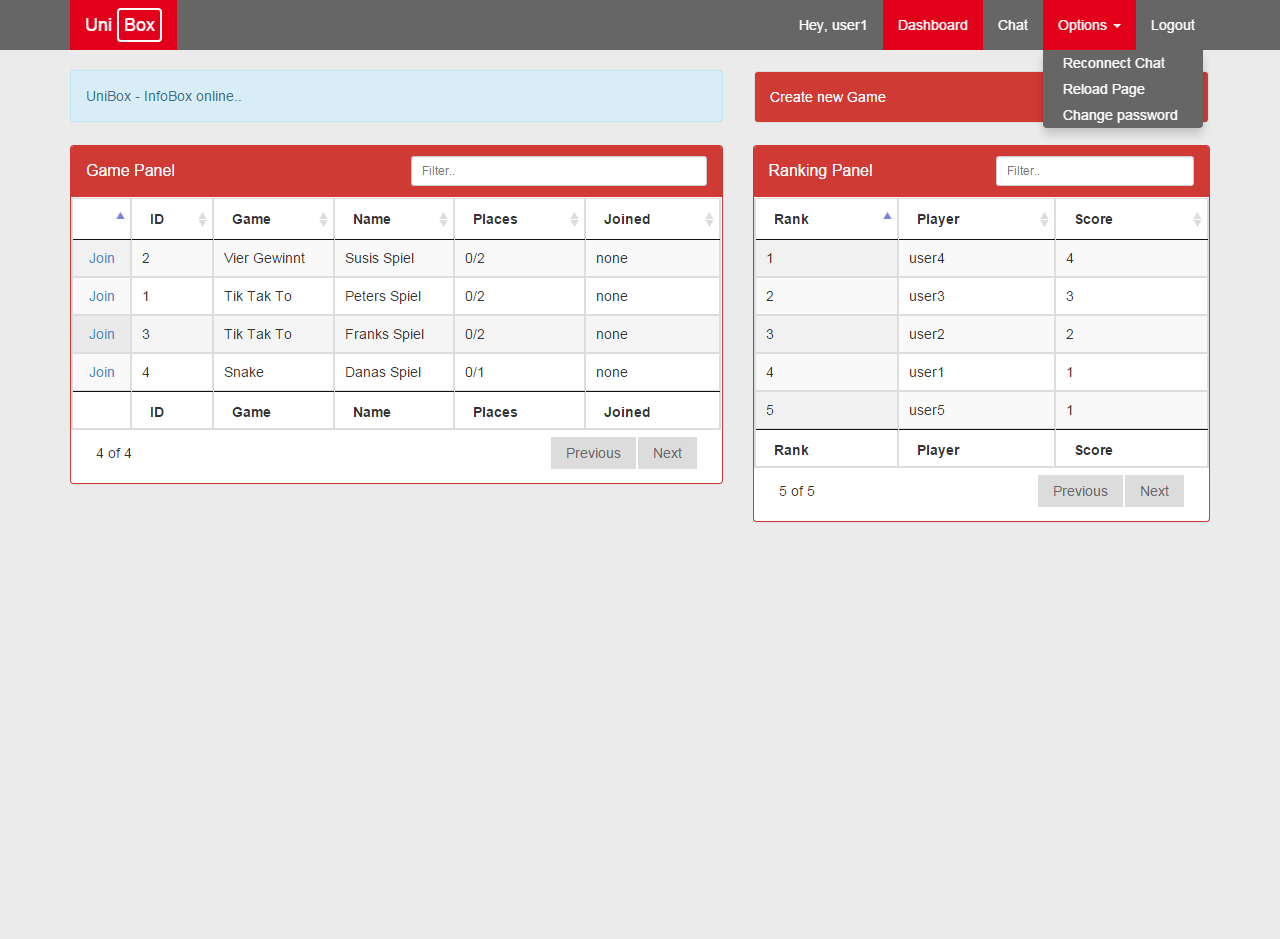
Click change password to open the form:
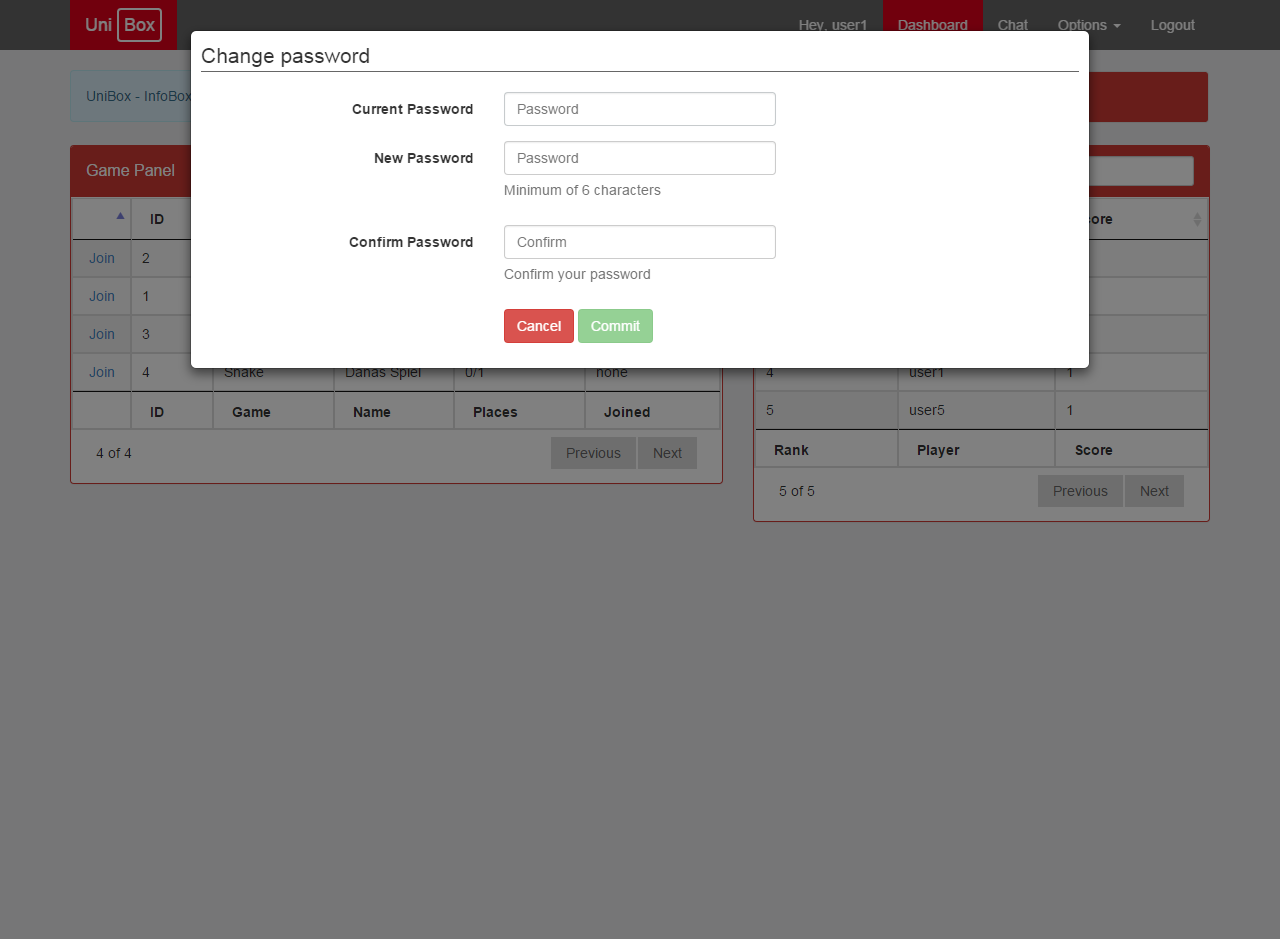
Fill out the form and click the Commit Button to confirm your request.
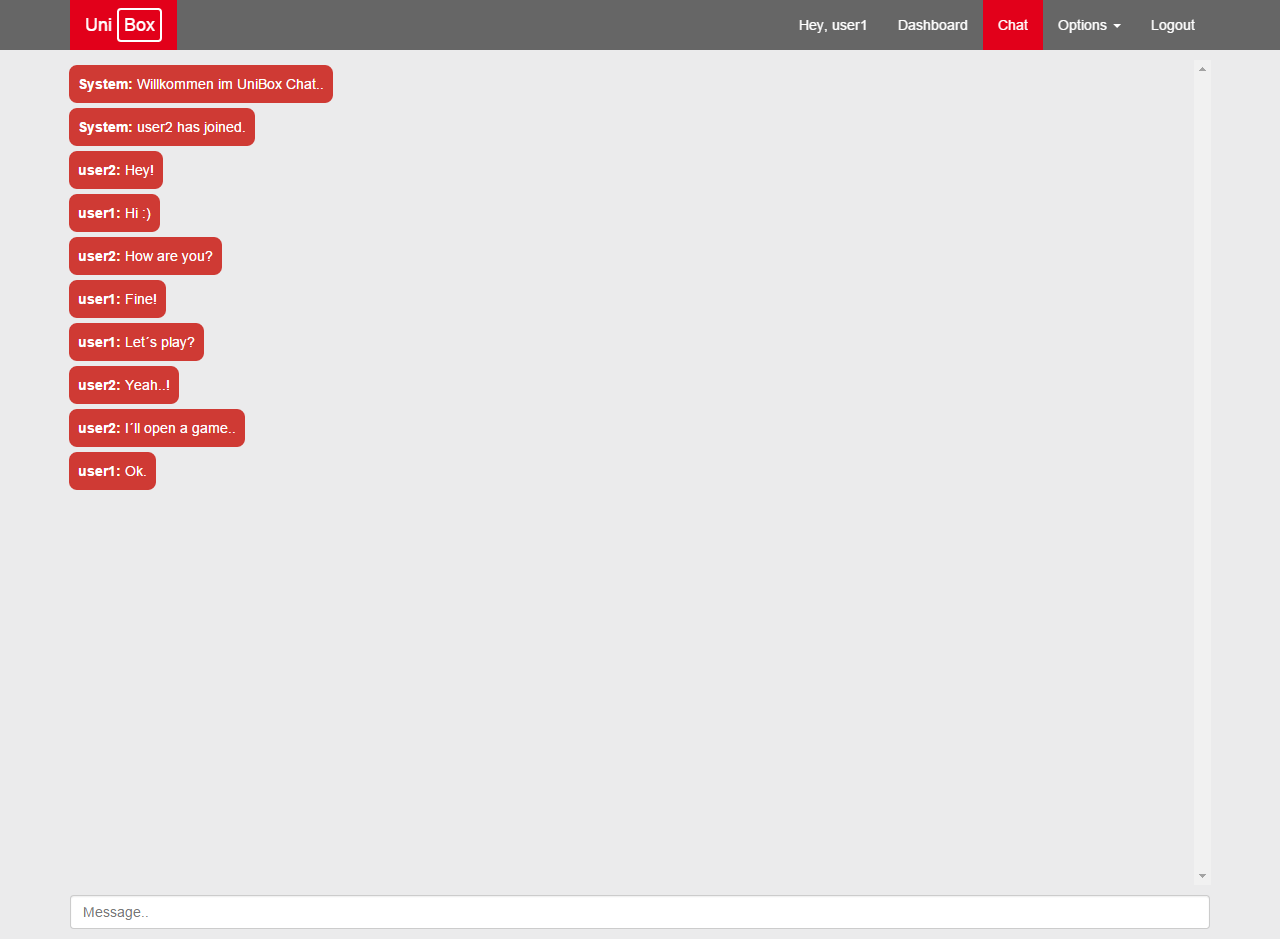
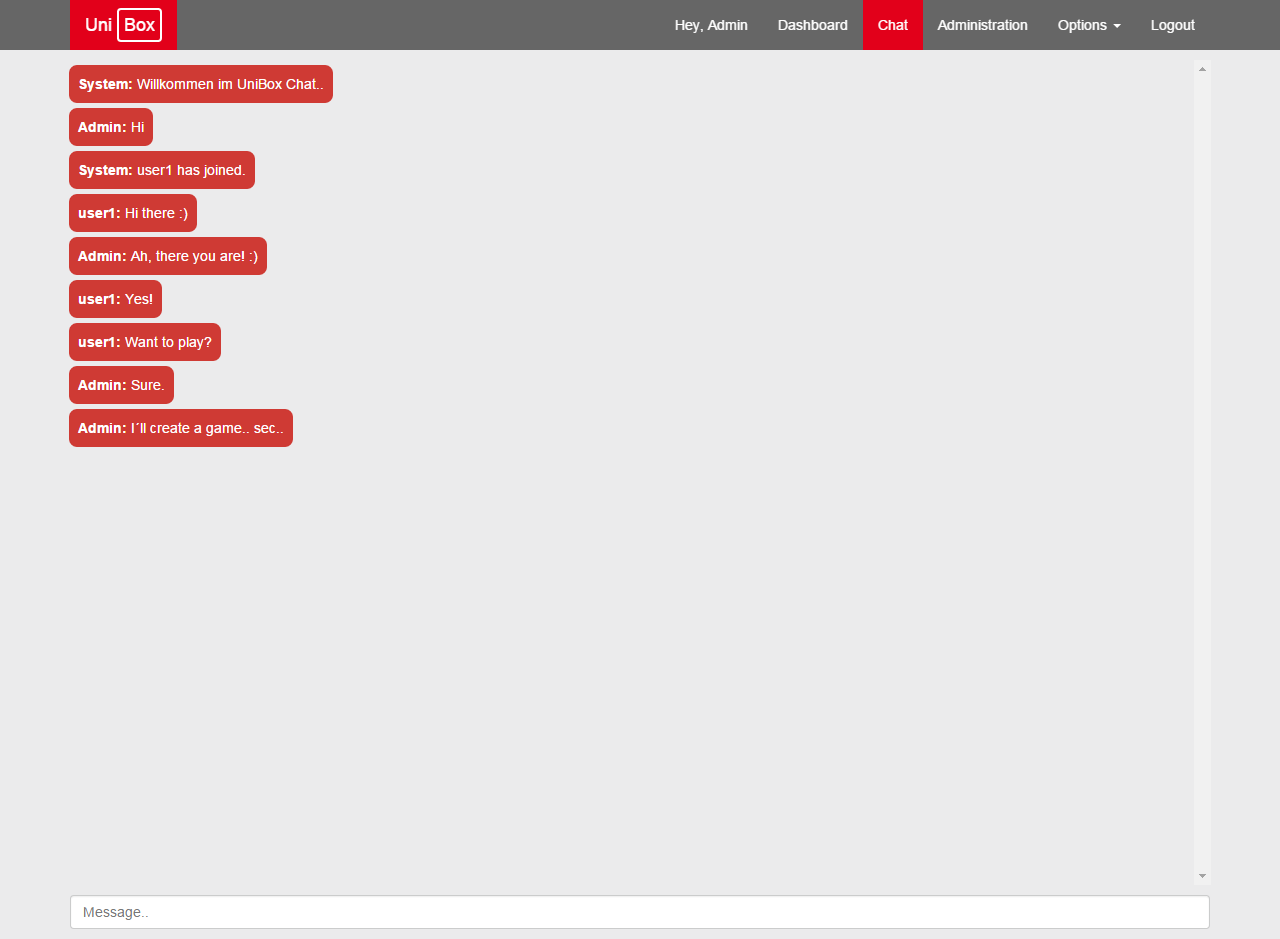
After that you can give the chat function a try:
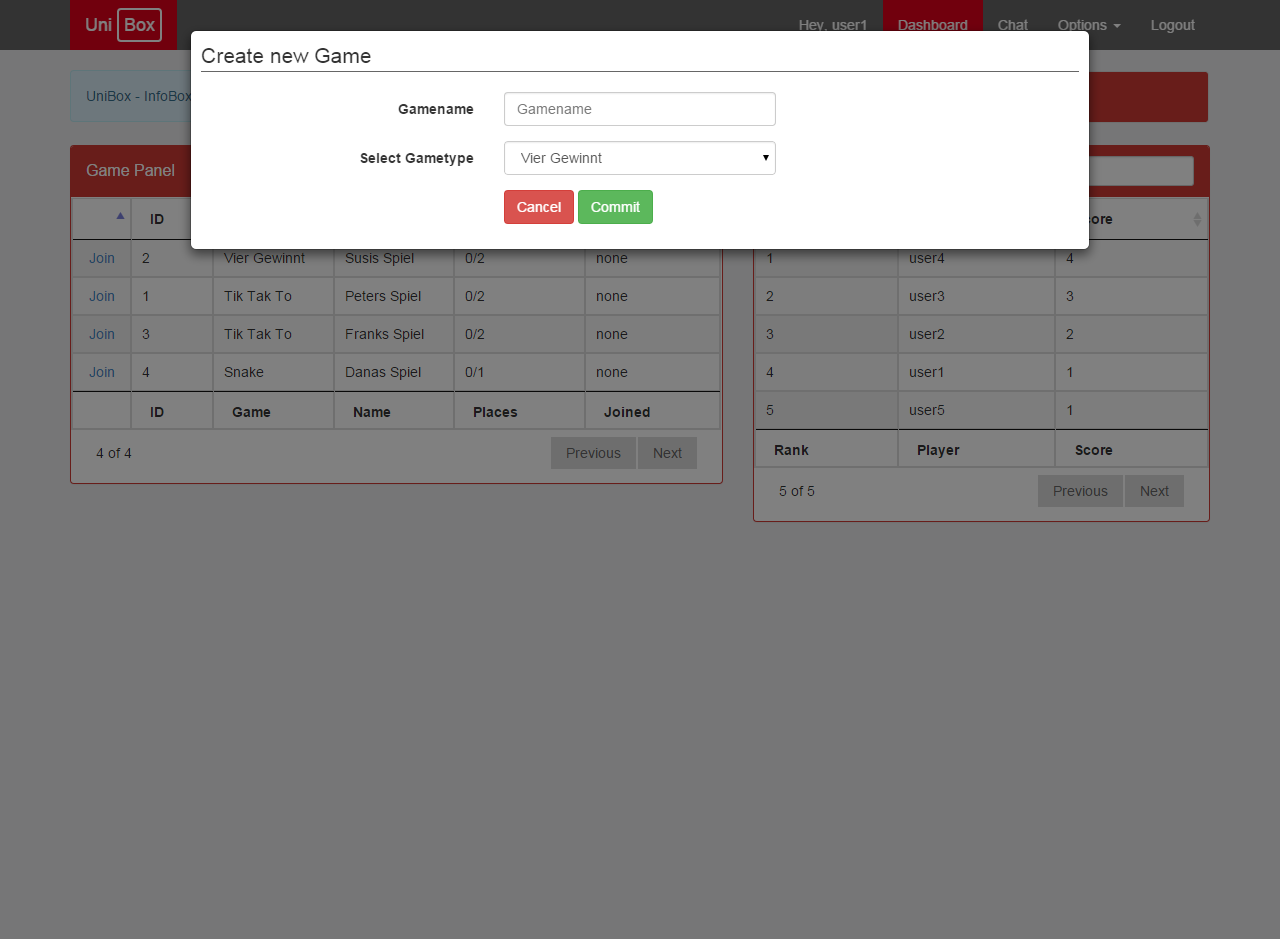
You can create a new game:
Or join an existing one:
Administration
Default Administrator Credentials:
| Username | Password |
|---|---|
| Admin | user |
As you are logged in with an Admin account, you got an extra option tab in the right top corner:
- Dashboard
- Chat (optional)
- Administration
- Options
- Logout
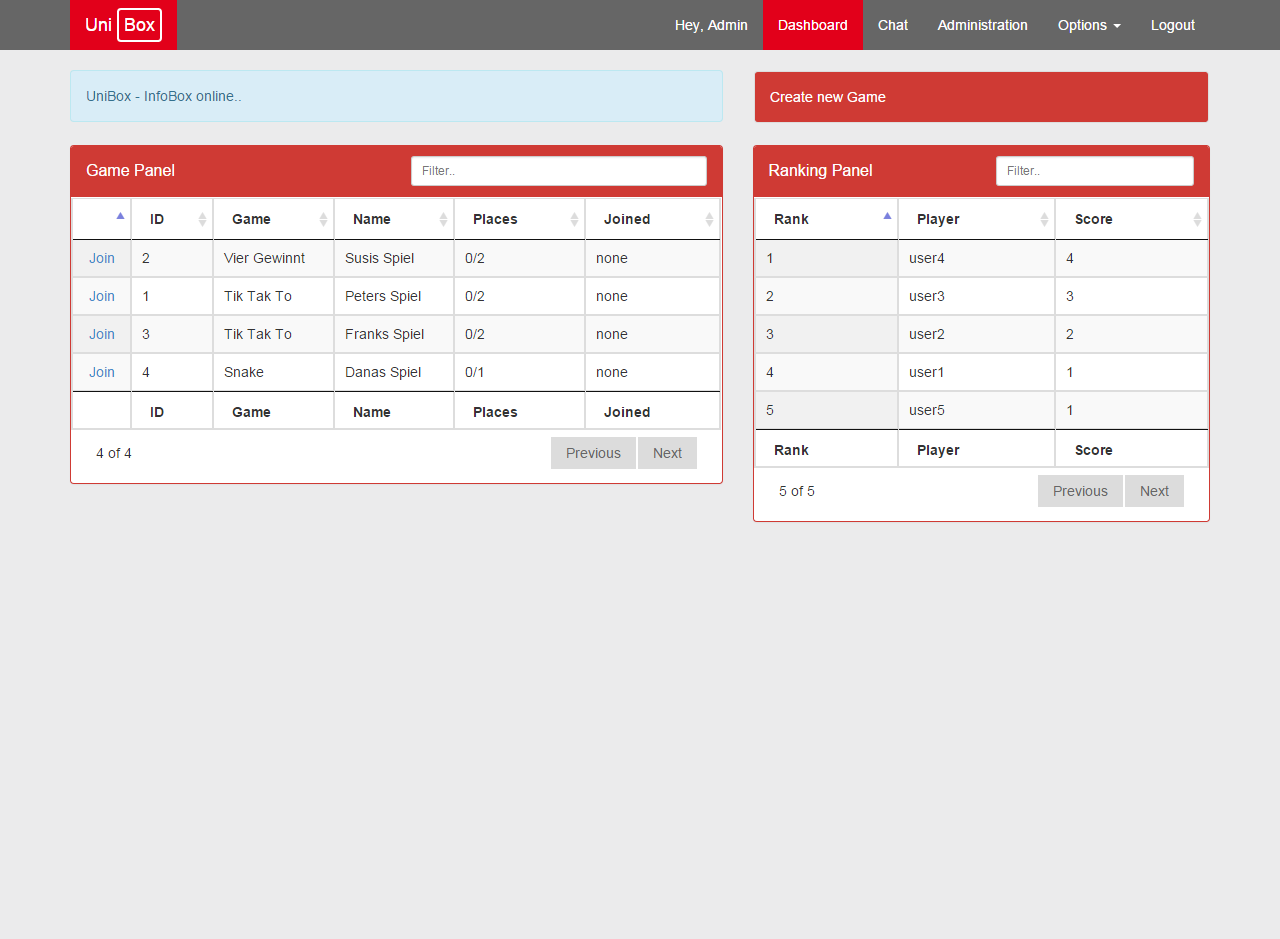
Admins can chat as well:
When you click on the Administration Tab in the right top corner:
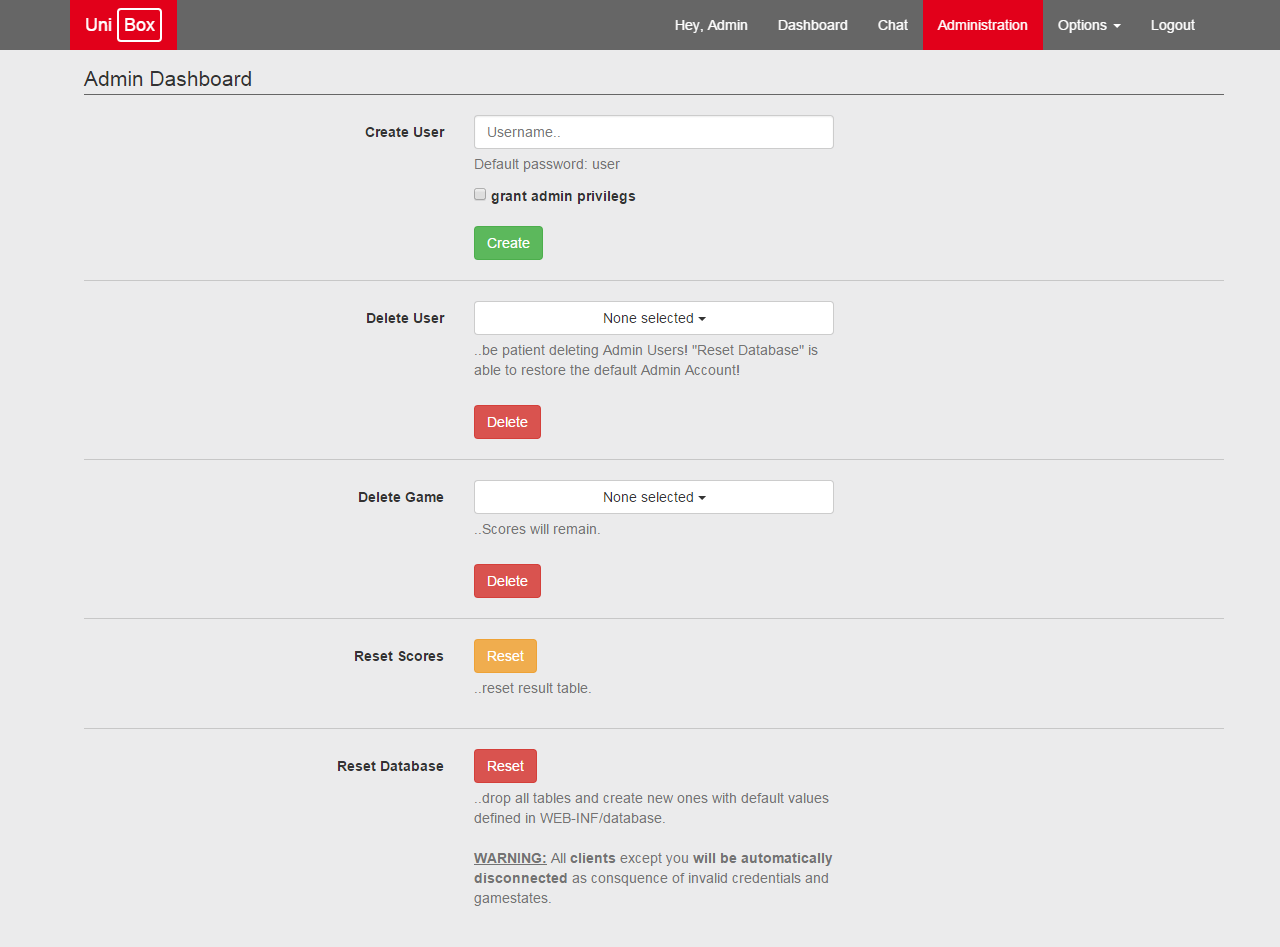
You are able to:
- Create Users (even with admin-rights)
- Delete (multiple) Users
- Delete (multiple) Games
- Reset Highscores (global)
- Reset Database (global)
Note: Please read the instructions displayed on that page carefully. They have direct and possibly drastic impact on the functionality of unibox.