Home - AlbertProfe/sculptures GitHub Wiki
Welcome to the sculptures wiki!
React's state management enables interactive user interfaces by providing components with their own persistent, updatable data. The useState hook is the primary tool for this in function components.
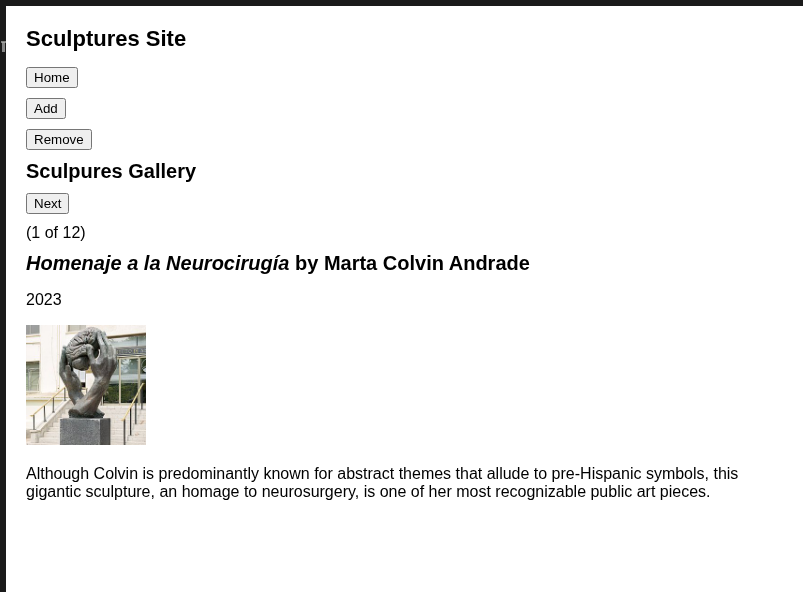
Our React app displays a gallery of sculptures using a simple interactive component.
It shows each sculpture’s image, name, artist, year, and description, allowing users to click a “Next” button to advance through the gallery.
The component tracks which sculpture is currently visible using the useState hook and updates the view each time the user clicks the button.
The total number of sculptures is displayed along with the current position, providing a clear, step-by-step browsing experience through the list stored in the sculptureList data array.
Example:
const [page, setPage] = useState("sculpture-page");`- Keyword for hooks use:
useWhatever -
useStatelets a function component store a value and re-render whenever it changes. - The hook
useStatehas a initial value: "sculpture-page", at... = useState("sculpture-page"); - It returns an
arraywith two elements[page, setPage]:- The current value of
state:[page, ...]. - A function to update that value and trigger a re-render:
[..., setPage].
- The current value of
- Whenever
setPagechanges the value, the component re-renders with the new state.
Our app example maintains current page selection by storing the page key in React state, then rendering a page-specific component according to its value.
- Button clicks call
setCurrentPagewith a new value, triggering a re-render that shows the chosen child component. - Central state management in the parent ensures coordinated navigation and UI updates.
import SculpturesPage from "./SculpturesPage";
import SculptureAdd from "./SculpturesAdd";
import SculptureRemove from "./SculpturesRemove";
import { useState } from "react";

export default function App() {
  const [currentPage, setCurrentPage] = useState("sculpture-page");

  const dispatcherPage = () => {
    switch (currentPage) {
      case "sculpture-page":
        return <SculpturesPage />;
      case "sculpture-add":
        return <SculptureAdd />;
      case "sculpture-remove":
        return <SculptureRemove />;

      default:
        return <div>Select a page</div>;
    }
  };

  return (
    <>
      <h1>Sculptures Site </h1>

      <div>
        <button onClick={() => setCurrentPage("sculpture-page")}>Home</button>
        <button onClick={() => setCurrentPage("sculpture-add")}>Add</button>
        <button onClick={() => setCurrentPage("sculpture-remove")}>
          Remove
        </button>
      </div>

      {dispatcherPage()}
    </>
  );
}- Props allow data to flow from parent to child components.
- Parent components can pass functions as props for child-to-parent communication, e.g., adding or removing items, updating parent state.
- Components can selectively render children or UI fragments based on current state values.
- In our app, the dispatcher uses a switch on
currentPageto choose which component is visible.
| Concept | Description | Example |
|---|---|---|
| useState | Stores a state variable and its updater | useState("sculpture-page") |
| setState function | Updates state, triggers a UI re-render | setCurrentPage("add") |
| Props | Passes data or functions down to child components | <SculpturesPage /> |
| Conditional Render | Renders different UI based on the state |
dispatcherPage() function |
- Multiple state hooks can track different values (e.g., selected sculpture and form dialogs).
- State can be initialized from props—use
useEffectif you want to update state when props change. - For complex UI, lift shared state to a common parent or use React Context.