Deploying Kaltura On Microsoft Azure - Akvelon2014/Media-Management-based-on-Kaltura GitHub Wiki
User Manual
Preface
This manual describes the process for deploying Kaltura Server on Microsoft Azure.
Uploading an Image from VM Depot
Upload image from VM Depot into your Azure Subscription. Go to Azure Platform Management Portal and select "Virtual Machines". Switch on "IMAGES" tab. Click on "Browse VM Depot" at the bottom of the page.

Choose "Media Management based on Kaltura" image and click next. Than specify storage subscription to store the image. It takes some time to upload image to your storage.
Create a VM Instance
Select "Virtual Machines" item and click "NEW" button. In opened window select COMPUTE>VIRTUAL MACHINE>FROM GALLERY.

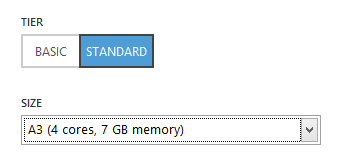
In "MY IMAGES" section select previously uploaded image and click "Next" button. Input name of new VM and select size. For ideal performance, "A3 (4 cores, 7 GB memory)" is recommended.
Provide a password or upload SSH key for access to your VM. Click "Next".
Within the next screen, add endpoint "HTTP" or "HTTPS" (depending on the mode of your server). Add custom RTMP endpoint (1935) in case you want to use recording from web camera feature.
 Click "Next".
On the final screen, click "Complete".
Click "Next".
On the final screen, click "Complete".
Running the Kaltura Server Installation
Once you have created a VM install of Kaltura Server, you will need to perform the following steps:
- Connect to VM via SSH and login
- Type
cd /opt/kaltura-installer/and press Enter - Type
sudo php install.phpand press Enter - Input password for this operation, if needed
Installation process
A few questions that you will need to answer during the installation process:
- Default time zone for Kaltura application Input your time zone or press Enter to default to the system time zone. You can find the list of time zones here
- Full target directory path for Kaltura application
Input target directory for Kaltura application, or press Enter to use
/opt/kaltura/ - Please enter the domain name/virtual hostname that will be used for the Kaltura server Input domain name of the VM you previously created.
- Database host
Input hostname to specify a remote database server. Otherwise, press Enter to use
localhost - Database port Input database port or press Enter for default.
- Database username (with create & write privileges)
Input database username (
rootis the user name predefined on this VM). - Database password Default root user has no password. Press Enter.
- Empty password is not secure. Would you like to set password now?
This question will appear if the password is empty and the database is located on the localhost. Input
yif you want change password (recommended). - Would you like to create a new Kaltura database or use an existing one?
Input
yif you want to create a new Kaltura database. - Would you like to install Red5 on this machine? Server needs it for web camera recording support. (Y/n) Input "y" in case you want use record from web camera feature or "n" otherwise.
- Sphinx host Press Enter for default.
- Work mode - enter http/https Choose the mode for you server. Please note that you should make additional configurations of your server to work via https. Press Enter to work via http by default.
- Your primary system administrator email address This email will serve as your login to the Admin Console.
- The password you want to set for your primary administrator This password will be used to login to Admin Console.
- Installation is now ready to begin. Start installation now?
Input
yto begin installation.
After installation is complete, please open http://<your-domain>/admin_console/ in your browser to access the Admin Console.
Kaltura Management Console is available at http://<your-domain>/.