Read 05: Heroku Deployment - Ahmad-Sawalqeh/amman-301d1 GitHub Wiki
Heroku: It is a cloud-based application deployment and management service. Heroku works on the container-based design system and these smart containers are known as dynos. It runs application inside various dynos and each dyno is separated from each other.
- Download and Install:
At first download the appropriate installer for your Windows installation according to the system configuration
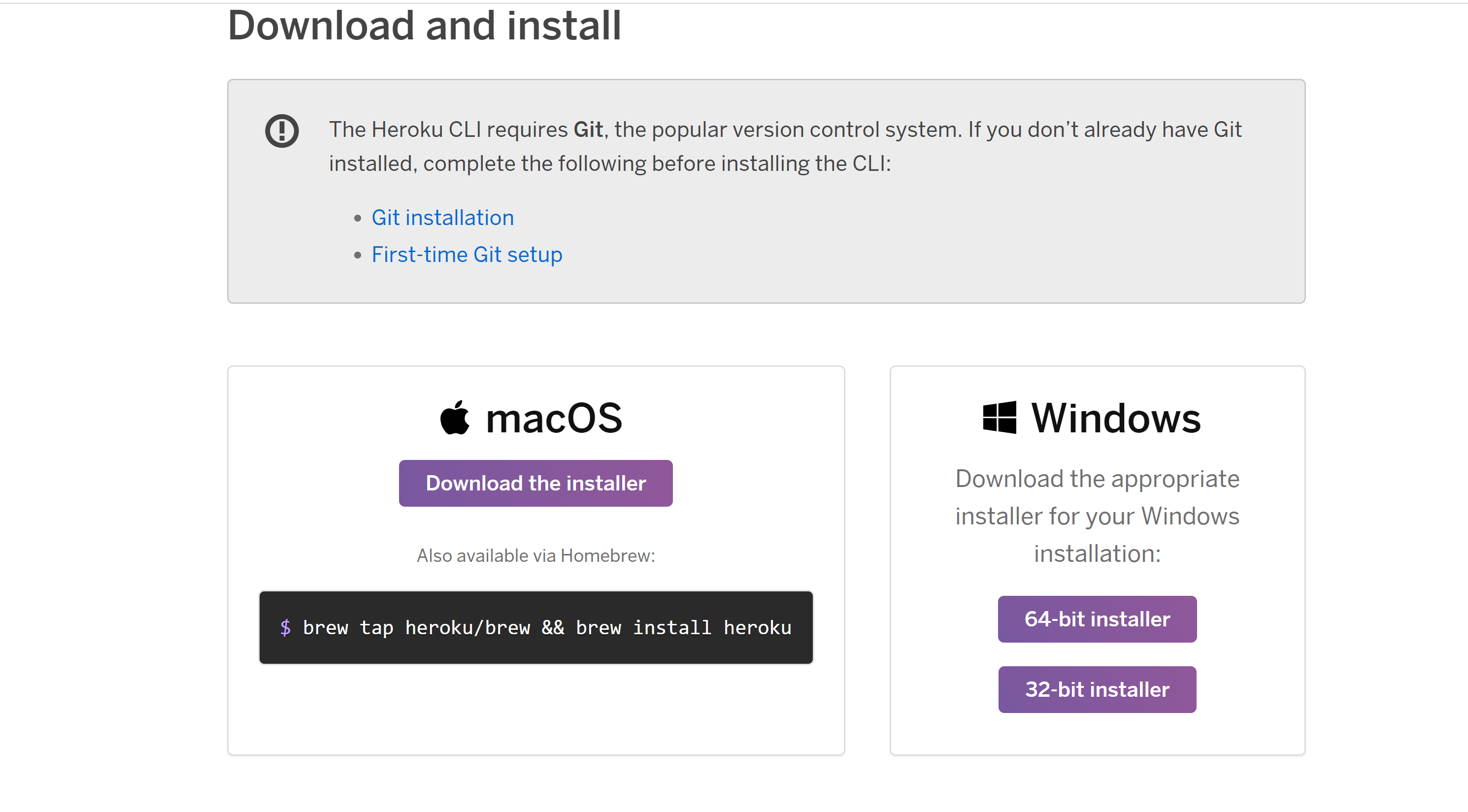
- Running the installer to the system: Now, click on the installer file and it will ask for choosing components from the following options as given below.
- Heroku cli.
- Adding heroku to system path.
- Adding local data.
Make sure that you check all of them. Now click the “Next” button.
- Setting the destination folder: The default path will be the path of the C drive of the system. The default path for installation can be changed as what the user prefers. then start to install Heroku CLI into the destination folder.
After Heroku CLI successfully installed on your system. To verify, Run the following command in the Command Prompt or Terminal.
heroku
and to check the version of Heroku, Run the following command in the terminal:
heroku -v
- Signing up for the Heroku services: Create an account for Heroku services Here
After successfully creating an account for Heroku services we will log in through Heroku CLI.
- Login via terminal into Heroku CLI, by two ways:
1.login through Heroku CLI Run the following command in terminal:
heroku login
or
heroku login -i
On Successful Login, you can now use the Heroku CLI into your system.