User interface - 2284238y/Team-1-Fernando-Martinez-YI-YI-LianSheng-Liu- GitHub Wiki
About User interface, the block diagram is below:
There are three buttons in this interface, they are up button, down button, and quit button.The quit button is set to red, and the up button and down button are set to black. Height and width are set to 10. The code of this part is as follow:
  quit_button = tk.Button(frame,

           text="QUIT",

           fg="red",

           command=quit)

  quit_button.pack(side=tk.LEFT)

  quit_button.config( height = 10, width = 10 )

  up_button = tk.Button(frame,

           text="Up",

           command=go_up)

 up_button.pack(side=tk.LEFT)

 up_button.config( height = 10, width = 10 )

 down_button = tk.Button(frame,

           text="Down",

           command=go_down)

 down_button.pack(side=tk.LEFT)

 down_button.config( height = 10, width = 10 )
The loop code that controls the lifting of the curtain can be found in the main loop of the code.
Working principle:The Raspberry Pi automatically detects the UI button. If it is detected that the UP button has been clicked, the curtain will rise; if the down button is clicked, the curtain will drop.
The resulting graphical control interface is shown below:
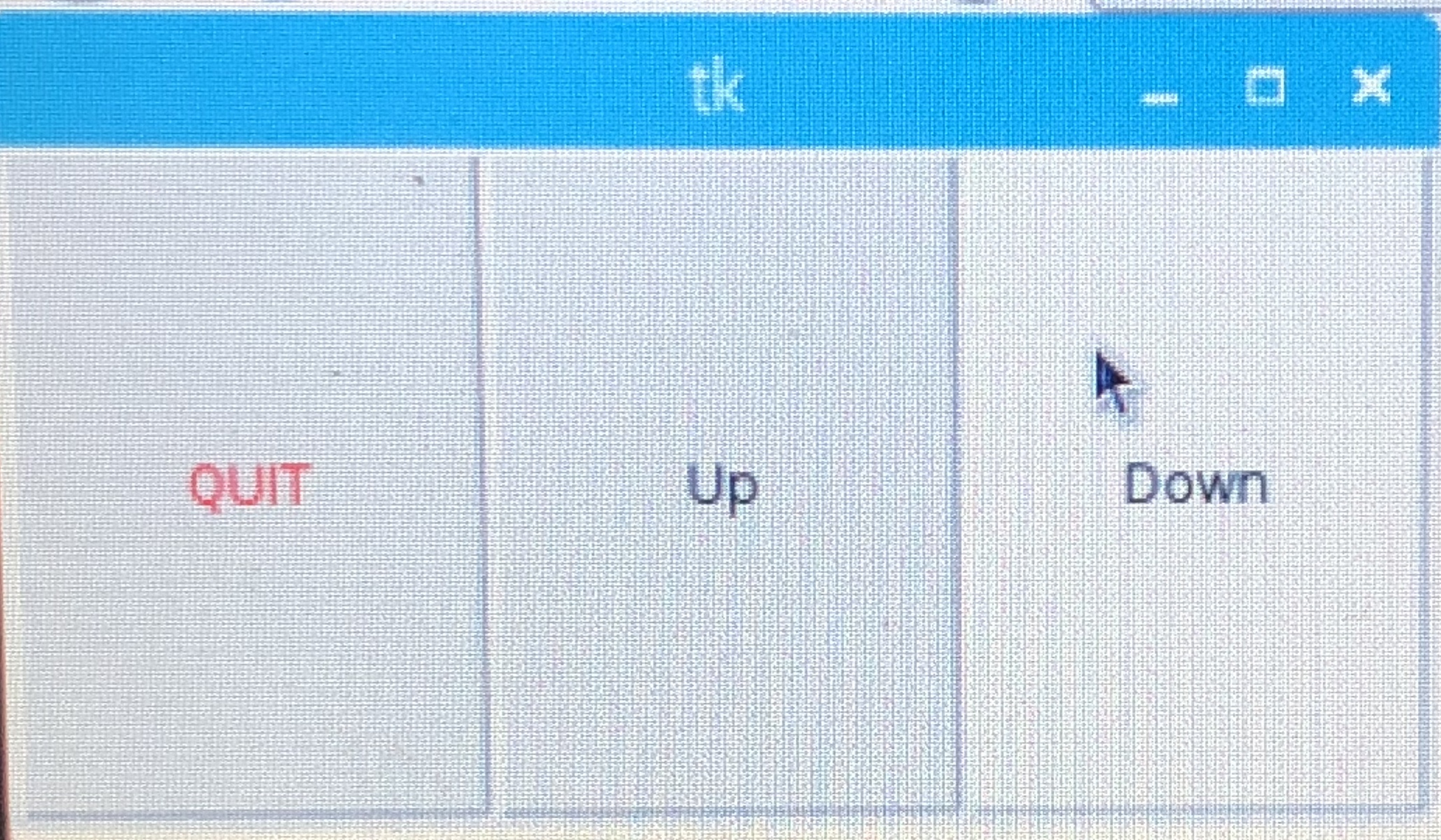
For information on how this section works, refer to the System Flow Chart in the README.
There are two youtube videos that show the interface test: