LAPS Setup and Configuration - 0xd0s/Misc_SysAdmin GitHub Wiki
LAPS Setup and Configuration
A few years ago I was a part of a project to manage local administrator accounts using an enterprise PAM tool. Since completing that project I heard of LAPS and wondered what it brings to the table. At a high level LAPS, Local Administrator Password Solution, provides a way to manage local admin passwords on domain joined machines. The reason this is important is because LAPS helps to solve the problem of password reuse. At least for local accounts in domain joined machines. The goal of this write up is to get LAPS configured and to play around with its functionality.
Lab Environment
My original environment consisted of three windows machines (DC, server, w10 endpoint). However, my host machine was unable to handle the work load so I ended up not using the w10 endpoint. The final environment is a DC (lab-ad) running Windows Server 2019 and a server (lab-filesvr) also running Windows Server 2019.
Stand up DC from fresh Windows Server 2019 install
- Login to the Server 2019 machine.
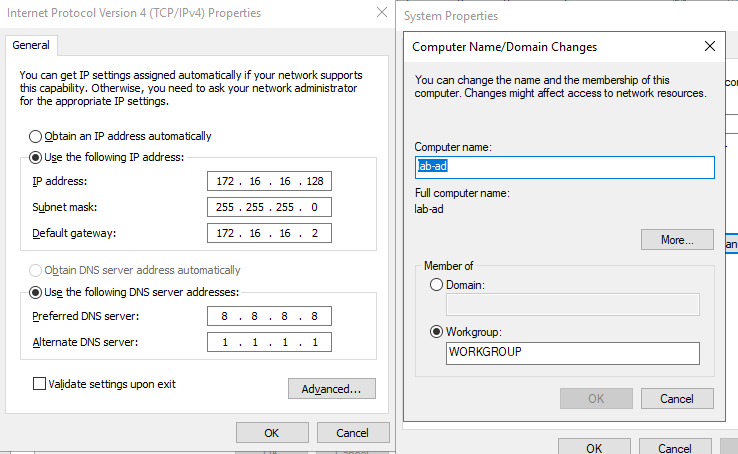
- Rename machine. I renamed my machine to 'lab-ad'.
- Set static IP
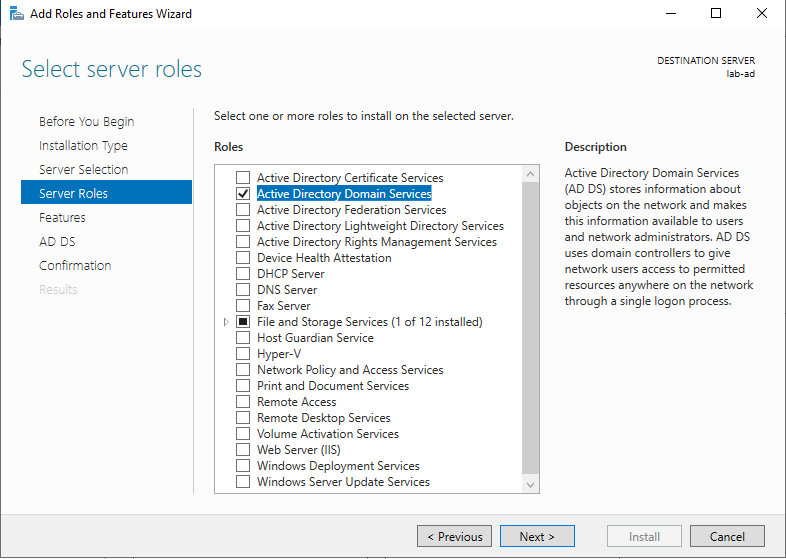
- Install Active Directory Domain Services (ADDS) by going to Server Manager -> Manage -> Add Roles and Features
- Choose Next through Installation Type and Server Selection
- At Server Roles select Active Directory Domain Services
- Click next though Features and AD DS. On the confirmation page choose install.
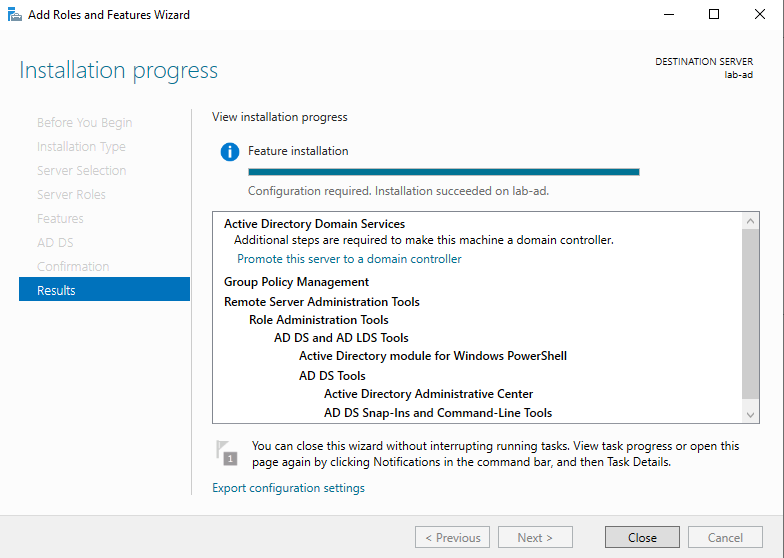
- Once the Active Directory Services install is successful head back to Server Manager. Click the flag icon and choose 'Promote this server to a domain controller'.
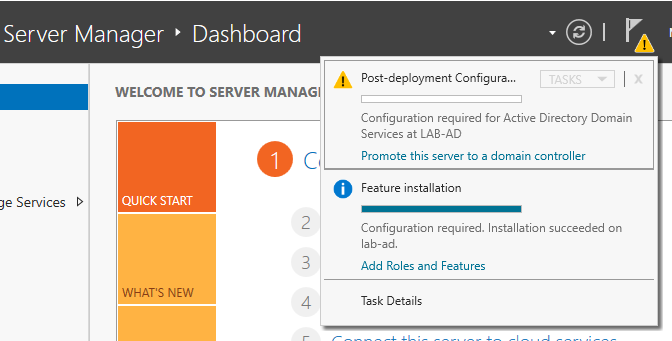
- You are now prompted with a Active Directory Domain Services Configuration Wizard. Follow the below steps in the wizard.
- Deployment Configuration: Choose Add a new forest and enter your Root domain name. Here I called mine playground.lab.
- Domain Controller Options: Leave Forest and Domain functional level at 'Windows Server 2016'. Set a password for DSRM. This should be secure but since this is my lab environment I chose something fairly simple.
- Additional Options: Leave defaults and click next
- Paths: Leave defaults and click next
- Review Options: Review the options and click next
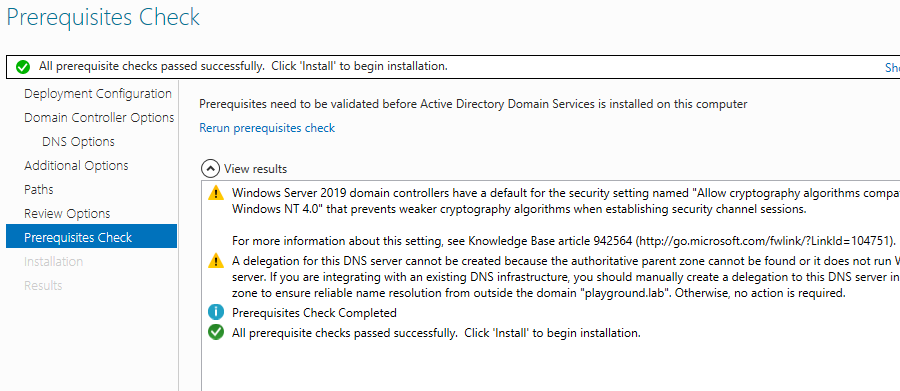
- Prerequisite Check: You should receive a message that reads, "All prerequisite checks passed successfully." Click install. Once the install is complete you machine will reboot.
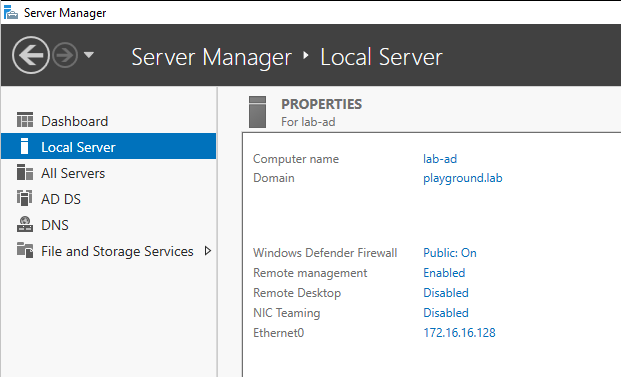
Once the reboot is complete you should see the login screen. The login screen should display the username as playground\Administrator. This means we are joined to the domain. Another way to check that we are joined to the domain is to open Server Manager as seen below.
The next step is to going the server and Windows 10 machine to the domain. This is pretty straightforward so I will not provide steps here.
Installing LAPS
For the installation and setup of LAPS I must give credit to 4sysop. I followed their steps however, I did run into a few issues which are detailed below.
Start by downloading the msi file from https://www.microsoft.com/en-us/download/details.aspx?id=46899. Once the file is download, run the msi file. In the Custom Setup page choose Management Tools as seen below.
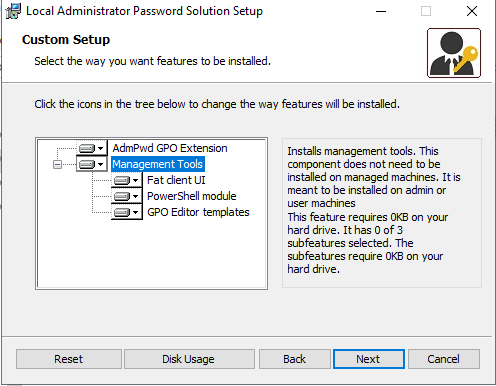
- Note: I attempted to use AdmPwd GPO Extension in the custom setup. However, it did not install the GPO templates for some reason. After some playing around, it seems the Management Tools selections works.
Install AdmPwd.PS. This module is used to configure LAPS. Open Powershell and run Install-Module AdmPwd.PS (This step is not shown in the 4sysops link). You will be prompted asking if you want to install this module. Choose Yes.
Once you have it installed, import the module by running Import-Module AdmPwd.PS
Now we must extend the AD schema by running Update-AdmPwdADSchema.
The 4sysops link tells us to run Find-AdmPwdExtendedRights -Identity “Workstations” | ft as the next step. In my command I replaced Workstations with Computers since that is where my domain joined machines reside. When running the Find-AdmPwdExtendedRights command I got the following error.

The reason I was getting an error is because Find-AdmPwdExtendedRights is expecting an OU and not a container. So, let's create an OU and move our machines into it.
To create a new OU, open Active Directory Users and Computers. Right click on the domain, go down to New and select Organizational Unit (OU).
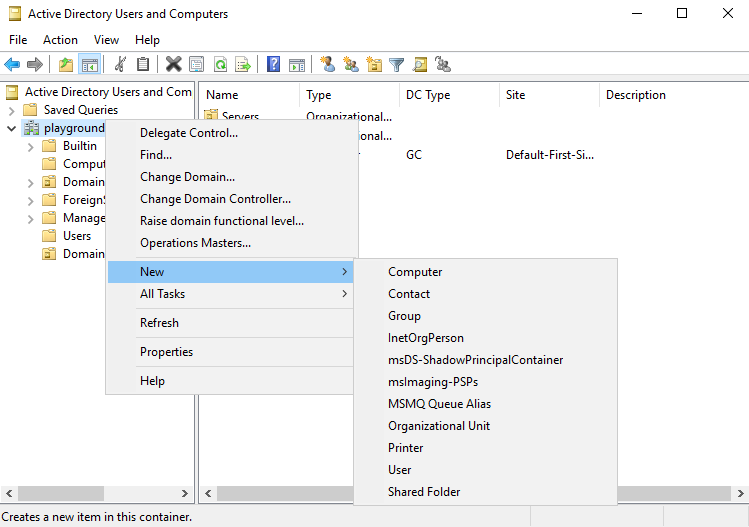
I called my OU Domain_Computers. Then I created two sub OU's for Servers and Endpoints. Once my OU's were created I moved my lab-filesvr machine into the Servers OU.
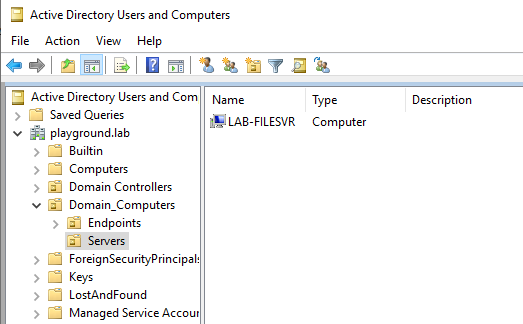
Now when I run Find-AdmPwdExtendedRights -Identity 'OU=Servers,OU=Domain_Computers,DC=playgound,DC=lab' and it completes without error. What this shows us is who has access to the passwords stored in AD. By default only Domain Admins and NT Authority\System have access.

The next step is to allow computers to update their own password. To achieve this we run Set-AdmPwdComputerSelfPermission -Identity 'OU=Servers,OU=Domain_Computers,DC=playgound,DC=lab'.
We are ready to push the LAPS client component out via GPO.
LAPS GPO
Open Group Policy Manager, drill down to our Domain_Computers OU and right click to create a new GPO. Give the GPO a name. I called it LAPS.
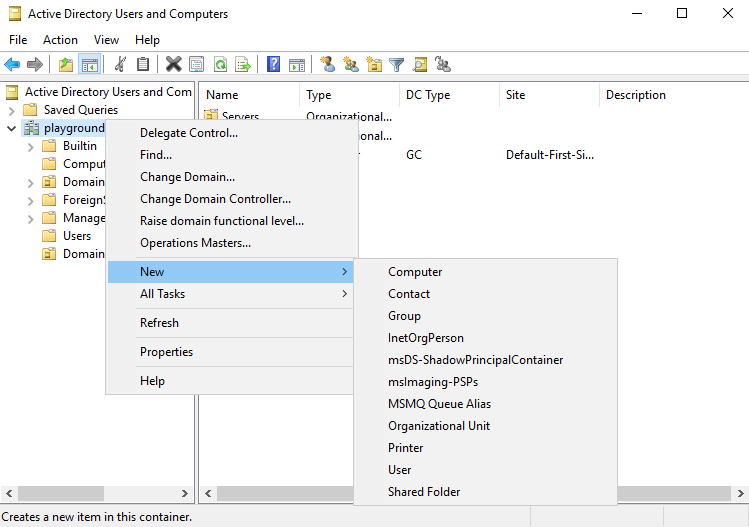
Right click the new GPO you just created and choose Edit. A Group Policy Management Edit pop up will appear. Open Computer Configuration -> Policies -> Administrative Templates -> LAPS. This is where we will configure our password polices.
Right click on Password Settings and choose Edit. Once in the password settings select Enable. You can see that the default Password Length is 14 and Password Age is 30.
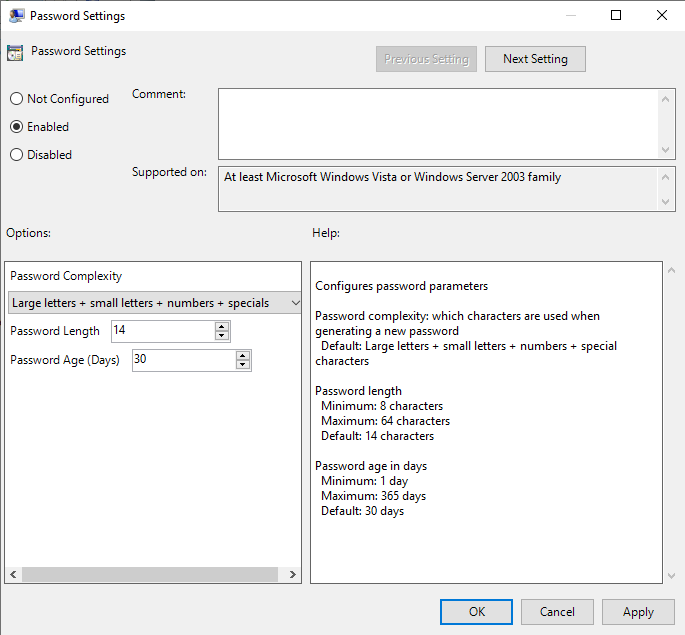
One other setting we want to enable is Enable Local Admin Password Management.
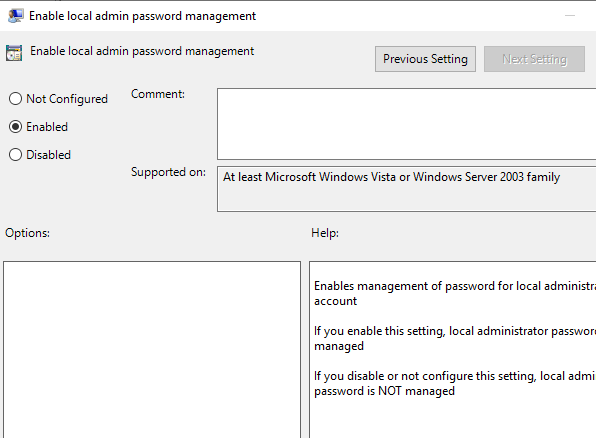
The GPO we just created manages Local Administrator accounts at a high level. Now we need to push the LAPS client to our domain joined machines.
Inside the same Group Policy Management Editor navigate to Computer Management -> Policies -> Software Settings and right click Software Installer -> New -> Package. Choose the LASP msi file we downloaded at the beginning. The LASP msi file must be in a share that is accessible.
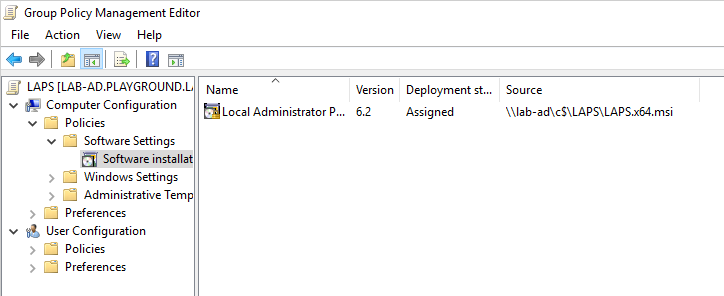
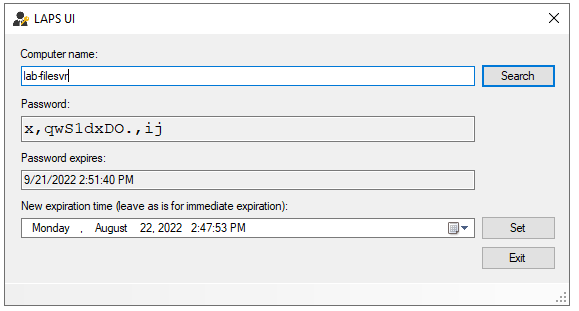
LAPS should be operational now. You may need to run 'gpupdate /force' on the endpoint, in this case lab-filesvr. To verify that LAPS is working I opened LAPS UI on my lab-ad server and searched for lab-filesvr. I can see the password and the password's expiration date. Then try to login using the Administrator account and this new password.