Tutorial 04 11 Test Traditional Bridge - Synergex/HarmonyCore GitHub Wiki

Tutorial 4: Testing Traditional Bridge
You now have all the pieces in place for a working Traditional Bridge implementation. You should now be able to start your service and test the new endpoints that are associated with your Traditional Bridge functions.
Start the Service and Postman
-
In Visual Studio, press F5 (
Start Debugging) to start the self-hosting application. You should see the console window appear, with messages confirming that your service is running. -
Start the Postman utility.
Obtain an Access Token
If you do not have custom authentication implemented in your service (see Tutorial 3: Authentication via Custom Code), skip to the next section.
- In Postman, use your Get Token request (created in Tutorial 3: Authentication via Custom Code) to obtain a valid JSON Web Token (JWT).
Create a new Postman Collection
-
In Postman, create a new collection named
Traditional Bridge Tests. -
Select the Traditional Bridge Tests collection by clicking it. Then, in the tab that opens, select the
Authorizationtab, setTypetoBearer Token, and paste the JWT into theTokenfield. -
Go to the
Variablestab, create a new variableServerBaseUrland set it tohttps://localhost:8086.
-
Save the collection by pressing Ctrl+S
Test GetEnvironment
-
Right-click the
Traditional Bridge Testscollection, selectAdd Request, and setRequest nametoGetEnvironment. -
Set the URL to
{{ServerBaseUrl}}/BridgeMethods/GetEnvironment, and make sure the dropdown to the left of the URL is set toGET.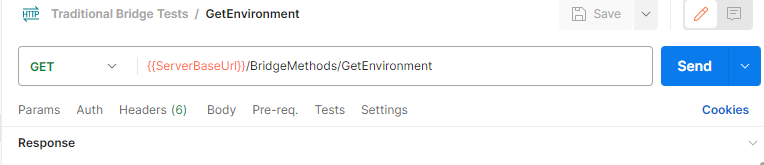
-
Click
Saveand then click the big blueSendbutton.
If all is well, you should see an HTTP 200 OK response, and the response body should contain something like this:
DBL/MS-WINDOWS Version 12.1.1
Test GetLogicalName
-
Right-click the
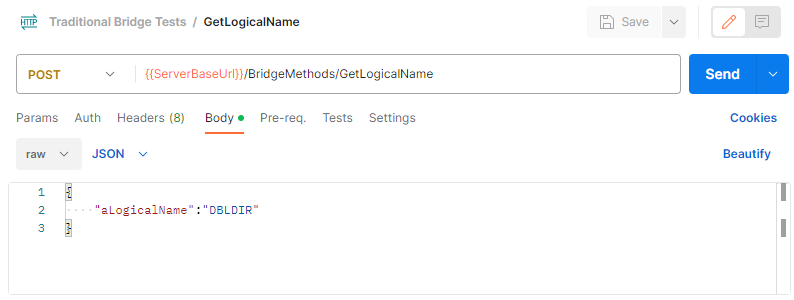
Traditional Bridge Testscollection, selectAdd Request, and setRequest nametoGetLogicalName. -
Set the URL to
{{ServerBaseUrl}}/BridgeMethods/GetLogicalName, and in the dropdown to the left of the URL, selectPOST. -
Under the URL, select
Body,Raw, andJSON. Then, in the pane below those settings, add the following JSON code:
{
    "aLogicalName":"DBLDIR"
}
- Click
Saveand then click the big blueSendbutton.
You should see an HTTP 200 OK response, and the response body should contain something like this:
C:\Program Files\Synergex\SynergyDE\dbl
Test AddTwoNumbers
-
Right-click the
Traditional Bridge Testscollection, selectAdd Request, and setRequest nametoAddTwoNumbers. -
Set the URL to
{{ServerBaseUrl}}/BridgeMethods/AddTwoNumbersand selectPOSTin the dropdown to the left of the URL. -
Under the URL, select
Body,Raw, andJSON. Then, in the pane below theRawandJSONsettings, add the following JSON code:
 {
     "number1":1.1,
     "number2":2.2
 }
-
Click
Saveand then click the big blueSendbutton.If all is well, you should see an
HTTP 200 OKresponse, and the response body should contain something like this:{ "result": 3.3000000000 }
That's it! You have successfully implemented and tested a Harmony Core Traditional Bridge environment.